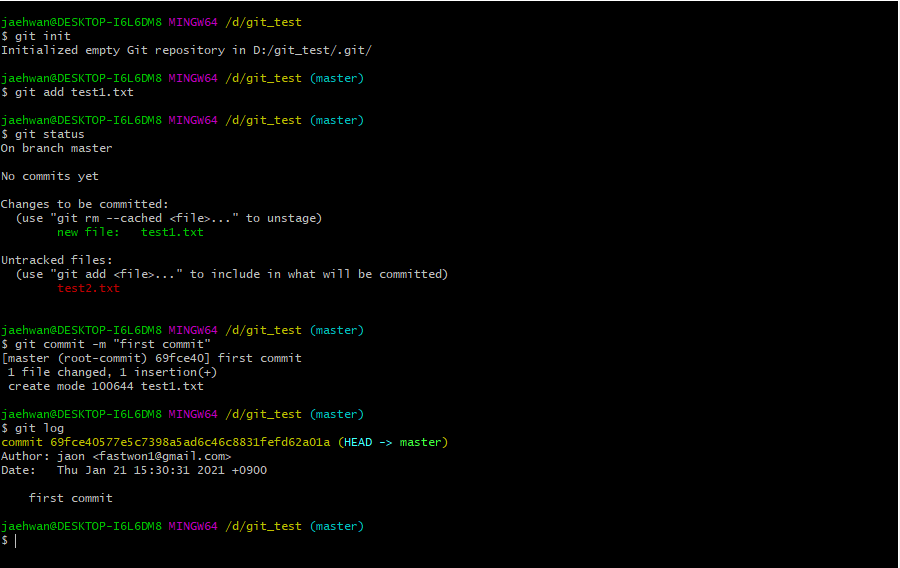
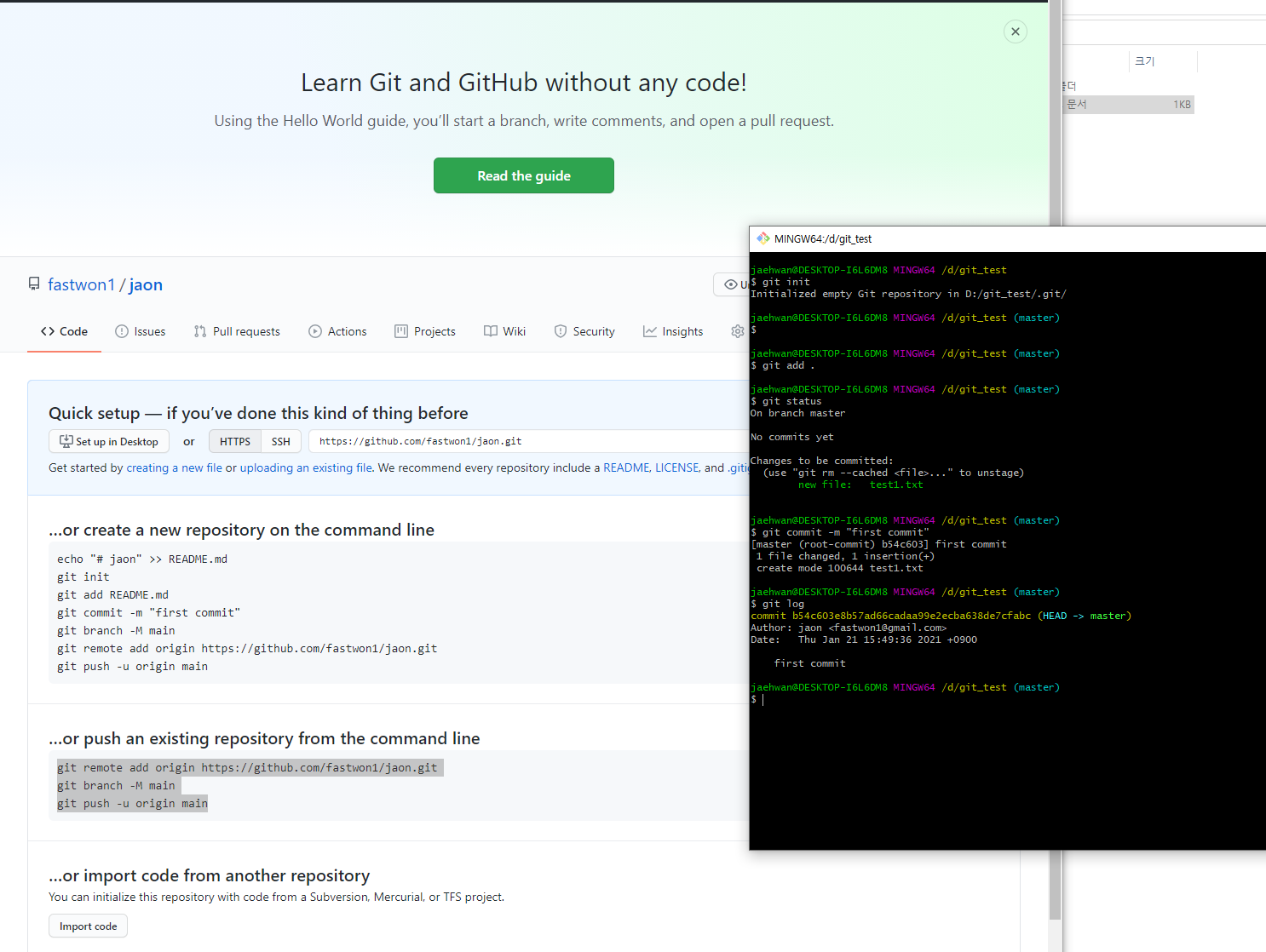
git merge


  • # git merge <현재 checkout branch에 merge할 branch>


  • master 1, 2, 5
  • exp 1, 2, 3, 4
  • exp branch를 master branch로 merge
    •  # git checkout master
      • master branch로 checkout
    •  # git merge exp


결과: exp branch를 master branch로 merge

  • master : 1, 2, 3, 4, 5
  • exp: 1, 2, 3, 4
  • # git branch -d newbranch
    • 브랜치 삭제


Branch 테스트

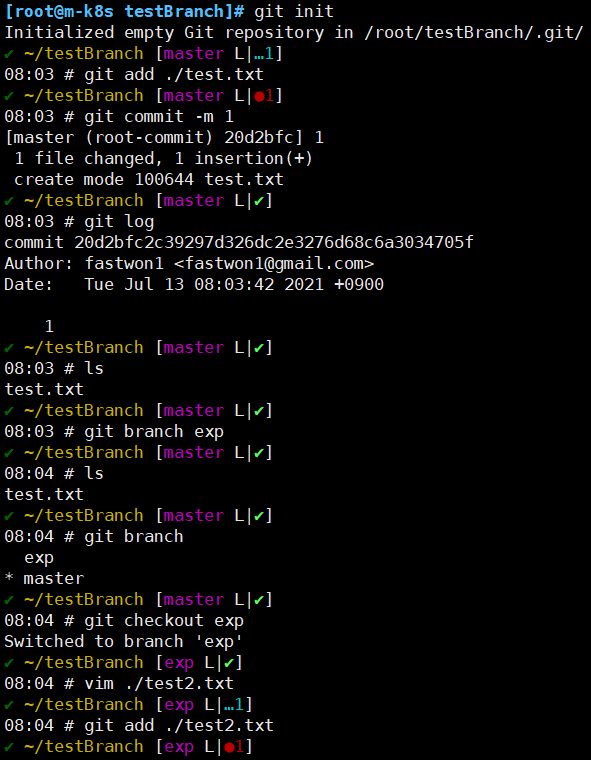
  • master branch에 test.txt를 add/commit 실행
  • exp라는 branch를 생성하고 test2.txt add/commit 실행
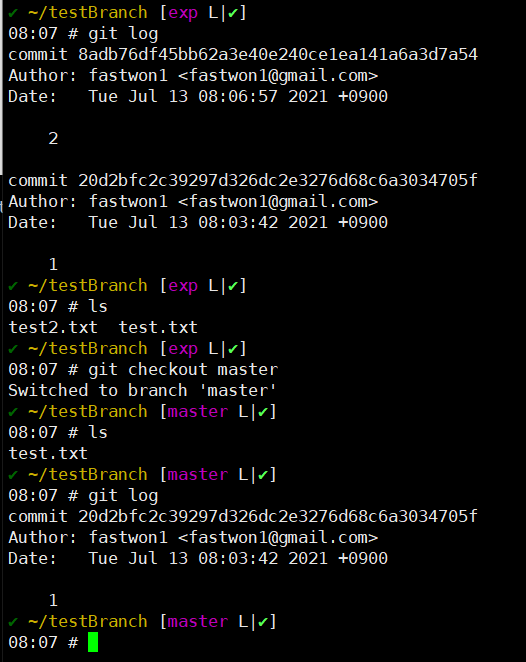
 

  • exp branch에는 2개의 파일(test.txt / test2.txt)라는 파일이 존재함과 동시에 commit 내역이 2개있음을 확인 할 수 있다
  • master branch로 checkout한 후 확인
    • master branch에는 test.txt 파일만 존재하며 commit내역도 1개만(test.txt) 존재함을 확인 할 수 있다
  • checkout중인 branch내에서 새로운 branch를 만들면 현재 checkout중인 branch를 기준으로 새로운 브랜치가 분기됨을 확인 할 수 있다


git 브랜치 비교

  • # git log --branches --decorate -- graph
    • master branch의 최신 commit은 5이며 1, 2, 5 commit을 가짐
    • exp branch의 최신 commit은 4이며 1, 2, 3, 4 commit을 가짐 
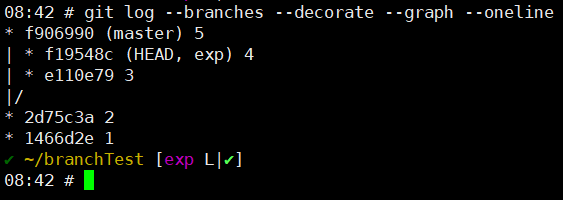
 

  • # git log --branches --decorate -- graph --oneline
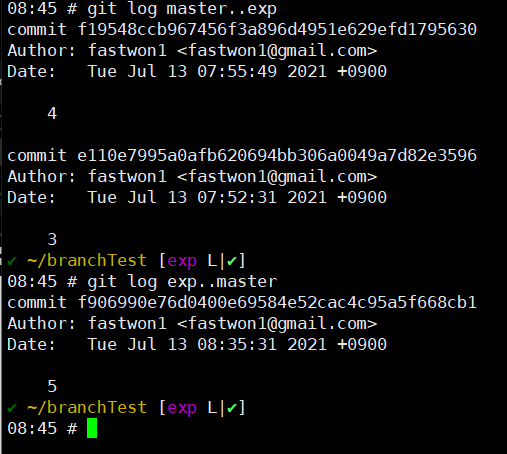
 

  • # git log master..exp
    • master branch에는 없고 exp branch에만 있는 commit을 보여줌
  • # git log exp..master
    • exp branch에는 없고 master branch에만 있는 commit을 보여줌


fast forward merge
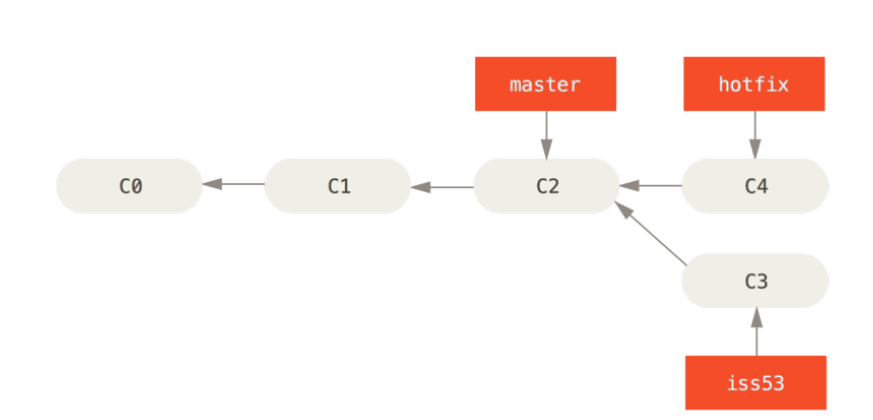
  •  hotfix 커밋(C4)을 master 커밋(C2)으로 merge하려는 경우
  • # git checkout master
  • # git merge hotfix
    • 현재 브랜치(master)가 가리키는 커밋(C2)이 Merge할 브랜치(hotfix)의 조상인 경우 
    • 새로운 commit을 생성하지 않고 merge를 진행


3-way merge

  • # git checkout master
  • # git merge iss53
    • 현재 브랜치가 가리키는 커밋(C4)이 Merge할 브랜치(iss53/C5)의 조상이 아닌경우
    • merge commit을 생성


2 way merge vs 3 way merge

person 1 Base person 2 2 way merge 3 way merge
A A   conflit  
B B B B B
1 C 2 conflit conflit
  D D conflit  


'기타 > git' 카테고리의 다른 글

git tag  (0) 2021.07.23
git stash  (0) 2021.07.16
gistory .git 디렉토리 분석  (0) 2021.07.11
git / github  (0) 2021.07.11
git 기본 명렁어  (0) 2021.07.11

git tag

  • commit에 이름을 달아주는 행위
  • 버전관리를 용이하게 해준다.

  • 위의 github의 release버전에 v1.21.3 이라는 tag가 작성되어있음을 확인 할 수 있다.


tag를 통한 브랜치 checkout

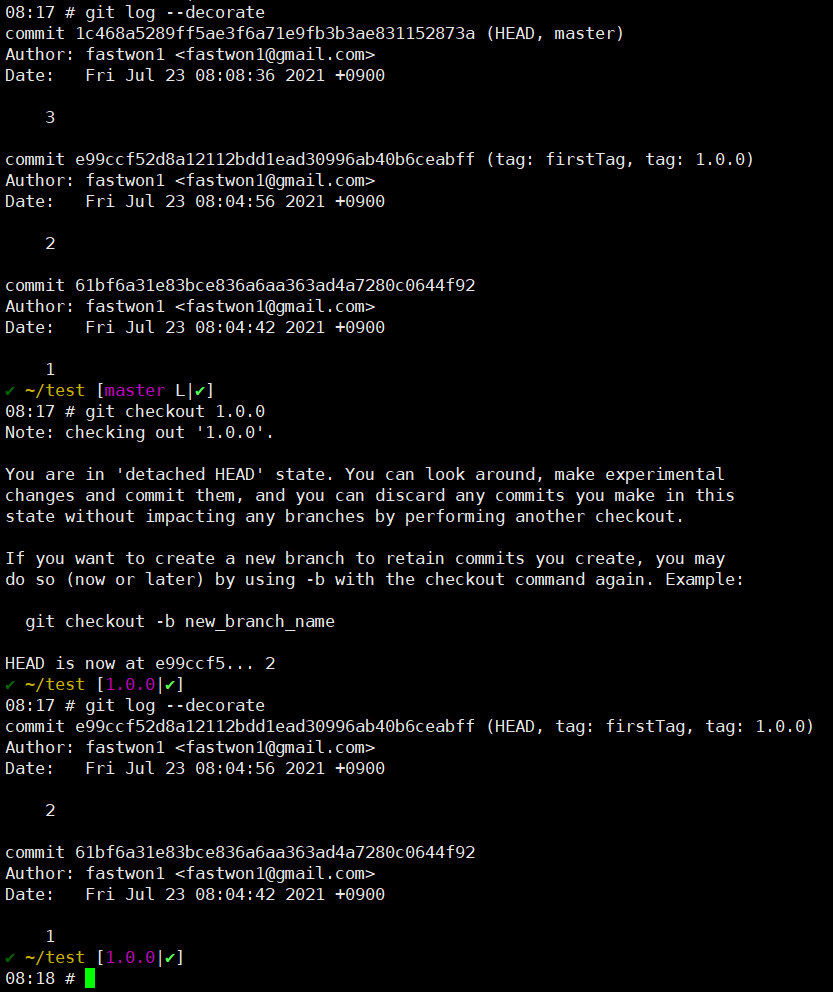
  • commit 2번에 firstTag, 1.0.0 이라는 tag를 지정
    • checkout {tag}를 통해서 해당 commit으로 체크아웃 할 수 있다. 


tag 지정

  • git tag {tagname} branch/commit hash값/이미 지정된 tag값
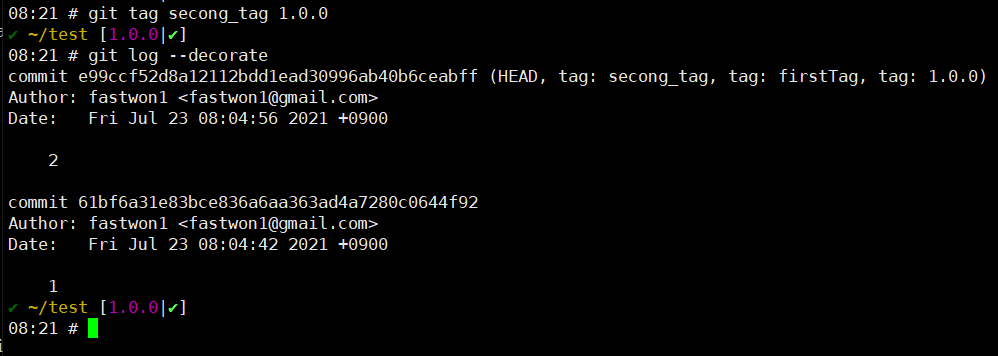
    • # git tag secong_tag 1.0.0
    • # git tag third_tag 
      • 현재 브랜치 HEAD에 tag가 추가됨
    • # git tag forth_tag e99ccf52d8a12112bdd1ead30996ab40b6ceabff
    • # git tag fifth_tag master


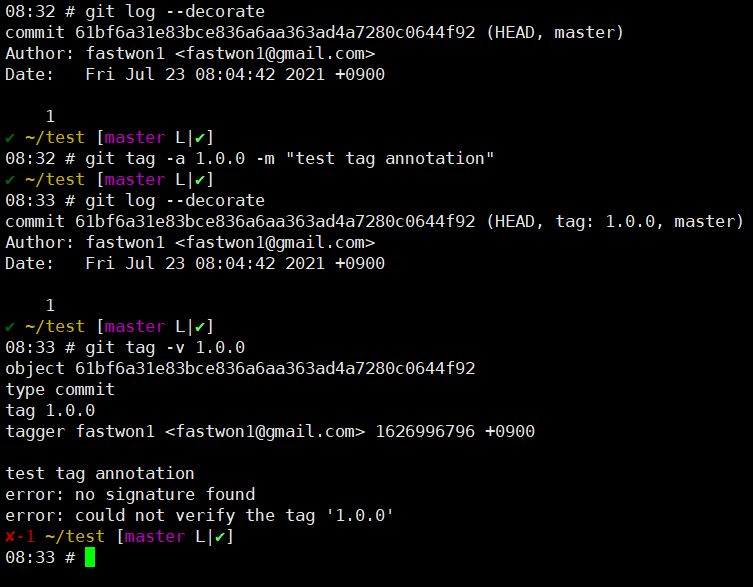
  • git tag의 annotation을 지정하여 tag에 설명을 추가할 수 있다.
    • # git tag -a {tagName} -m "msg"
    • # git tag -v {tagName}


  • git push --tags
    • --tags 옵션을 추가함으로써 remote repository에 tag까지 업로드할 수 있다.

'기타 > git' 카테고리의 다른 글

git merge  (0) 2021.07.24
git stash  (0) 2021.07.16
gistory .git 디렉토리 분석  (0) 2021.07.11
git / github  (0) 2021.07.11
git 기본 명렁어  (0) 2021.07.11

git stash

  • 현재 수정중이던 내용을 숨겨주는 기능
    • modified이면서 Tracked 상태인 파일과 Staging Area에 있는 파일을 stack에 저장

  • master branch에서 test.txt라는 파일을 add/commit을 실행
  • exp라는 branch를 만들고 test.txt라는 파일을 수정
    • 해당 수정사항이 master / exp branch에도 같이 반영이 됨
      • exp branch에서 작업하던 내용을 반영되지 않게 하고 싶을때 stash가 유용

  • test.txt 파일을 수정
    • master / exp branch에 해당 내용이 같이 반영되어 있을을 확인
  • # git stash (save) 실행
    • 파일에 추가된 내용이 확인되지 않음을 알 수 있음
  • # git stash apply 실행
    • stash되었던 파일의 내용을 다시 확인 할 수 있음

  • # git stash list
    • stash list를 확인
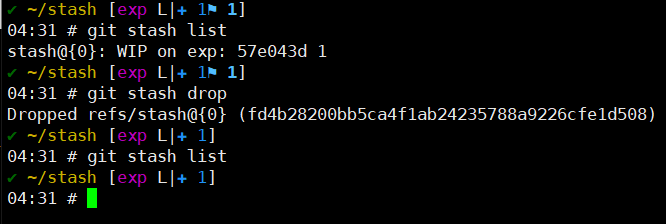
  • # git stash drop
    • stack 저장된 가장 상단의 stash되었던 파일 1개를 삭제
  • # git stash apply; git stash drop;
    • -> # git stash pop

'기타 > git' 카테고리의 다른 글

git merge  (0) 2021.07.24
git tag  (0) 2021.07.23
gistory .git 디렉토리 분석  (0) 2021.07.11
git / github  (0) 2021.07.11
git 기본 명렁어  (0) 2021.07.11

gistory를 설치하여 .git 디렉토리 내용 분석

# pip3 install gistory


https://pypi.org/project/gistory/


gistory

Tracking your .git changed history

pypi.org


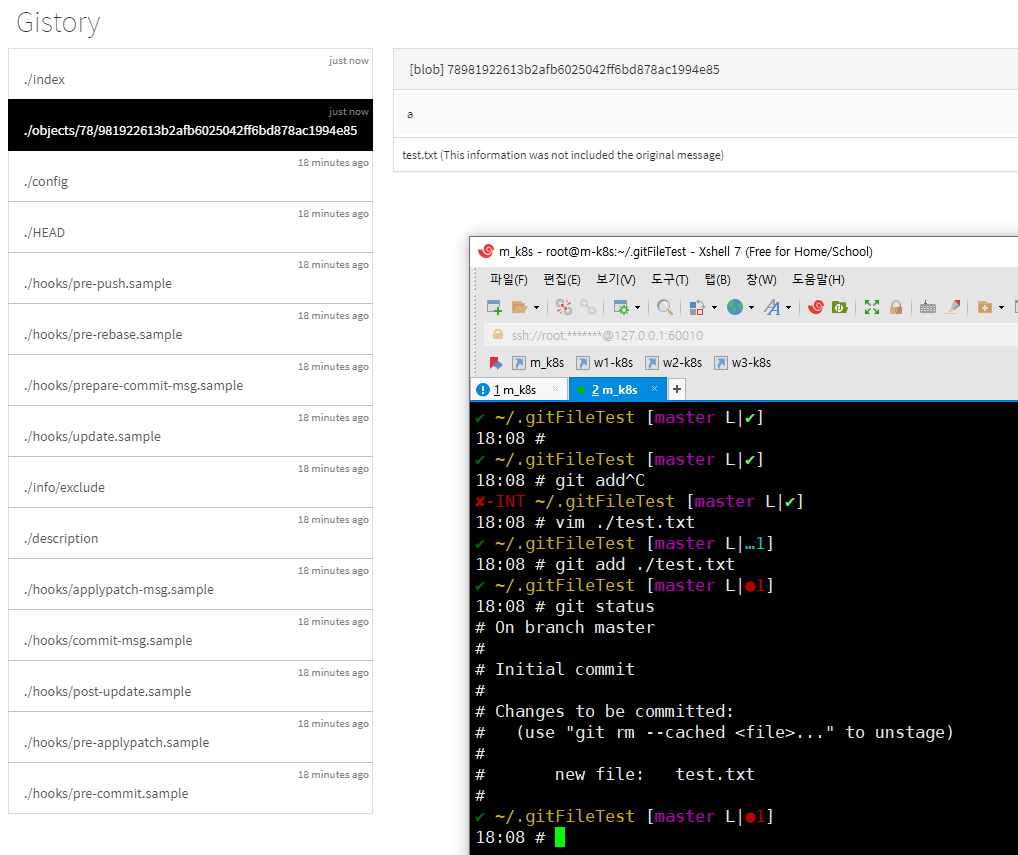
git 로컬디렉토리의 .git폴더 내에서 gistory 명령어 실행


  • git add 명령어를 통해 test.txt파일을 staging area로 옮겨줌.
    • index = 파일의 이름이 담겨있음 
      • ./index라는 파일에  hash값과 test.txt파일의 매핑관계가 저장되어 있다. 
    • Object = 파일의 내용이 담겨있음
      • ./Object/78/{hash} 파일이 생성


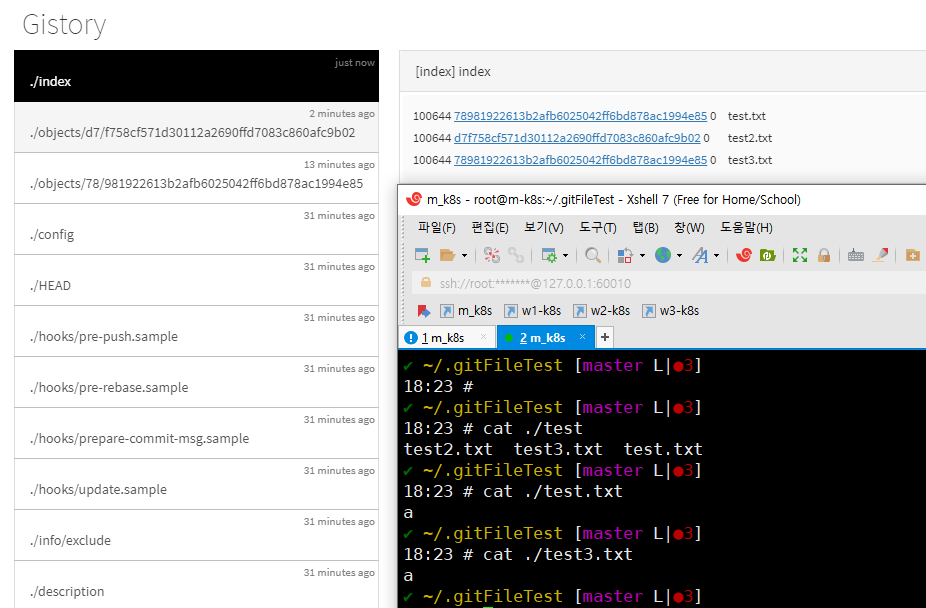
  • 다른 파일이름에 같은 내용을 staging area에 옮김
    • test1.txt 파일과 test3.txt파일이 가리키는 Object가 78981922613b2afb6025042ff6bd878ac1994e85 로 동일한 hash값인걸 확인 할 수 있다.
      • git은 파일의 이름이 달라도 파일의 내용이 같으면 같은 Object파일을 가리킴


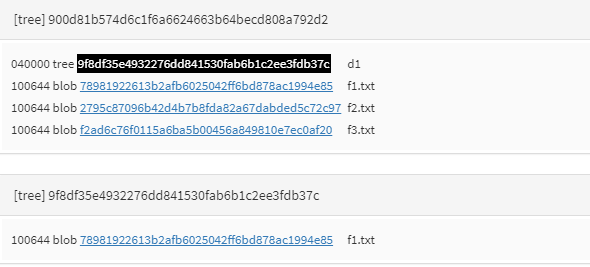
Tree 개체

  • 파일이름이 저장되는 개체


blob

  • 파일내용이 저장되는 개체


Working Directory / index,staging area, cache / repository 

'기타 > git' 카테고리의 다른 글

git tag  (0) 2021.07.23
git stash  (0) 2021.07.16
git / github  (0) 2021.07.11
git 기본 명렁어  (0) 2021.07.11
git/github 설치 및 초기화  (0) 2021.01.21

로컬과 원격저장소

  • # git remote(-v)
    • remote repository에 조회하기
  • # git init --bare remote
    • 로컬에 원격 저장소 생성
  • 로컬 remote 저장소
    • git remote add origin ssh://[remote저장소 username]@[remote저장소 IP]/저장소 path 
      • # git remote add origin ssh://git@{192.168.1.10}/home/git/remote/
  • # git remote add origin https://github.com/fastwon1/jaon.git
    • 원격저장소 URL을 origin이라는 이름으로 추가
  • # git push origin master
    • origin에 master 브랜치의 내용을 push
    • remote repository에 밀어넣기
  • # git pull origin master
    • origin을 내 repository의 master 브랜치로  download  / merge
    • 현재 내가 작업하고 있는 내용은 사라짐
  • # git fetch origin master
    • 동기화시키지 말고 origin을 내 repository의 master 브랜치로 가지고옴(원격저장소로부터 파일만 다운로드 받음)
      • 장점
        • 지역저장소와 원격저장소간의 diff를 확인할 수 있음
        • # git diff HEAD origin/master
      • fetch 내용을 특정 브랜치에서 확인할 수 있다
        • # git checkout origin/master
        • # git checkout FETCH_HEAD
  • # git clone
    • remote repository의 내용을 현재 디렉토리에 복사
    • origin이라는 remote repository가 자동으로 등록된다


협업

  • local repository의 변경사항이 있는데 remote repository는 변경이 없는경우
    • git push로 해결
  • local repository는 변경사항이 없는데 remote repository가 변경사항이 경우
    • git pull로 동기화 후 push
  • local repository도 변하고 remote repository도 변한 경우
    • pull request
      • 협업 대상 repository fork하기
      • fork 해온 곳에서 clone 하기
      • branch를 만들고 작성하고자하는 코드 commit 작성
      • push 권한주기(Manage access(collaborator) 추가하기) 또는 pull request 요청
      • 해당 branch 삭제 
    • merge
      • fast-forward merge
      • 3-way merge
        • merge의 결과인 새로운 merge commit이 생성
    • rebase
      • 현재 작업하고 있는 branch의 base를 옮김
        • base =  현재 작업하고 있는 branch와 합치려는 branch의 공통조상
        • 병합하고자 하는 master branch의 최신 commit으로 base를 옮김


Troubleshooting)

  • github에 처음 push하려고 할때 아래와 같음 error 발생시
    • remote: Permission to ~~~~~
  • git push https://[아이디]:[비밀번호]@github.com/[아이디]/[레포지토리].git
아이디: not-working
비번: 123456
repository: test
  
 -> git push https://not-working:123456@github.com/not-working/test.git


Set up Git - GitHub Docs

To use Git on the command line, you'll need to download, install, and configure Git on your computer. You can also install GitHub CLI to use GitHub from the command line. For more information on GitHub CLI, see the GitHub CLI documentation. If you want to

docs.github.com


[141] 오픈소스를 쓰려는 자, 리베이스의 무게를 견뎌라

오픈소스를 쓰려는 자, 리베이스의 무게를 견뎌라

www.slideshare.net


'기타 > git' 카테고리의 다른 글

git tag  (0) 2021.07.23
git stash  (0) 2021.07.16
gistory .git 디렉토리 분석  (0) 2021.07.11
git 기본 명렁어  (0) 2021.07.11
git/github 설치 및 초기화  (0) 2021.01.21

git add/commit

  • # git add <파일명>
    • # git add .
      • 디렉토리에 있는 파일 전부를 Staging Area로 올림 
      • Working Directory에 있는 파일들을 Staging Area로 올림
  • # git status
    • Staging 상태확인
  • # git commit -m "해당commit에 대한 설명"
    • 버전 생성
  • # git log
    • 버전 확인
  • # git commit -am "해당 commit에 대한 설명"
    • add와 commit을 동시에 진행
      • 단, 한번이라도 commit을 한 대상에 대해서만 가능


local repository를 github에 push

  • # git remote add origin https://github.com/fastwon1/jaon.git
    • 원격저장소를 origin이라는 이름으로 추가
  • # git branch -M main
    • master branch 이름을 main branch로 변경
      • 2020년 10월 이후 master라는 용어폐기
  • # git push -u origin main
    • 내 repository의 main 브랜치를 origin의 main 브랜치로 push
  • # git remote rm prac1
    • 원격저장소 prac1을 삭제


git reset

  • 되돌린 버전 이후의 버전은 모두 사라짐
    • # git reset --hard HEAD^
      • 현재 수정중이던 Working directory의 내용도 HEAD이전 내용으로 되돌아 간다
        • Staging Area와 작업중인 Working directory의 내용이 삭제
    • # git reset --mixed HEAD^
      • default 옵션
      • Staging Area에 올라와있던 내용은 사라지며 작업중이던 Working Directory의 내용은 유지
    • # git --soft HEAD^
      • Repository의 HEAD 이전 버전으로 commit한것만 되돌린다
        • Staging Area와 Working directory의 내용은 유지
    • # git reset --hard ORIG_HEAD
      • reset한 내용을 취소

  • # git reflog
    • 작업했던 commit들이 기록조회


Branch

  • master branch
    • 다른 branch들이 뻗어나가는 시초 branch

  • # git branch
    • branch 리스트확인
    • * master
      • 현재 master branch를 사용중임을 표시


  • # git branch test_branch
    • test branch라는 브랜치 생성


  • # git checkout test_branch
    • branch 변경


  • # git checkout -b test_branch
    • branch 생성 후 branch switch


  • # git diff
    • 변경 내역들간의 비교
      • 두 commit간 비교
        • # git diff <비교대상commit> <기준commit>
      • 원격 repository와 local repository간의 비교
        • # git diff <비교 대상 branch이름> origin/<branch 이름>


  • # git log
    • 버전확인
    • # git log --all --decorate --graph --oneline
  •  
  • reset vs revert
    • reset : 시간을 과거의 특정 사건으로 되돌림
    • revert : 현재를 기준으로 과거의 사건들을 없던일로 되돌림
      • 되돌린 버전 이후의 버전들은 모두 유지


git reset option

Working directory
Working tree
Working copy
index
staging area
cache
repository
history
tree
    git reset --soft
  git reset --mixed
git reset --hard


용어

  • HEAD : 현재 작업 중인 branch/commit 중 가장 최근 커밋한 버전
  • ^ : 가장 최근 커밋으로부터 하나 버전 이전으로 되돌림
  • ^^ : 가장 최근 커밋으로부터 두개 버전 이전으로 되돌림

'기타 > git' 카테고리의 다른 글

git tag  (0) 2021.07.23
git stash  (0) 2021.07.16
gistory .git 디렉토리 분석  (0) 2021.07.11
git / github  (0) 2021.07.11
git/github 설치 및 초기화  (0) 2021.01.21

git / github 설치 및 초기화


1. 로컬에 git 설치

출처: http://git-scm.com/book/en/v2/Getting-Started-What-is-Git%3F


2. 초기화


  1. git bash 실행(window)

2. git을 설치한 후 local저장소로 사용할 디렉토리를 만들어서 Git Bash Here를 클릭

  • # git init
    • 로컬저장소의 초기화 명령
    • 현재 디렉토리를 버전관리하기 위함
  •  

'기타 > git' 카테고리의 다른 글

git tag  (0) 2021.07.23
git stash  (0) 2021.07.16
gistory .git 디렉토리 분석  (0) 2021.07.11
git / github  (0) 2021.07.11
git 기본 명렁어  (0) 2021.07.11

+ Recent posts