mongodb 설치

설치환경: AWS Ubuntu 20.04.3 LTS


:~# wget -qO - https://www.mongodb.org/static/pgp/server-4.4.asc | sudo apt-key add -
:~# echo "deb [ arch=amd64,arm64 ] https://repo.mongodb.org/apt/ubuntu focal/mongodb-org/4.4 multiverse" | sudo tee /etc/apt/sources.list.d/mongodb-org-4.4.list
:~# sudo apt-get update
:~# sudo apt-get install -y mongodb-org
:~# sudo service mongod start
:~# systemctl enable mongod.service
  • 기본으로 27017 port를 사용한다


Robomongo 설치

  •  mongodb GUI tool

https://robomongo.org/download


Robomongo

Robo 3T: the hobbyist GUI Robo 3T 1.4 brings support for MongoDB 4.2, and a mongo shell upgrade from 4.0 to 4.2, with the ability to manually specify visible databases.   Download Robo 3T

robomongo.org


'데이터베이스 > mongodb' 카테고리의 다른 글

mongo 기본명령어  (0) 2021.10.24

Shell script?

  • 리눅스 command들을 단계적으로 수행하는것
  • 리눅스 command들을 모아 놓은 ASCII Text 파일
  • 특징
    • 실행 권한을 할당해야 실행가능
    • shell 구문은 기본 top-down 방식으로 해석해서 실행
    • # : 주석
    • #! /bin/bash : 셔뱅.해시뱅. 스크립트를 실행할 sub shell 이름
      • shell script를 만드는데 해당 sub shell로 실행
      • 해당 셔뱅을 넣지 않으면 login shell과 동일한 sub shell로 실행

sub shell? 

fastwon1@docker-ubuntu:~$ /bin/bash   // sub shell 실행
fastwon1@docker-ubuntu:~$ name=jaon   // 변수생성
fastwon1@docker-ubuntu:~$ echo $name  // 조회
jaon
fastwon1@docker-ubuntu:~$ exit // sub shell 종료
exit
fastwon1@docker-ubuntu:~$ echo $name // sub shell에서 생성한 변수 조회

fastwon1@docker-ubuntu:~$ exit
fastwon1@docker-ubuntu:~/ta$ export TEST=1    // parent shell에서 환경변수 설정
fastwon1@docker-ubuntu:~/ta$ env | grep TEST  // 환경변수 조회
TEST=1
fastwon1@docker-ubuntu:~/ta$ /bin/bash // sub shell 실행
fastwon1@docker-ubuntu:~/ta$ env | grep TEST // parent shell에서 설정한 환경변수 조회
TEST=1
fastwon1@docker-ubuntu:~$ export TEST4=1     // sub shell에서 환경변수 설정
fastwon1@docker-ubuntu:~$ env | grep TEST4   // sub shell에서 조회
TEST4=1
fastwon1@docker-ubuntu:~$ exit
exit
fastwon1@docker-ubuntu:~$ env | grep TEST4   // parent shell에서 환경변수 조회
fastwon1@docker-ubuntu:~$
fastwon1@docker-ubuntu:~$ cat > test.sh  //shift+insert ctrl+d
  • sub shell에서 생성한 변수는 sub shell 종료 후 조회할 수 없다.
  • parent shell에서 만든 환경변수는 sub shell에서 조회할 수 있다.
  • sub shell에서 만든 환경변수는 parent shell에서 조회할 수 없다.


Positional Parameters(위치 매개변수)

  • 입력하는 argument들을 $0, $1, $2와 같은 변수에 저장되어 스크립트로 전달
  • $0 : 스크립트 이름
  • $1 , $2 : 첫번째, 두번째 argument
  • $# : argument 수
  • $@ , $* : argument 파라미터 리스트
  • $$ : 로그인 shell의 process ID
  • $PWD : 현재 작업 디렉토리
  • $PPID : parent process ID
fastwon1@docker-ubuntu:~$ test.sh arg1 arg2 arg3 ....  \
>                          $0      $1   $2   $3 ..... $9 ${10}  //해당변수로 채워져서 스크립트로 전달
fastwon1@docker-ubuntu:~$ ps -f
UID          PID    PPID  C STIME TTY          TIME CMD
fastwon1    7953    7952  0  8월31 pts/0  00:00:00 -bash
fastwon1   14551    7953  0 03:10 pts/0    00:00:00 ps -f
fastwon1@docker-ubuntu:~$ echo $$
7953  //현재 shell의 process ID
fastwon1@docker-ubuntu:~$ echo $PWD  
/home/fastwon1
fastwon1@docker-ubuntu:~$ echo $PPID
7952  //현재 shell의 parent process ID
fastwon1@docker-ubuntu:~$


.....샘플테스트1
fastwon1@docker-ubuntu:~/test2$ cat parm_exam.sh -n
     1	#! /bin/bash
     2	
     3	echo "This script name : $0"
     4	echo "This first argument: $1"
     5	echo "This second argument: $2"
     6	echo "This third argument: $3"
     7	echo "This number of argument: $#"
     8	echo "This list of arguments: $@"
     9	echo "THis list of argument : $*"
    10	
fastwon1@docker-ubuntu:~/test2$ ./parm_exam.sh arg1 arg2 arg3
This script name : ./parm_exam.sh
This first argument: arg1
This second argument: arg2
This third argument: arg3
This number of argument: 3
This list of arguments: arg1 arg2 arg3
THis list of argument : arg1 arg2 arg3
fastwon1@docker-ubuntu:~/test2$


......샘플테스트2
fastwon1@docker-ubuntu:~/test2$ 
fastwon1@docker-ubuntu:~/test2$ cat ./parm_exam2.sh -n
     1	#! /bin/bash
     2	
     3	echo "[$1 directory]"
     4	echo $(date +%c)
     5	du -sh $1 2> /dev/null
     6	echo
fastwon1@docker-ubuntu:~/test2$ ./parm_exam2.sh /var/
[/var/ directory]
2021년 09월 01일 (수) 오전 03시 30분 02초
2.2G	/var/

fastwon1@docker-ubuntu:~/test2$


ls -la /usr/bin | grep "^-" | awk '{print $9}'


....echo 테스트
fastwon1@docker-ubuntu:~$ echo "hello"
hello
fastwon1@docker-ubuntu:~$ echo "hello\nworld"
hello\nworld
fastwon1@docker-ubuntu:~$ echo -e "hello\nworld"
hello
world
fastwon1@docker-ubuntu:~$ echo -e "hello\tworld"
hello	world
fastwon1@docker-ubuntu:~$ echo -e "hello\aworld"
helloworld
fastwon1@docker-ubuntu:~$ echo -e "hello\aworld"
helloworld
fastwon1@docker-ubuntu:~$ echo -n "hello"  //echo출력을 개행하지 않음.
hellofastwon1@docker-ubuntu:~$


....read 테스트
fastwon1@docker-ubuntu:~$ read tmp
1234
fastwon1@docker-ubuntu:~$ echo $tmp
1234
fastwon1@docker-ubuntu:~$ 
fastwon1@docker-ubuntu:~$ read name score
jaon 80
fastwon1@docker-ubuntu:~$ echo $name $score
jaon 80
fastwon1@docker-ubuntu:~$ read name score
jaon 80 classA
fastwon1@docker-ubuntu:~$ echo $score
80 classA
fastwon1@docker-ubuntu:~$ read -t10 -n8 passwd  //10초동안 8글자만 입력받음
fastwon1@docker-ubuntu:~$ read -t10 -n8 passwd  
12345678fastwon1@docker-ubuntu:~$ echo $passwd 
12345678
fastwon1@docker-ubuntu:~$ read -t10 -s passwd //10초동안 silent mode(입력받은 글자가 shell에 보이지 않음)로 입력받음
fastwon1@docker-ubuntu:~$ echo $passwd
123456789  
fastwon1@docker-ubuntu:~$ echo -n "name: "; read name
name: jaon
fastwon1@docker-ubuntu:~$ echo $name
jaon


printf

  • format
    • %d or %i : 숫자
    • %s : 문자
    • %f  : 실수
fastwon1@docker-ubuntu:~$ printf "hello linux shell\n"
hello linux shell
fastwon1@docker-ubuntu:~$ printf "Name: %s\tScore: %i\n" 
Name: 	Score: 0
fastwon1@docker-ubuntu:~$ printf "Name: %s\tScore: %i\n" JAON 80
Name: JAON	Score: 80
fastwon1@docker-ubuntu:~$ echo $NAME $Score

fastwon1@docker-ubuntu:~$ today=`date +%y-%m-%d-%H-%M-%S`
fastwon1@docker-ubuntu:~$ printf "Today is %s\n" $today
Today is 21-09-01-06-19-32
fastwon1@docker-ubuntu:~$ printf "|%10s|%10s|%10.2f|\n" ubuntu jaon 10  
|    ubuntu|      jaon|     10.00| //오른쪽 정렬되서 10글자까지 출력
fastwon1@docker-ubuntu:~$ 
fastwon1@docker-ubuntu:~$ printf "|%-10s|%-10s|%-10.2f|\n" ubuntu jaon 10
|ubuntu    |jaon      |10.00     |  //왼쪽 정렬되서 10글자까지 출력
fastwon1@docker-ubuntu:~$


exit

  • 0 : 프로그램 또는 명령이 성공으로 종료했음을 의미
  • 1 - 255
    • 1 : 일반 에러
    • 2: syntax error
    • 126 : 명령을 실행할 수 없음
    • 127 : 명령(파일) 이 존재하지 않음
    • 128 + N : 종료시그널 + N(kill -9 PID로 종료시 128 + 9 137)
  • $? : 종료 값 출력
fastwon1@docker-ubuntu:~$ kill -l
 1) SIGHUP	 2) SIGINT	 3) SIGQUIT	 4) SIGILL	 5) SIGTRAP
 6) SIGABRT	 7) SIGBUS	 8) SIGFPE	 9) SIGKILL	10) SIGUSR1
11) SIGSEGV	12) SIGUSR2	13) SIGPIPE	14) SIGALRM	15) SIGTERM
16) SIGSTKFLT	17) SIGCHLD	18) SIGCONT	19) SIGSTOP	20) SIGTSTP
21) SIGTTIN	22) SIGTTOU	23) SIGURG	24) SIGXCPU	25) SIGXFSZ
26) SIGVTALRM	27) SIGPROF	28) SIGWINCH	29) SIGIO	30) SIGPWR
31) SIGSYS	34) SIGRTMIN	35) SIGRTMIN+1	36) SIGRTMIN+2	37) SIGRTMIN+3
38) SIGRTMIN+4	39) SIGRTMIN+5	40) SIGRTMIN+6	41) SIGRTMIN+7	42) SIGRTMIN+8
43) SIGRTMIN+9	44) SIGRTMIN+10	45) SIGRTMIN+11	46) SIGRTMIN+12	47) SIGRTMIN+13
48) SIGRTMIN+14	49) SIGRTMIN+15	50) SIGRTMAX-14	51) SIGRTMAX-13	52) SIGRTMAX-12
53) SIGRTMAX-11	54) SIGRTMAX-10	55) SIGRTMAX-9	56) SIGRTMAX-8	57) SIGRTMAX-7
58) SIGRTMAX-6	59) SIGRTMAX-5	60) SIGRTMAX-4	61) SIGRTMAX-3	62) SIGRTMAX-2
63) SIGRTMAX-1	64) SIGRTMAX	
fastwon1@docker-ubuntu:~$ date
2021. 09. 02. (목) 03:30:15 KST
fastwon1@docker-ubuntu:~$ date > /dev/null
fastwon1@docker-ubuntu:~$ echo $?  //직전에 수행한 프로그램의 종료 코드값을 출력
0
fastwon1@docker-ubuntu:~$ date i
date: 잘못된 `i' 날짜
fastwon1@docker-ubuntu:~$ echo $?
1
fastwon1@docker-ubuntu:~$ 
fastwon1@docker-ubuntu:~$ data

명령어 'data' 을(를) 찾을 수 없습니다. 다음 명령어로 시도하시겠습니까:

  deb datliballegro4-dev의 명령어 ' (2:4.4.3.1-1)'
  deb datecoreutils의 명령어 ' (8.30-3ubuntu2)'

Try: sudo apt install <deb name>

fastwon1@docker-ubuntu:~$ echo $?
127  //명령이 존재하지 않음
fastwon1@docker-ubuntu:~$
fastwon1@docker-ubuntu:~$ sleep 1000
^C  //ctrl+c
fastwon1@docker-ubuntu:~$ echo $?
130  //SIGINT
fastwon1@docker-ubuntu:~$


비교 연산자

연산자 설명
x -eq y x값과 y값이 같으면 true 리턴
x -gt y x값이 y값보다 크면 true 리턴
x -ge y x값이 y값보다 크거나 같으면 true 리턴
x -lt y x값이 y값보다 작으면 true 리턴
x -le y x값이 y값보다 작거나 같으면 true 리턴
x -ne x값과 y값이 같지 않으면 true 리턴
-e file 파일이 존재하면 true 리턴
-d file 파일이 디렉토리이면 true 리턴
-f file 파일이면 true 리턴
-x file 파일이 실행가능하면 true 리턴
fastwon1@docker-ubuntu:~$ x=10
fastwon1@docker-ubuntu:~$ test $x -lt 5
fastwon1@docker-ubuntu:~$ echo $?
1
fastwon1@docker-ubuntu:~$ test $x -gt 5
fastwon1@docker-ubuntu:~$ echo $?
0
fastwon1@docker-ubuntu:~$ test -e /etc/passwd
fastwon1@docker-ubuntu:~$ echo $?
0
fastwon1@docker-ubuntu:~$ test -e /etc/passw
fastwon1@docker-ubuntu:~$ echo $?
1
fastwon1@docker-ubuntu:~$ test -d /tmp
fastwon1@docker-ubuntu:~$ echo $?
0
fastwon1@docker-ubuntu:~$ test -f /tmp
fastwon1@docker-ubuntu:~$ echo $?
1
fastwon1@docker-ubuntu:~$ 
fastwon1@docker-ubuntu:~$ [ $x -lt 5 ]
fastwon1@docker-ubuntu:~$ echo $?
1
fastwon1@docker-ubuntu:~$ [ $x -gt 5 ]
fastwon1@docker-ubuntu:~$ echo $?
0
fastwon1@docker-ubuntu:~$


fastwon1@docker-ubuntu:~$ a=`expr $a + \( 10 \* 10 \)`
fastwon1@docker-ubuntu:~$ echo $a
111
fastwon1@docker-ubuntu:~$


if ~ fi 

fastwon1@docker-ubuntu:~$ cat -n ./a.sh 
     1	#! /bin/bash
     2	
     3	echo -n "input number: "
     4	read x
     5	if [ $x -gt 5 ]
     6	then
     7		echo "$x is grater than 5"
     8	fi
     9	
    10	echo -n "input filePath: "
    11	read filePath
    12	
    13	if [ -e $filePath ]
    14	then
    15		ls -l /etc/passwd
    16	else
    17		echo "$filePath file does not exists"
    18	fi
    19	
fastwon1@docker-ubuntu:~$ ./a.sh 
input number: 10
10 is grater than 5
input filePath: /etc/passwd
-rw-r--r-- 1 root root 2849  8월 30 06:45 /etc/passwd
fastwon1@docker-ubuntu:~$


case in    )  )  ;; esc

.......테스트1
fastwon1@docker-ubuntu:~$ cat ./test.sh 
#! /bin/bash

echo -n "Do you want restart(yes/no)? "
read answer
case $answer in
	[yY]es) echo "System restart.";;
	[nN]o) echo "nothing to do.";;
	*) echo "entered incorrectly.";;
esac
fastwon1@docker-ubuntu:~$ ./test.sh 
Do you want restart(yes/no)? yes
System restart.
fastwon1@docker-ubuntu:~$ ./test.sh 
Do you want restart(yes/no)? Yes
System restart.
fastwon1@docker-ubuntu:~$ ./test.sh 
Do you want restart(yes/no)? no
nothing to do.
fastwon1@docker-ubuntu:~$ ./test.sh 
Do you want restart(yes/no)? No
nothing to do.
fastwon1@docker-ubuntu:~$ ./test.sh 
Do you want restart(yes/no)? y
entered incorrectly.
fastwon1@docker-ubuntu:~$


.......테스트2
fastwon1@docker-ubuntu:~$ cat -n ./case-exam.sh 
     1	#! /bin/bash
     2	
     3	cat << END
     4	-----------------------------
     5	1: Check disk usage
     6	2: Check the login user list
     7	------------------------------
     8	END
     9	echo -n "number:"
    10	read number
    11	case $number in
    12	1) df -h ;;
    13	2) who ;;
    14	*) echo "Bad choise!"
    15		exit 1 ;;
    16	esac
    17	exit 0
fastwon1@docker-ubuntu:~$ ./case-exam.sh 
-----------------------------
1: Check disk usage
2: Check the login user list
------------------------------
number:2
fastwon1 pts/0        2021-09-02 03:29 (10.100.0.2)
fastwon1@docker-ubuntu:~$ ./case-exam.sh 
-----------------------------
1: Check disk usage
2: Check the login user list
------------------------------
number:3
Bad choise!
fastwon1@docker-ubuntu:~$


expr

  • expr
    • 정수형 산술연산(+, -, *, /, % ), 논리연산(|, &), 관계연산(=, !=, >, >=, <, <=)
    • expr 사용시 제약사항
      1. 전체 문장은 ` 로 묶여야 한다.
      2.  * 와 ( ) 는 특수기호로 인식되므로 연산자로 인식하기 위해서는 \ 를 앞에 붙여야 한다. 또는 "" ''
      3. 연산에 들어간 모든 변수, 숫자, 기호 사이에는 공백이 있어야 한다.
      4. = 에는 공백이 없어야 한다.
fastwon1@docker-ubuntu:~$ 
fastwon1@docker-ubuntu:~$ type expr   // expr은 bash shell에 종속적이지 않다.
expr 는 /usr/bin/expr 임
..........expr 테스트
fastwon1@docker-ubuntu:~$ a=10
fastwon1@docker-ubuntu:~$ echo $a
10
fastwon1@docker-ubuntu:~$ a=`expr $a + 1`
fastwon1@docker-ubuntu:~$ echo $a
11
fastwon1@docker-ubuntu:~$ expr 5 + 5
10
fastwon1@docker-ubuntu:~$ x=10
fastwon1@docker-ubuntu:~$ expr $x - 10
0
fastwon1@docker-ubuntu:~$ expr $x '*' 2
20
fastwon1@docker-ubuntu:~$ expr $x '/' 2
5
fastwon1@docker-ubuntu:~$ expr $x '%' 2
0
fastwon1@docker-ubuntu:~$ x=10
fastwon1@docker-ubuntu:~$ x=$(expr $x + 1)
fastwon1@docker-ubuntu:~$ echo $x
11
fastwon1@docker-ubuntu:~$ x=$(expr $x + 1)
fastwon1@docker-ubuntu:~$ echo $x
12
fastwon1@docker-ubuntu:~$
fastwon1@docker-ubuntu:~$ x=10; y=20; z=$(expr $x '|' $y); echo $z
10
fastwon1@docker-ubuntu:~$ x=10; y=20; z=$(expr $x '&' $y); echo $z
10
fastwon1@docker-ubuntu:~$ x=10; y=20; z=$(expr $x '==' $y); echo $z
0
fastwon1@docker-ubuntu:~$ x=10; y=20; z=$(expr $x '!=' $y); echo $z
1
fastwon1@docker-ubuntu:~$ x=10; y=20; z=$(expr $x '<=' $y); echo $z
1
fastwon1@docker-ubuntu:~$ x=10; y=20; z=$(expr $x '>=' $y); echo $z
0
fastwon1@docker-ubuntu:~$


let

  • 정수형 산술연산, bit연산(<<, >>, &, |), 논리연산(&&, ||), 단항연산(++, +=, -=)
fastwon1@docker-ubuntu:~$ type let    // let은 bash shell에 종속된command이다.
let 는 쉘 내장임
fastwon1@docker-ubuntu:~$
........let 테스트
fastwon1@docker-ubuntu:~$ let sum=5+5
fastwon1@docker-ubuntu:~$ echo $sum
10
fastwon1@docker-ubuntu:~$ let sum=5*5
fastwon1@docker-ubuntu:~$ echo $sum
25
fastwon1@docker-ubuntu:~$  //let은 산술연산을 수행하는 command(+ - * /)

fastwon1@docker-ubuntu:~$ x=1
fastwon1@docker-ubuntu:~$ let x=x+1
fastwon1@docker-ubuntu:~$ echo $x
2
fastwon1@docker-ubuntu:~$ let x++
fastwon1@docker-ubuntu:~$ echo $x
3
fastwon1@docker-ubuntu:~$ let x+=1
fastwon1@docker-ubuntu:~$ echo $x
4
fastwon1@docker-ubuntu:~$ let x+=2
fastwon1@docker-ubuntu:~$ echo $x
6
fastwon1@docker-ubuntu:~$ x=1
fastwon1@docker-ubuntu:~$ ((x=x+1))
fastwon1@docker-ubuntu:~$ echo $x
2
fastwon1@docker-ubuntu:~$ ((x++))
fastwon1@docker-ubuntu:~$ echo $x
3
fastwon1@docker-ubuntu:~$


While

  • While 다음의 조건이 성공하는 동안 do~done 사이의 명령어 반복
fastwon1@docker-ubuntu:~$ cat -n ./while-exam.sh 
     1	#! /bin/bash
     2	
     3	num=10
     4	while [ $num -le 20 ]
     5	do 
     6		echo Number: $num
     7		((num++))
     8	done
     9	
fastwon1@docker-ubuntu:~$ ./while-exam.sh 
Number: 10
Number: 11
Number: 12
Number: 13
Number: 14
Number: 15
Number: 16
Number: 17
Number: 18
Number: 19
Number: 20
fastwon1@docker-ubuntu:~$


until

  • until 다음의 조건이 성공할때까지 동안 do~done 사이의 명령어 반복
fastwon1@docker-ubuntu:~$ cat -n ./until-exam.sh 
     1	#! /bin/bash
     2	
     3	x=10
     4	until [ $x -gt 20 ]
     5	do
     6		echo Number: $x
     7		((x++))
     8	done	
fastwon1@docker-ubuntu:~$ ./until-exam.sh 
Number: 10
Number: 11
Number: 12
Number: 13
Number: 14
Number: 15
Number: 16
Number: 17
Number: 18
Number: 19
Number: 20
fastwon1@docker-ubuntu:~$


Test

fastwon1@docker-ubuntu:~/test4$ cat -n ./add_user.sh 
     1	#! /bin/bash
     2	
     3	echo -n "New userName: "
     4	read userName
     5	while getent passwd $userName &> /dev/null #유저가 존재하지 않을때까지
     6	do
     7		echo "Sorry that account $userName is already taken, Please pick a different username."
     8		echo -n "New userName: "
     9		read userName
    10	done
    11	sudo useradd -m -s /bin/bash $userName
    12	echo $(id $userName)
fastwon1@docker-ubuntu:~/test4$

유저생성


fastwon1@docker-ubuntu:~/test4$ cat -n ./delete_user.sh 
     1	#! /bin/bash
     2	
     3	echo -n "Enter userName for delete: "
     4	read userName
     5	until getent passwd $userName &> /dev/null #유저가 존재할때까지
     6	do
     7		echo "Sorry that account $userName not exists"
     8		echo -n "Enter userName for delete: "
     9		read userName
    10	done
    11	sudo userdel -r $userName > /dev/null 2>&1
    12	result=$?
    13	if [ $result -eq 0 ] 
    14	then
    15		echo "Succeed to delete $userName"
    16	else
    17		echo "Failed to delete $userName"
    18	fi
fastwon1@docker-ubuntu:~/test4$

유저삭제

fastwon1@docker-ubuntu:~/test4$ cat -n ./whileif.sh 
     1	#! /bin/bash
     2	
     3	num=0
     4	while [ $num -lt 5 ]
     5	do
     6		echo "Number: $num"
     7		((num++))
     8		if [ "$num" == '2' ];then
     9		break 
    10		fi
    11	done
fastwon1@docker-ubuntu:~/test4$


for

  • 주어진 list만큼 do~done사이의 command를 반복실행
//////////////////////////////////////////////////////////////////////////
fastwon1@docker-ubuntu:~/test4$ cat -n ./for.sh 
     1	for NUM in $(seq 5)
     2	do 
     3		echo $NUM; done
     4	
fastwon1@docker-ubuntu:~/test4$
//////////////////////////////////////////////////////////////////////////

//////////////////////////////////////////////////////////////////////////
fastwon1@docker-ubuntu:~/test4$ ls 
delete_user.sh  for.sh  for2.sh  result  test.sh  whileif.sh
fastwon1@docker-ubuntu:~/test4$ cat -n ./for2.sh 
     1	for file in *
     2	do
     3	ls $file
     4	done
fastwon1@docker-ubuntu:~/test4$ ./for2.sh 
delete_user.sh
for.sh
for2.sh
result
test.sh
whileif.sh
fastwon1@docker-ubuntu:~/test4$
//////////////////////////////////////////////////////////////////////////


//////////////////////////////////////////////////////////////////////////
     1	#! /bin/bash
     2	arr=(9 8 7)
     3	arr2=("test1" "test2" "test3")
     4	for item in ${arr[@]};
     5	do
     6		echo $item
     7	done
     8	for item in ${arr2[@]};
     9	do
    10		echo $item
    11	done
fastwon1@docker-ubuntu:~/test4$ 
//////////////////////////////////////////////////////////////////////////

//////////////////////////////////////////////////////////////////////////
fastwon1@docker-ubuntu:~/test4$ cat -n ./directory.sh 
     1	#! /bin/bash
     2	
     3	if [ ! -d ~/bachup ] 
     4	then
     5		mkdir ~/backup > /dev/null 2>&1
     6	fi
     7	for FILE in *
     8	do
     9		cp $FILE ~/backup/$FILE.old
    10	done
fastwon1@docker-ubuntu:~/test4$ 
//////////////////////////////////////////////////////////////////////////


fastwon1@docker-ubuntu:~/test4$ cat -n ./directory.sh 
     1	#! /bin/bash
     2	
     3	echo -n "enter directory path: "
     4	read path
     5	diCnt=0
     6	fiCnt=0
     7	echo $path
     8	for file in $path/*
     9	do
    10		if [ -d $file ];then
    11			((diCnt++))
    12		else
    13			((fiCnt++))
    14		fi
    15	done
    16	echo "directory count:" $diCnt
    17	echo "file count:" $fiCnt
fastwon1@docker-ubuntu:~/test4$ ./directory.sh 
enter directory path: /var/log
/var/log
directory count: 11
file count: 48
fastwon1@docker-ubuntu:~/test4$ ls -l /var/log | grep ^d | wc -l  //directory갯수 출력
11
fastwon1@docker-ubuntu:~/test4$ ls -l /var/log | grep ^- | wc -l //파일수 출력
48
fastwon1@docker-ubuntu:~/test4$

 

Shell

  • 사용자 명령어 해석기
  • 사용자가 입력한 명령어를 해석하여 Linux kernel에 전달


Shell 종류

종류 의미
Bourne shell(sh) AT&T 벨 연구소에서 개발한 Original shell
C shell(csh, tcsh) C언어 문법을 적용하여 만든 shell
History, aliases, job control, vi command edting and completetion 기능을 포함
korn shell(ksh) 기존 bourne shell에 C shell의 기능을 포함
Bourne-again shell(bash) GNU project로 만들어졌으며 csh, ksh이 가진 기능 포함하고있으며 bourne shell과 호환성이 높인 shell
MAC OS 기본 shell


fastwon1@docker-ubuntu:~$ cat /etc/shells         //현재 시스템에서 사용가능한 shell목록 출력
# /etc/shells: valid login shells
/bin/sh
/bin/bash
/usr/bin/bash
/bin/rbash
/usr/bin/rbash
/bin/dash
/usr/bin/dash
fastwon1@docker-ubuntu:~$ echo $SHELL              //현재 user의 shell 조회
/bin/bash
fastwon1@docker-ubuntu:~$ sudo chsh fastwon1       //shell변경
[sudo] fastwon1의 암호: 
fastwon1의 로그인 쉘을 변경하고 있습니다
새로운 값을 넣거나, 기본값을 원하시면 엔터를 치세요
	로그인 쉘 [/bin/bash]: /bin/sh
fastwon1@docker-ubuntu:~$ sudo grep fastwon1 /etc/passwd
fastwon1:x:1000:1000:fastwon1,,,:/home/fastwon1:/bin/sh
fastwon1@docker-ubuntu:~$

기본 조회


Shell의 변수?

  • 데이터를 담는 그릇
  • 선언할 필요없이 사용가능
  • 변수명: 문자, 숫사, _로 구성, 시작은 반드시 문자나 _로 시작
fastwon1@docker-ubuntu:~$ 
fastwon1@docker-ubuntu:~$ name=jh                    //변수 선언
fastwon1@docker-ubuntu:~$ echo $name                 //변수 조회
jh
fastwon1@docker-ubuntu:~$ set | grep name            // 변수 조회(현재 시스템에 존재하는 변수조회)
name=jh
        __git_eread "$g/rebase-merge/head-name" b;
                __git_eread "$g/rebase-apply/head-name" b;
        __git_ps1_branch_name=$b;
        b="\${__git_ps1_branch_name}";
    local upstream=git legacy="" verbose="" name="";
            name)
                name=1
        if [[ -n "$count" && -n "$name" ]]; then
            __git_ps1_upstream_name=$(git rev-parse 				--abbrev-ref "$upstream" 2>/dev/null);
                p="$p \${__git_ps1_upstream_name}";
                p="$p ${__git_ps1_upstream_name}";
                unset __git_ps1_upstream_name;
            COMPREPLY=($( apt-cache pkgnames $cur 2> /dev/null ))
    param="$dashoptions            $( apt-cache pkgnames $cur 2> /dev/null )            $( command ps axo pid | sed 1d )            $( _apport_symptoms )            $( compgen -G "${cur}*" )";
    compopt -o filenames;
        compopt -o filenames;
        compopt -o filenames 2> /dev/null;
        compopt -o filenames;
        COMPREPLY+=($(compgen -A hostname -P "$prefix$user" -S "$suffix" -- "$cur"));
_pnames () 
        [[ $result -gt 0 ]] && compopt -o filenames 2> /dev/null;
        echo "bash_completion: $FUNCNAME: usage: $FUNCNAME" "[-v varname value] | [-aN varname [value ...]] ..." 1>&2;
    local userland=$(uname -s);
fastwon1@docker-ubuntu:~$ unset name                               //변수 제거
fastwon1@docker-ubuntu:~$ echo $name

fastwon1@docker-ubuntu:~$

변수 선언 조회 제거


Shell의 환경변수?

  • 동작 되는 프로그램에게 영향을 주는 변수
  • 실행되는 애플리케이션에서 전달

환경변수 선언

  • export valName=value
fastwon1@docker-ubuntu:~$ export NAME=jh                   //환경변수 설정
fastwon1@docker-ubuntu:~$ echo $NAME                       //환경변수 조회
jh
fastwon1@docker-ubuntu:~$ env | grep NAME                  //환경변수 조회
NAME=jh
LOGNAME=fastwon1
fastwon1@docker-ubuntu:~$ echo $HOME
/home/fastwon1
fastwon1@docker-ubuntu:~$ echo $PATH
/usr/local/sbin:/usr/local/bin:/usr/sbin:/usr/bin:/sbin:/bin:/usr/games:/usr/local/games:/snap/bin
fastwon1@docker-ubuntu:~$ echo $USER
fastwon1
fastwon1@docker-ubuntu:~$ echo $SHELL
/bin/bash
fastwon1@docker-ubuntu:~$

환경변수 설정 및 조회


Metacharacters

  • Shell에서 특별히 의미를 정해 놓은 문자들
Metacharacters 의미
&&  || AND, OR 문자
< > >> redirection 문자
* ? [ ] {} glob 문자

[] : 집합
"" '' \ Quoting 문자 : 메타문자의 의미를 제거하고 단순 문자로 변경

Double Quotes("") : "" 내의 모든 메타문자의 의미를 제거, 단 $, ``는 제외
Single Quotes('')'' 내의 모든 메타문자의 의미를 제거
Bachslash(\) : \ 바로 뒤에오는 메타 문자의 의미를 제거
() nesting command

$(command)
`command`

$ echo "Today is $(date)"
$ echo "Today is `date`"
alias shell 명령어에 새로운 이름을 부여
명령들을 조합하여 새로운 이름의 명령생성

alias 등록: alias name='command'
alias 확인: alias or alias name
alias 삭제: unalias name
root@docker-ubuntu:/home/fastwon1/tmp# echo *          //모든 파일이름 출력
abc test1 test2 test3 test4 test5 tt
root@docker-ubuntu:/home/fastwon1/tmp# echo a*         //a로 시작하는 파일이름 출력
abc
root@docker-ubuntu:/home/fastwon1/tmp# echo ab*        //ab로 시작하는 파일이름 출력
abc
root@docker-ubuntu:/home/fastwon1/tmp# echo ?          // 파일이름의 길이가 1인 파일 출력
?
root@docker-ubuntu:/home/fastwon1/tmp# echo ???        // 파일이름의 길이가 3인 파일 출력
abc
root@docker-ubuntu:/home/fastwon1/tmp# echo ????       // 파일이름의 길이가 4인 파일 출력
????
root@docker-ubuntu:/home/fastwon1/tmp# echo ?????      // 파일이름의 길이가 5인 파일 출력
test1 test2 test3 test4 test5
root@docker-ubuntu:/home/fastwon1/tmp# ls
abc  test1  test2  test3  test4  test5  tt
root@docker-ubuntu:/home/fastwon1/tmp# touch sequenceFileName{1..10} //파일이름에 1~10까지의 순서를 붙여서 파일생성 
root@docker-ubuntu:/home/fastwon1/tmp# ls
abc                sequenceFileName10  sequenceFileName3  sequenceFileName5  sequenceFileName7  sequenceFileName9  test2  test4  tt
sequenceFileName1  sequenceFileName2   sequenceFileName4  sequenceFileName6  sequenceFileName8  test1              test3  test5
root@docker-ubuntu:/home/fastwon1/tmp# ls
abc                sequenceFileName10  sequenceFileName3  sequenceFileName5  sequenceFileName7  sequenceFileName9  test2  test4  tt
sequenceFileName1  sequenceFileName2   sequenceFileName4  sequenceFileName6  sequenceFileName8  test1              test3  test5
root@docker-ubuntu:/home/fastwon1/tmp# ls [a-z]*   // a~z까지 문자 중 하나를 가지는 파일 출력
abc                sequenceFileName10  sequenceFileName3  sequenceFileName5  sequenceFileName7  sequenceFileName9  test2  test4  tt
sequenceFileName1  sequenceFileName2   sequenceFileName4  sequenceFileName6  sequenceFileName8  test1              test3  test5
root@docker-ubuntu:/home/fastwon1/tmp# ls [s-z]*  // s~z까지 문자 중 하나를 가지는 파일 출력
sequenceFileName1   sequenceFileName2  sequenceFileName4  sequenceFileName6  sequenceFileName8  test1  test3  test5
sequenceFileName10  sequenceFileName3  sequenceFileName5  sequenceFileName7  sequenceFileName9  test2  test4  tt
root@docker-ubuntu:/home/fastwon1/tmp# ls [t-z]* // t-z까지 문자중 하나를 가지는 파일 출력
test1  test2  test3  test4  test5  tt
root@docker-ubuntu:/home/fastwon1/tmp# ls
abc                sequenceFileName10  sequenceFileName3  sequenceFileName5  sequenceFileName7  sequenceFileName9  test2  test4  tt
sequenceFileName1  sequenceFileName2   sequenceFileName4  sequenceFileName6  sequenceFileName8  test1              test3  test5
root@docker-ubuntu:/home/fastwon1/tmp# ls [^s]*  // s로 시작하는 파일이름 제외하여 출력
abc  test1  test2  test3  test4  test5  tt
root@docker-ubuntu:/home/fastwon1/tmp# ls [^s-t]* // s~t까지로 시작하는 파일이름 제외하여 출력
abc
root@docker-ubuntu:/home/fastwon1/tmp# ls [s^]* // s로 시작하는 파일만 출력
sequenceFileName1   sequenceFileName2  sequenceFileName4  sequenceFileName6  sequenceFileName8
sequenceFileName10  sequenceFileName3  sequenceFileName5  sequenceFileName7  sequenceFileName9
root@docker-ubuntu:/home/fastwon1/tmp# ls [^s^t]* //s , t로 시작하는 파일을 제외하여 출력
abc
root@docker-ubuntu:/home/fastwon1/tmp# ls [a^]* // a로 시작하는 파일만 출력
abc
root@docker-ubuntu:/home/fastwon1/tmp# date     // 현재시간 출력
2021. 08. 27. (금) 04:09:00 KST
root@docker-ubuntu:/home/fastwon1/tmp# 
root@docker-ubuntu:/home/fastwon1/tmp# echo 'Today is date' // 현재시간 출력 실패
Today is date
root@docker-ubuntu:/home/fastwon1/tmp# echo 'Today is $(date)' //현재시간 출력 실패
Today is $(date)
root@docker-ubuntu:/home/fastwon1/tmp# echo "Today is $(date)" //현재 시간 출력
Today is 2021. 08. 27. (금) 04:09:19 KST
root@docker-ubuntu:/home/fastwon1/tmp# echo "Today is `date`" // $(date)와 동일하게 출력
Today is 2021. 08. 27. (금) 04:10:57 KST
root@docker-ubuntu:/home/fastwon1/tmp# date +%Y-%d-%m-%H-%M-%S  //date를 formatting하여 출력
2021-27-08-04-16-25
root@docker-ubuntu:/home/fastwon1/tmp# touch report-$(date  +%Y-%d-%m-%H-%M-%S) //formatting한 문자로 파일생성
root@docker-ubuntu:/home/fastwon1/tmp# ls
report-2021-27-08-04-16-41
root@docker-ubuntu:/home/fastwon1/tmp# touch report-`date  +%Y-%d-%m-%H-%M-%S` //formatting한 문자로 파일생성
root@docker-ubuntu:/home/fastwon1/tmp# ls
report-2021-27-08-04-16-41  report-2021-27-08-04-16-54
root@docker-ubuntu:/home/fastwon1/tmp#

metacharacter 테스트


root@docker-ubuntu:/home/fastwon1/tmp# alias c=clear    //alias 설정
root@docker-ubuntu:/home/fastwon1/tmp# alias
alias c='clear'  //확인
alias comp='docker-compose'
alias cri='docker rmi -f `docker images -a -q`'
alias crm='docker rm -f `docker ps -a -q`'
alias egrep='egrep --color=auto'
alias fgrep='fgrep --color=auto'
alias grep='grep --color=auto'
alias h='history'
alias l='ls -CF'
alias la='ls -A'
alias ll='ls -alF'
alias ls='ls --color=auto'
alias rm='rm -i'
root@docker-ubuntu:/home/fastwon1/tmp# unalias c        //alias 삭제
root@docker-ubuntu:/home/fastwon1/tmp# alias
alias comp='docker-compose'
alias cri='docker rmi -f `docker images -a -q`'
alias crm='docker rm -f `docker ps -a -q`'
alias egrep='egrep --color=auto'
alias fgrep='fgrep --color=auto'
alias grep='grep --color=auto'
alias h='history'
alias l='ls -CF'
alias la='ls -A'
alias ll='ls -alF'
alias ls='ls --color=auto'
alias rm='rm -i'
root@docker-ubuntu:/home/fastwon1/tmp#

alias 등록 삭제


Shell Prompt란?

  • PS1 변수를 이용해 shell의 기본 프롬프트 모양을 설정
특수문자 의미
\h 호스트이름
\u 사용자 이름
\w 절대경로 작업디렉토리
\W 상대경로 작업디렉토리
\d 오늘날짜
\t 현재시간
\$ $또는 # 프롬프트 모양


Redirection

Communication Channels Redirection
characters
의 미
STDIN 0< 0<< 입력을 키보드가 아닌 파일을 통해 받음
STDOUT 1> 1>> 표준 출력을 터미널이 아닌 파일로 출력
STDERR 2> 2>> 표준 에러 출력을 터미널이 아닌 파일로 출력
&     1>과 2>을 동시에 의미

program &> result.txt
==
program >> result.txt 2>&1


cat /etc/error.txt > /dev/null 2>&1


2>&1  : STDERR을 STDOUT으로 출력

fastwon1@docker-ubuntu:~/ta$ date > date.out   //date명령어를 date.out로 출력
fastwon1@docker-ubuntu:~/ta$ cat date.out 
2021. 08. 30. (월) 06:59:24 KST
fastwon1@docker-ubuntu:~/ta$ date >> date.out //date명령어를 date.out 파일에 append
fastwon1@docker-ubuntu:~/ta$ cat date.out 
2021. 08. 30. (월) 06:59:24 KST
2021. 08. 30. (월) 06:59:36 KST
fastwon1@docker-ubuntu:~/ta$ ls
date.out
fastwon1@docker-ubuntu:~/ta$ ls date.out date.out2
ls: 'date.out2'에 접근할 수 없습니다: 그런 파일이나 디렉터리가 없습니다
date.out
fastwon1@docker-ubuntu:~/ta$ ls date.out date.out2 2> /dev/null  //error메시지를 /dev/null로 버림
date.out  //정상조회만 출력

Redirection


Pileline

fastwon1@docker-ubuntu:~$ ls -l | wc -l  //현재파일의 수를 출력
31
fastwon1@docker-ubuntu:~$ 
fastwon1@docker-ubuntu:/etc$ cat passwd | cut -d: -f 1 | sort | wc -l //passwd파일을 : 기준으로 나누고 
//첫번째 field를 정렬하여 유저의 수를 출력 
48
fastwon1@docker-ubuntu:/etc$


https://docs.docker.com/compose/


Overview of Docker Compose


docs.docker.com

Docker Compose란?

  • 여러 Container를 일괄적으로 정의하고 실행할 수 있는 툴
    • Container들을 서비스단위로 묶어서 관리


Docker Compose 설치

https://docs.docker.com/compose/install/


Install Docker Compose


docs.docker.com


Docker compose yml 파일내 명령어

Docker Compose 명령어 사용예)
version
  compose 버전, 버전에 따라 지원 문법이 다름
version: "2"
services
  컴포즈를 이용해서 실행할 Container 옵션 정의
service:
  webserver:
    image: nginx
  db:
    image: redis
build
  컨테이너 빌드
web:
  build: .
image
  compose를 통해 실행할 이미지를 지정
redis:
  image: redis
command
  Container에서 실행될 명령어 지정
 web:
    build: .
    command: bash -c "rm -f tmp/pids/server.pid && bundle exec rails s -p 3000 -b '0.0.0.0'"
port
  Container가 공개하는 포트를 나열
 ports:
      - "3000:3000"
link
  다른 Container와 연계할 Container지정
webserver:
  image: wordpress
    link:
      db: mysql
expose
  포트를 링크로 연계된 Container에게만 공개할 포트
services:
  nginx:
    build: .
    expose:
      - "8080"
volumes
  Container 볼륨 마운트지정
services:
  db:
    image: postgres
    volumes:
      - /db:/var/lib/postgresql/data
environment
  환경변수 설정
    environment:
      MYSQL_ROOT_PASSWORD: somewordpress
      MYSQL_DATABASE: wordpress
      MYSQL_USER: wordpress
      MYSQL_PASSWORD: wordpress
restart
  
Container가 종료될 때 적용할 restart 정책
  no: 재시작 되지 않음
  always: Container를 수동으로 끄기 전까지 항상 재시작
  no-failure: 오류가 있을 시에 재시작
    volumes:
      - db_data:/var/lib/mysql
    restart: always
depends_on
  Container 간의 종속성을 정의
  Container간 동작 순서 지정
services:
  db:
    image: mysql:5.7
    volumes:
      - db_data:/var/lib/mysql
    restart: always
    environment:
      MYSQL_ROOT_PASSWORD: somewordpress
      MYSQL_DATABASE: wordpress
      MYSQL_USER: wordpress
      MYSQL_PASSWORD: wordpress
    
  wordpress:
    depends_on:
      - db


Docker Compose 실행명령어

https://docs.docker.com/compose/reference/


Overview of docker-compose CLI


docs.docker.com


'클라우드 > Docker' 카테고리의 다른 글

Docker network  (0) 2021.08.17
Container volume  (0) 2021.08.15
Docker resource 관리  (0) 2021.08.14
Docker registry  (0) 2021.08.11
Docker image 생성 및 테스트  (0) 2021.08.11

Docker Host내 통신

 docker0

  • virtual eth bridge: 172.17.0.0/16
  • L2 network
  • Container 생성시 veth 인터페이스 생성(sandbox)
    • 172.17.X.Y로 IP주소 할당
  • 모든 Container의 gateway역할을 수행
  • container running 시 172.17.X.Y로 IP 주소할당


port-forwarding

https://linux.die.net/man/8/iptables


iptables(8) - Linux man page

iptables(8) - Linux man page Name iptables - administration tool for IPv4 packet filtering and NAT Synopsis iptables [-t table] -[AD] chain rule-specification [options] iptables [-t table] -I chain [rulenum] rule-specification [options] iptables [-t table]

linux.die.net

  • port-forwarding 실행
    • -p [sourcePort:destPort] 
      • # docker run --name web1 -d -p 80:80 nginx
    • -p [destPort]
      • random sourcePort가 할당된다.
        • # docker run --name web2 -d -p 80 nginx
    • -P
      •  random sourcePort가 할당되고 해당 container의 dockerfile의 EXPOSE port가 destPort로 지정된다.
        • # docer run --name web3 -P nginx


user defined bridge network 생성

User define bridge network 생성 및 조회

  • network 조회
    • # docker network ls

user define netwrok를 사용하여 container 생성

  • User define bridge network 생성
    • # docker network create --driver bridge --subnet 192.168.100.0/24 --gateway 192.168.100.1 userdefineNet
  • User define network를 사용하여 container생성
    • # docker run -d --net userdefineNet --ip 192.168.100.2 -p 8888:80 --name webserver3 nginx


Docker Host내 Container간 통신

  • MySQL Container 생성
    • # docker run -d -v /database:/var/lib/mysql -e MYSQL_ROOT_PASSWORD=rootPass -e MYSQL_PASSWORD=wordpressPass mysql:5.7
  • Wordpress Container 생성
    • # docker run -d --name wordpress --link mysql:db -e WORDPRESS_DB_PASSWORD=wordpressPass -p 80:80 wordpress:4

'클라우드 > Docker' 카테고리의 다른 글

Docker Compose  (0) 2021.08.18
Container volume  (0) 2021.08.15
Docker resource 관리  (0) 2021.08.14
Docker registry  (0) 2021.08.11
Docker image 생성 및 테스트  (0) 2021.08.11

Volume 옵션을 사용하여 Docker host에 vloume mount를 활용하여 data 영구보존

방식 사용예시
DockerHost <-> Container
-> DockerHost의 volume Mount path 지정
# docker run -d --name db -v /dbdata:/var/lib/mysql -e MYSQL_ROOT_PASSWORD=1234 mysql
  -> Dockerhost의 /dbdata 폴더를 volume mount하여 Container와 연결
DockerHost <-> Container
-> DockerHost의 vloume Mount path 미지정

# docker run -d --name db -v /var/lib/mysql -e MYSQL_ROOT_PASSWORD=1234 mysql
  -> /var/lib/docker/volumes/{UUID}/_data 위치에 volume mount
DockerHost <-> Container
-> Container path ro(read only) 지정
# docker run -v /webdata:/usr/share/nginx/html:ro -d --name web -p 80:80 nginx
  -> Container안에서는 write 불가


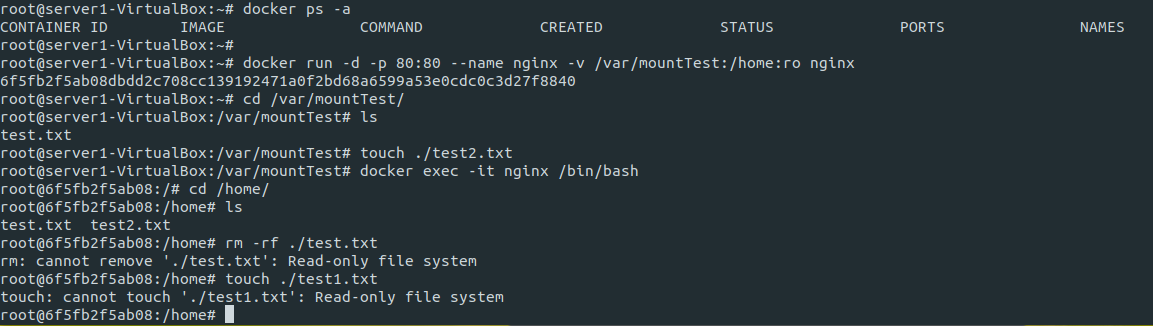
볼륨 마운트를 사용하여 호스트와 Container간 파일공유

  • # docker run -d -p 80:80 --name nginx -v /var/mountTest:/home:ro nginx
    • 호스트의 /var/mountTest/ 디렉토리와 Container /home/ 디렉토리를 readyOnly로 볼륨마운트 지정
      • Container의 home 디렉토리에 w 불가능
      • DockerHost의 /var/mountTest에는 rw 가능
    • rw: 읽기 및 쓰기

'클라우드 > Docker' 카테고리의 다른 글

Docker Compose  (0) 2021.08.18
Docker network  (0) 2021.08.17
Docker resource 관리  (0) 2021.08.14
Docker registry  (0) 2021.08.11
Docker image 생성 및 테스트  (0) 2021.08.11

memory관련 옵션

옵션(단위: bytes) 의미
-m, --memory  메모리 제한 # docker run -d -m 256m nginx
--memory-swap  컨테이너의 swap 메모리 설정
memory + swap
default: 기본 메모리 == 메모리의 2배 설정
#docker run -d -m 300m --memory-swap 500m nginx
실제 swap은 200m까지 가능
--memory-reservation 최소 xxx bytes까지는 보장  #docker run -d -m 1g --memory-reservation 300m nginx
--oom-killi-disable 프로세스가 OOM상태에서 프로세스를 kill하지 못하도록 함 #docker run -d -m 200m --oom-kill-disable nginx


CPU 제한

옵션(단위: core) 의미
--cpus 컨테이너에 할달할 CPU core수 지정 #docker run -d --cpus=".5" nginx
--cpuset-cpus 컨테이너가 사용할 수 있는 CPU core할당
해당 core range에서 동작할 수 있게 지정
#docker run -d --cpuset-cpus 0-3 nginx
--cpu-share 전체 CPU에서 비중을 지정
default: 1024
#docker run -d --cpu-share 2048 nginx


Block IO 제한

옵션 의미
--blkio-weight
--blkio-weight-device
block IP weight를 지정(10~1000)
default: 500
#docker run -it --rm --blkio-weight 100 ubunbu /bin/bash
--device-read-bps
--device-write-bps
초당 read/write 설정

#docker run -it --rm --device-read-bps /dev/vda:1mb ubunbtu /bin/bash
#docker run -it --rm --device-write-bps /dev/vda:10mb ubuntu /bin/bash
--device-read-iops
--device-write-iops
컨테이너의 read/write 속도 쿼터 설정 #docker run -it --rm --device-read-iops /dev/vda:10 ubuntu /bin/bash
#docker run -it --rm --device-write-iops /dev/vda:10 ubuntu /bin/bash


docker host에서 container 리소스 확인

  • 위치 /sys/fs/cgroup/memory/docker/container hash값/


docker stats

  • # docker stats


cAdvisor를 통한 리소스모니터링

https://github.com/google/cadvisor


GitHub - google/cadvisor: Analyzes resource usage and performance characteristics of running containers.

Analyzes resource usage and performance characteristics of running containers. - GitHub - google/cadvisor: Analyzes resource usage and performance characteristics of running containers.

github.com


'클라우드 > Docker' 카테고리의 다른 글

Docker network  (0) 2021.08.17
Container volume  (0) 2021.08.15
Docker registry  (0) 2021.08.11
Docker image 생성 및 테스트  (0) 2021.08.11
Docker 명령어 테스트  (0) 2021.08.11

Registry

  • Container 이미지를 저장하는 저장소

Docker Hub(https://hub.docker.com/)

  • 외부에 공유가능한 Container 저장소
  • Official imagaes, Verified Publisher container images
  • #docker search "docker hub image"

Private Registry

  • 사내 또는 개인 Container 저장소


Private registry 구현 및 사용

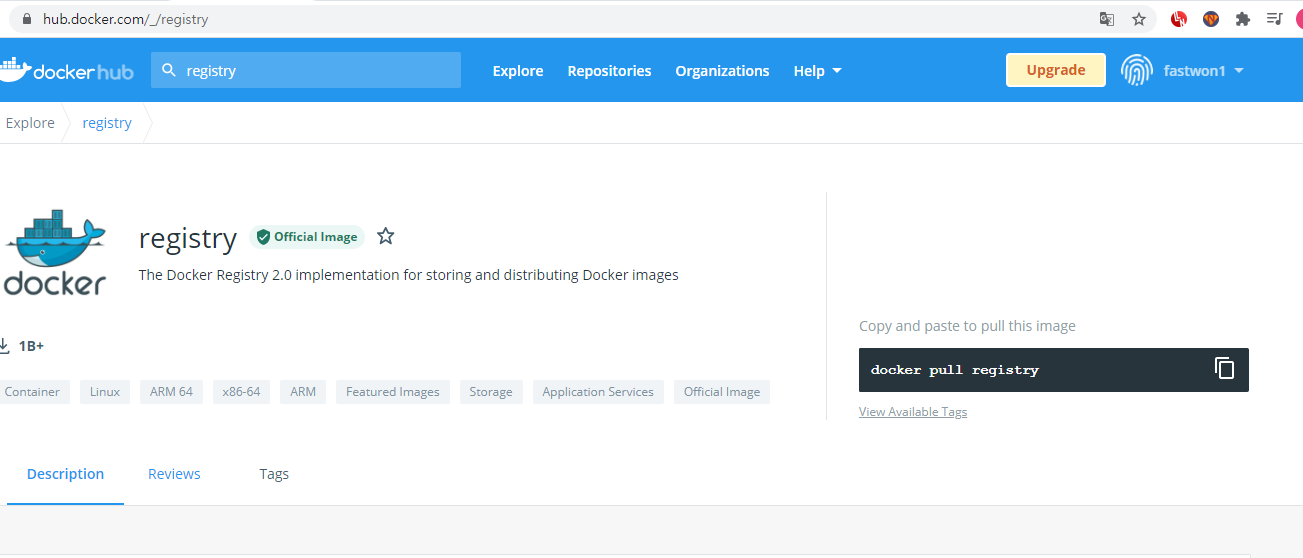
https://hub.docker.com/_/registry

  • Docker hub에서 제공하는 official registry image를 통해서 private registry를 구성하고 관리할 수 있다.


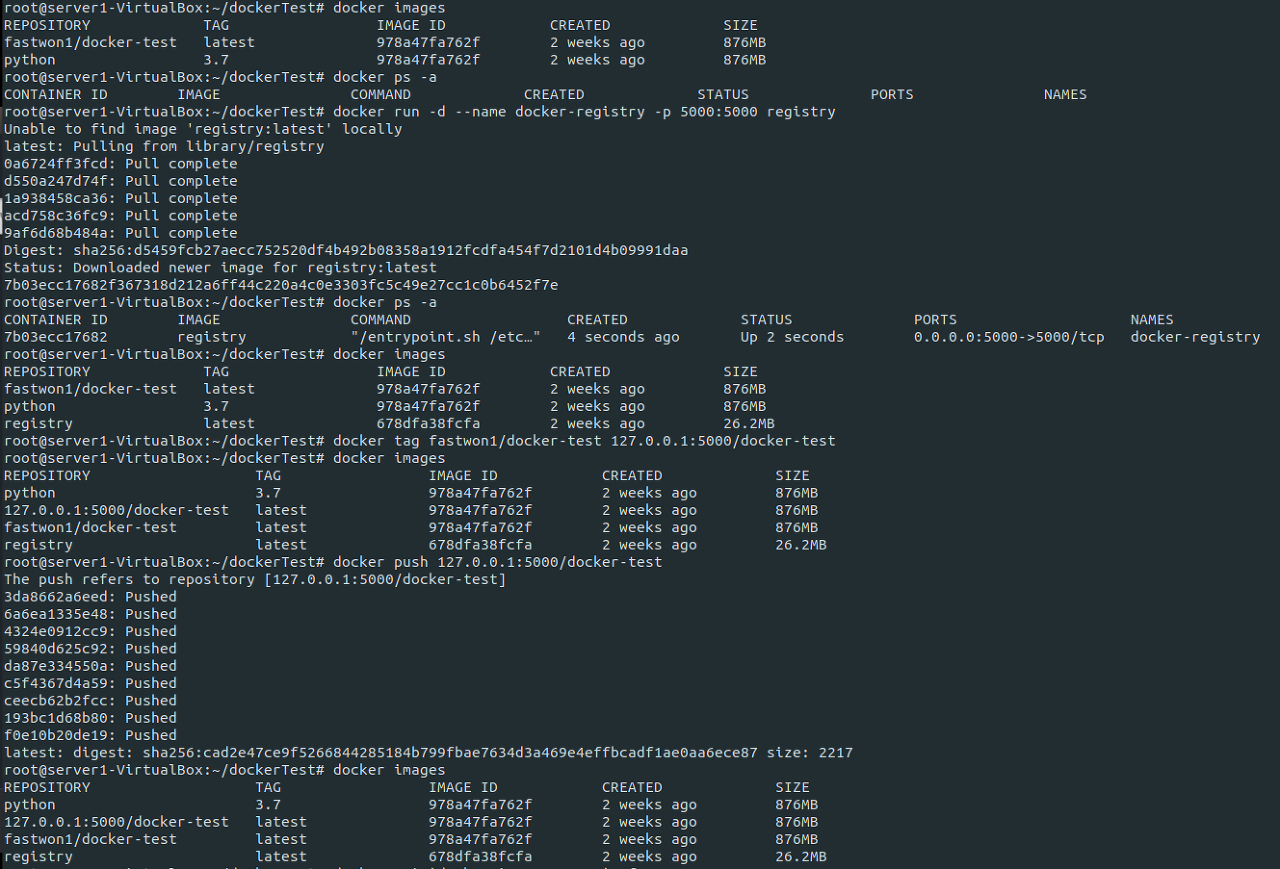
Private registry 생성

  • # docker run -d --name docker-registry -p 5000:5000 registry

Private registry에 push한 image tag변경

  • # docker tag fastwon1/docker-test 127.0.0.1:5000/docker-test

Private registry에 image push

  • # docker push 127.0.0.1:5000/docker-test

단일 [이미지 or 컨테이너] 세부내용 조회

  • docker inspect httpd
    • ex) docker inspect --format '{{.NetworkSettings.Networks.bridge.NetworkID}}' httpd

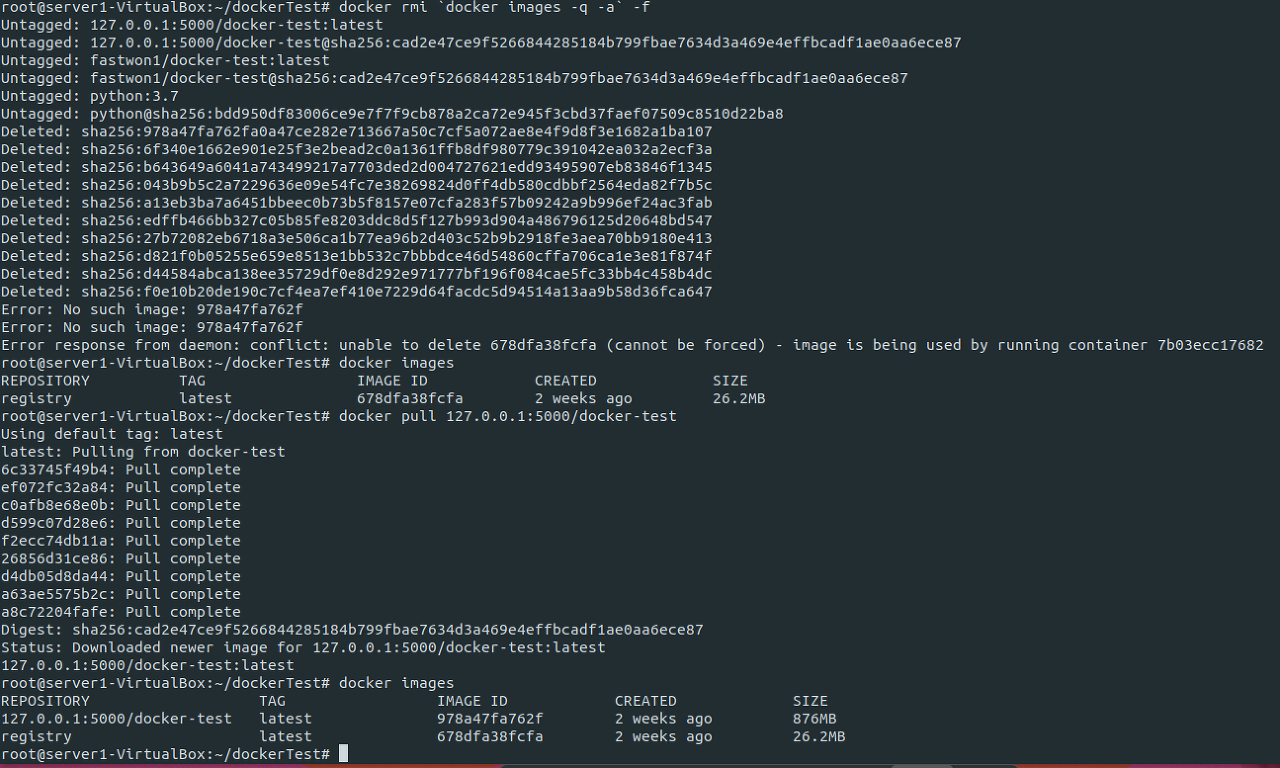
존재하는 Docker image 전체 삭제

  • # docker rmi `docker images -q -a` -f

앞단계에서 push했던 이미지를 pull하여 확인

  • # docker pull 127.0.0.1:5000/docker-test


Private registry에 저장된 이미지 확인

  • # curl -X GET http://localhost:5000/v2/_catalog

이미지의 태그정보확인

  • # curl -X GET http://localhost:5000/v2/docker-test/tags/list


'클라우드 > Docker' 카테고리의 다른 글

Container volume  (0) 2021.08.15
Docker resource 관리  (0) 2021.08.14
Docker image 생성 및 테스트  (0) 2021.08.11
Docker 명령어 테스트  (0) 2021.08.11
Docker?  (0) 2020.12.27

Dockerfile이란?

  • Container를 만들 수 있도록 하는 명령어들의 집합

ref: docs.docker.com/engine/reference/builder/


Dockerfile reference


docs.docker.com


Dockerfile 인스트럭션

인스트럭션 설명 형식
FROM 우분투와 같은 운영체제 이름이나 필요한 애플리케이션 이름을 지정 FROM ubuntu:14.04
MAINTANER 이미지를 생성한 사람의 이름 및 정보  
RUN 컨테이너가 빌드될 때 실행할 명령어 RUN ["mv", "1234", "5678"]
EXPOSE 컨테이너 외부에 노출할 포트 지정 EXPOSE 8080
ENV 환경변수 이름지정 ENV abc tmp
echo ${abc}
CMD 컨테이너가 시작될 때 실행할 명령어 CMD ["echo", "1234"]
CMD ["node", "/hello.js"]
ENTRYPOINT 컨테이너가 실행될 때 기본 명령어 지정
(CMD 와 달리 옵션을 넘길 수 있음)
ENTRYPOINT ["python"]
...
$
sudo docker run t 이미지 -c "print('1234')"
WORKDIR 작업할 디렉토리를 세팅 WORKDIR /project
USER 도커 실행 시 사용할 유저 이름 또는 uid 를 지정
설정하지 않으면 기본 root으로 실행
USER user 또는 USER user:group
VOLUME 호스트의 디렉토리를 도커에 연결
커밋 없이 사용 가능하며 주로 로그 수집이나 데이터 저장용도로 사용
VOLUME [/"tmp"]
COPY 컨테이너 빌드시 호스트의 파일이나 디렉토리를 복사할때 사용 COPY file /copy/to/path

ADD 컨터이너 빌드시 호스트의 파일(tar,url포함)을 컨테이너로 복사할때 사용 ADD http://example.com/big.tar.xz /usr/src/things/
ADD rootfs.tar.gz /
ARG    
SHELL 원하는 타입의 쉘을 사용 SHELL ["/ sh ", c"]
SHELL [" cmd ", "/S", "/]
# comment  


nginx image생성 및 dockerhub push test

  • # docker build -t fastwon1/docker-test .
    • Docker이미지 빌드
  • # docker push fastwon1/docker-test
    • image이름을 [계정/image이름] 형식으로 변경이 필요한경우
      • # docker tag docker-test fastwon1/docker-test
    • Private repository에 push
    • 이미지의 namespace와 자신의 아이디가 일치해야한다
      • # docker tag foo/sample_image:latest username/sample_image:latest
        • namespace가 일치하지 않는다며 태그명 변경으로 해결할 수 있다
    • 에러시 https://hub.docker.com의 id/pass로 docker login이 필요


Docker history 확인

  • # docker history nginx
    • Docker이미지를 생성하면서 발생한 명령어들을 확인할 수 있다


Dockerfile 작성 및 apache2 container 생성 테스트

FROM ubuntu:18.04  
LABEL maintainer="jaehwan.jaon <fastwon1@gamil.com>"
RUN apt-get update \
    && apt-get install -y apache2 \
    && apt-get install -y --no-install-recommends apt-utils
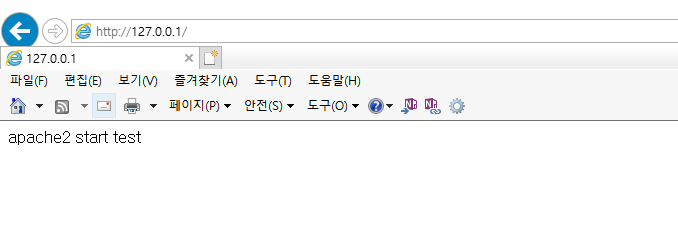
RUN echo "apache2 start test" > /var/www/html/index.html
EXPOSE 80
CMD ["/usr/sbin/apache2ctl","-DFOREGROUND"]


dockerfile을 이용하여 container 생성

# docker build -t fastwon1/apathc2-test:v1 .

생성한 Docker image로 container 생성
web 접속


기타

명령어 설명
sudo docker container prune 중지 된 모든 컨테이너를 제거
sudo docker image prune 태그가 없는 모든 이미지 파기
sudo docker system prune 사용하지 않는 모든 데이터 삭제 이미지 , 컨테이너 , 볼륨 , 네트워크등
sudo docker container stats 컨테이너 사용 현황 출력

'클라우드 > Docker' 카테고리의 다른 글

Docker resource 관리  (0) 2021.08.14
Docker registry  (0) 2021.08.11
Docker 명령어 테스트  (0) 2021.08.11
Docker?  (0) 2020.12.27
Docker 설치  (0) 2020.12.27


1. local repository에서 docker이미지 검색

  • # docker serach tomcat


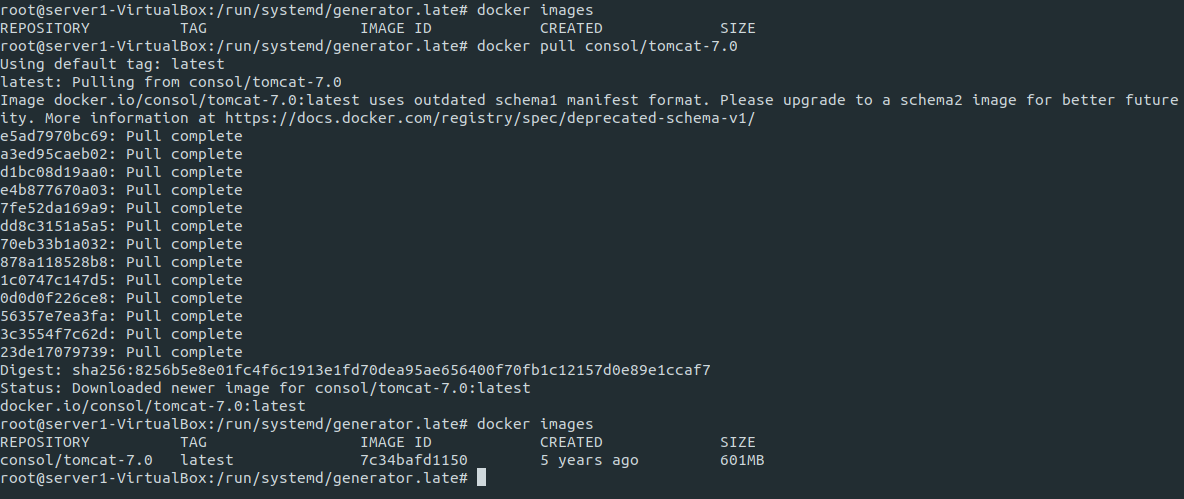
2. Dockerhub에서 container image pull


Docker Hub

Build and Ship any Application Anywhere Docker Hub is the world's easiest way to create, manage, and deliver your teams' container applications.

hub.docker.com


3. Container create/start

  • mysql Container create
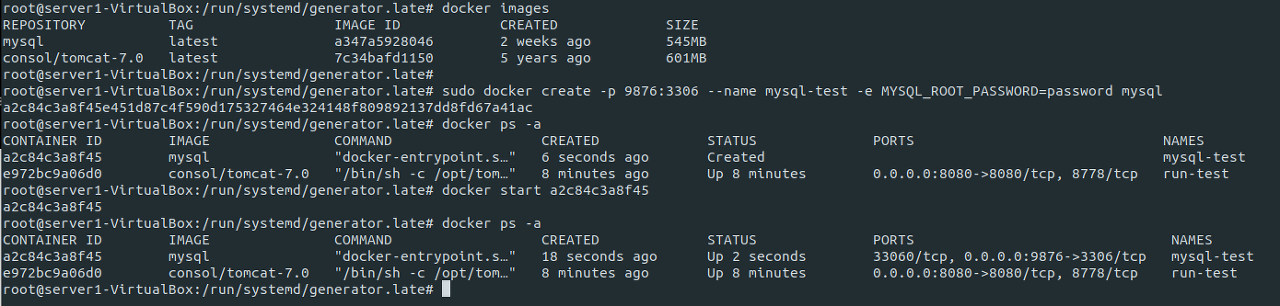
    • # docker create -p 9876:3306 --name mysql-test -e MYSQL_ROOT_PASSWORD=password mysql
      • 컨테이너 생성
      • -e option: 환경변수 설정
    • # docker start mysql-test
      • Dockerhost에서 mysql 접속
        • docker exec -it db mysql -u root -p


4. Container 실행

컨테이너 실행
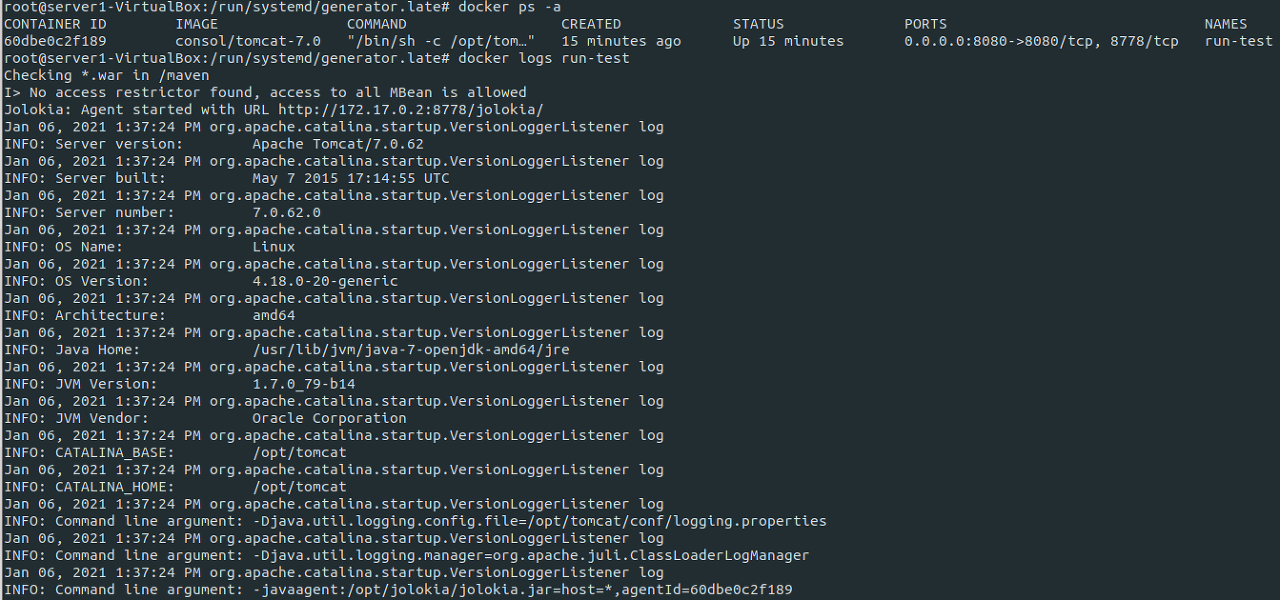
실행결과(virtualbox에서 실행중이라면,, 네트워크 port-forwarding 설정필요)

  • # docker run -d -p 8080:8080 --name run-test consol/tomcat-7.0
    • run명령어는 컨테이너 create와 start를 동시에 실행
      • 만약 이미지가 pulling이 되어있지 않은 경우 pull을 실행하고 create/start를 진행한다
    • consol/tomcat-7.0 docker 이미지를 데몬으로 portforwarding 8080으로 실행
  • # docker run -d -p 8080:8080 --rm --name run-test2 consol/tomcat-7.0
    • rm옵션을 주면 Container가 중지되면 바로 삭제되는 임시컨테이너를 생성할 수 있다
  • # docker ps -a
    • 컨테이너 확인


5. Container 시작/중지/삭제

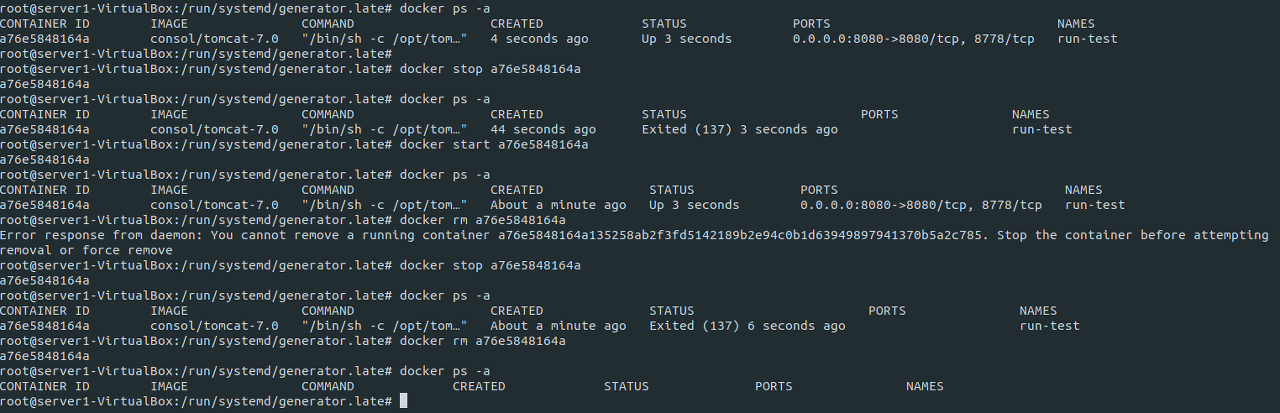
  • # docker stop a76e5848164a
    •  컨테이너 중지
  • # docker start a76e5848164a
    • 컨테이너 시작
  • # docker rm a76e5848164a
    • 컨테이너 삭제
      • 컨테이너 중지후 삭제가 가능


6. Container 전체 중지/시작/삭제

  • # docker stop `docker container ls -a -q`
    • 전체 중지
  • # docker start `docker container ls -a -q`
    • 전체 시작
  • # docker rm `docker container ls -a -q`
    • 전체 삭제


7. Docker 이미지 전체삭제

  • # docker rmi `docker images -a -q`


8. Container bash 접속

Container bash 접속

  • # docker exec -it [CONTAINER ID or NAMES]  /bin/bash


9. Container 로그확인

  • # docker logs run-test 
    • stdout

10. Container내 기타조회

  • Container내의 프로세스 조회
    • # docker top [CONTAINER ID or NANES]
  • Container내의 log 조회
    • docker logs [CONTAINER ID or NANES]
      • ex) docker logs -f nginx_test
        • 실시간 발생로그 확인


11. Docker host와 Container간 파일복사

  • Docker host 파일을 Container로 복사
    • docker cp [docker host의 파일 source file path] [container의 dest path]
      • # docker cp ./cpTest.txt 60dbe0c2f189:/home/ 
  • Container의 파일을 Docker host로 복사
    • docker cp [Container내의 파일 source path] [Dcoker dest path] 
      • # docker cp 60dbe0c2f189:/home/cpTest.txt ./

'클라우드 > Docker' 카테고리의 다른 글

Docker resource 관리  (0) 2021.08.14
Docker registry  (0) 2021.08.11
Docker image 생성 및 테스트  (0) 2021.08.11
Docker?  (0) 2020.12.27
Docker 설치  (0) 2020.12.27

git merge


  • # git merge <현재 checkout branch에 merge할 branch>


  • master 1, 2, 5
  • exp 1, 2, 3, 4
  • exp branch를 master branch로 merge
    •  # git checkout master
      • master branch로 checkout
    •  # git merge exp


결과: exp branch를 master branch로 merge

  • master : 1, 2, 3, 4, 5
  • exp: 1, 2, 3, 4
  • # git branch -d newbranch
    • 브랜치 삭제


Branch 테스트

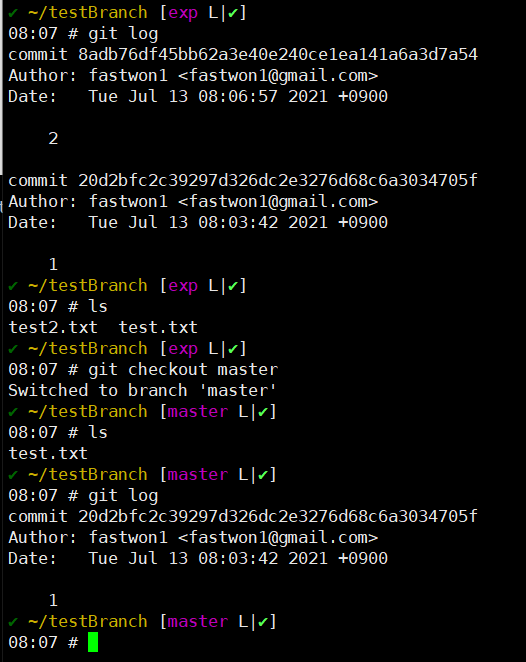
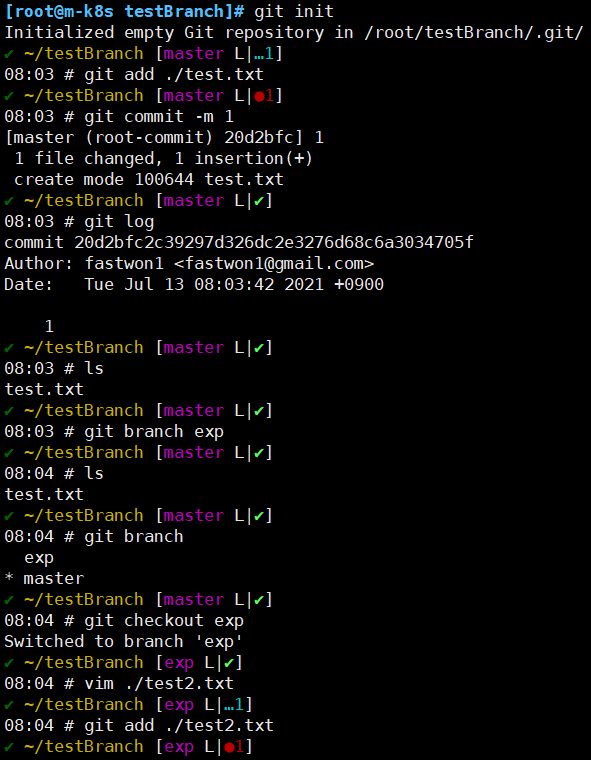
  • master branch에 test.txt를 add/commit 실행
  • exp라는 branch를 생성하고 test2.txt add/commit 실행


  • exp branch에는 2개의 파일(test.txt / test2.txt)라는 파일이 존재함과 동시에 commit 내역이 2개있음을 확인 할 수 있다
  • master branch로 checkout한 후 확인
    • master branch에는 test.txt 파일만 존재하며 commit내역도 1개만(test.txt) 존재함을 확인 할 수 있다
  • checkout중인 branch내에서 새로운 branch를 만들면 현재 checkout중인 branch를 기준으로 새로운 브랜치가 분기됨을 확인 할 수 있다


git 브랜치 비교

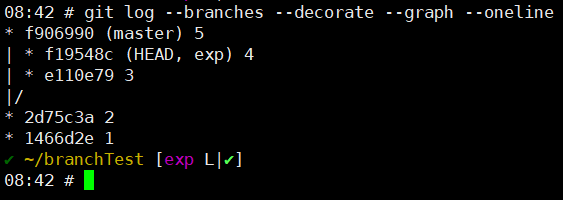
  • # git log --branches --decorate -- graph
    • master branch의 최신 commit은 5이며 1, 2, 5 commit을 가짐
    • exp branch의 최신 commit은 4이며 1, 2, 3, 4 commit을 가짐 


  • # git log --branches --decorate -- graph --oneline


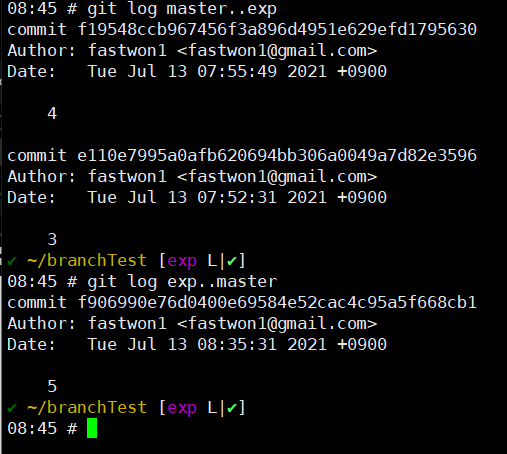
  • # git log master..exp
    • master branch에는 없고 exp branch에만 있는 commit을 보여줌
  • # git log exp..master
    • exp branch에는 없고 master branch에만 있는 commit을 보여줌


fast forward merge

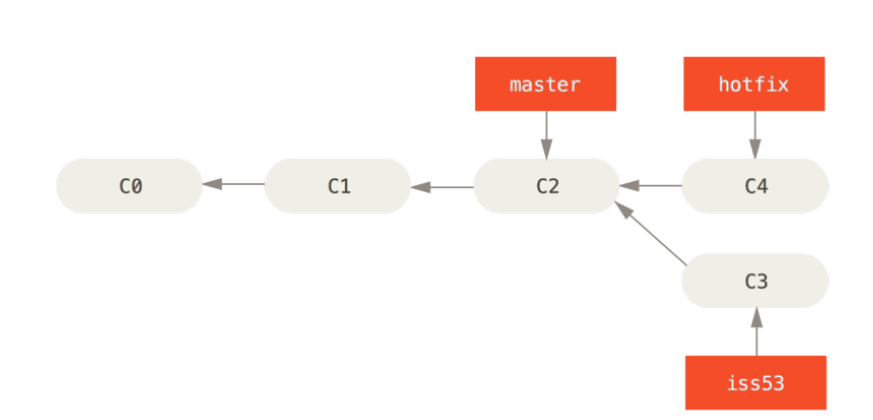
  •  hotfix 커밋(C4)을 master 커밋(C2)으로 merge하려는 경우
  • # git checkout master
  • # git merge hotfix
    • 현재 브랜치(master)가 가리키는 커밋(C2)이 Merge할 브랜치(hotfix)의 조상인 경우 
    • 새로운 commit을 생성하지 않고 merge를 진행


3-way merge

  • # git checkout master
  • # git merge iss53
    • 현재 브랜치가 가리키는 커밋(C4)이 Merge할 브랜치(iss53/C5)의 조상이 아닌경우
    • merge commit을 생성


2 way merge vs 3 way merge

person 1 Base person 2 2 way merge 3 way merge
A A   conflit  
B B B B B
1 C 2 conflit conflit
  D D conflit  


'기타 > git' 카테고리의 다른 글

git tag  (0) 2021.07.23
git stash  (0) 2021.07.16
gistory .git 디렉토리 분석  (0) 2021.07.11
git / github  (0) 2021.07.11
git 기본 명렁어  (0) 2021.07.11

git tag

  • commit에 이름을 달아주는 행위
  • 버전관리를 용이하게 해준다.

  • 위의 github의 release버전에 v1.21.3 이라는 tag가 작성되어있음을 확인 할 수 있다.


tag를 통한 브랜치 checkout

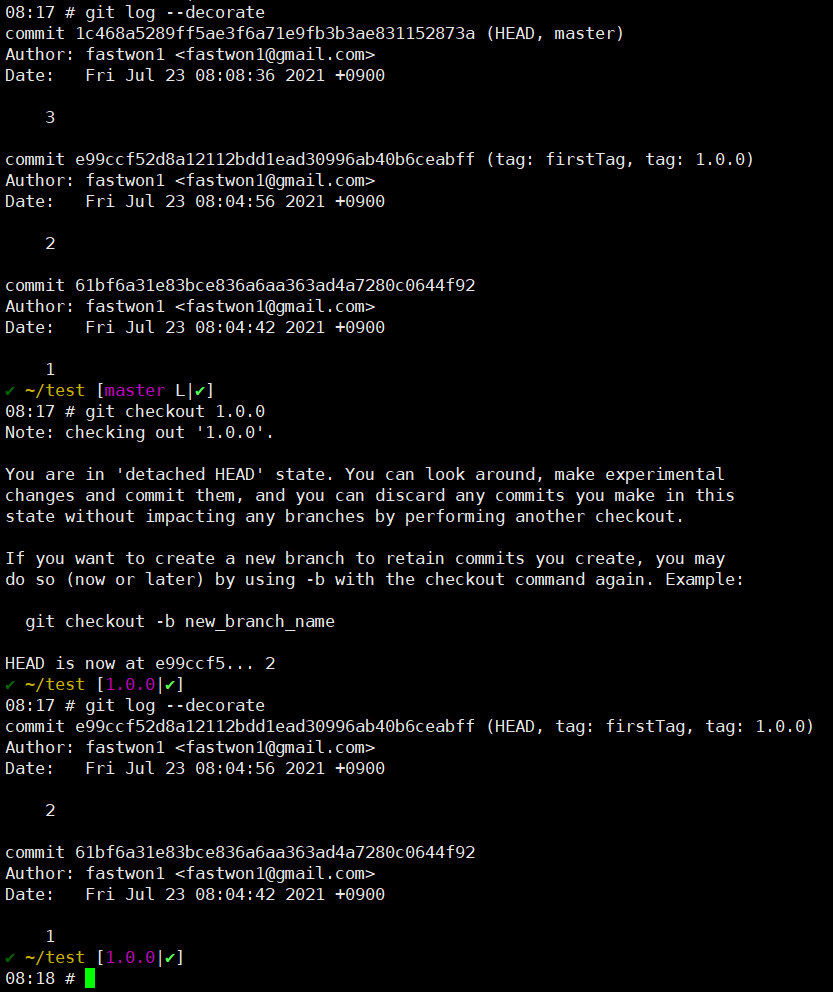
  • commit 2번에 firstTag, 1.0.0 이라는 tag를 지정
    • checkout {tag}를 통해서 해당 commit으로 체크아웃 할 수 있다. 


tag 지정

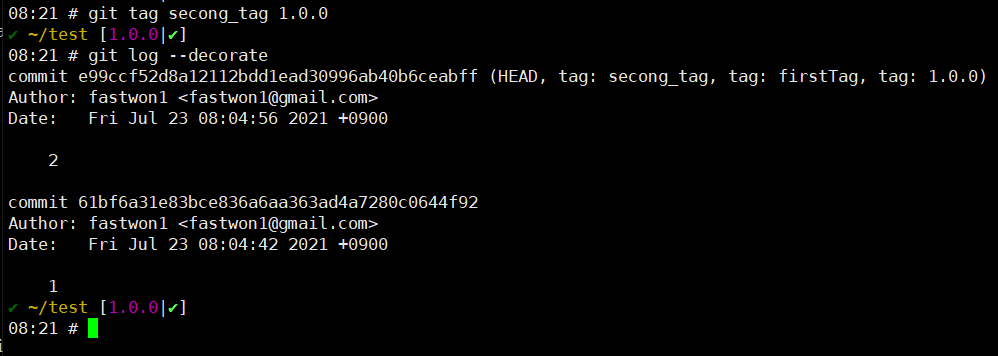
  • git tag {tagname} branch/commit hash값/이미 지정된 tag값
    • # git tag secong_tag 1.0.0
    • # git tag third_tag 
      • 현재 브랜치 HEAD에 tag가 추가됨
    • # git tag forth_tag e99ccf52d8a12112bdd1ead30996ab40b6ceabff
    • # git tag fifth_tag master


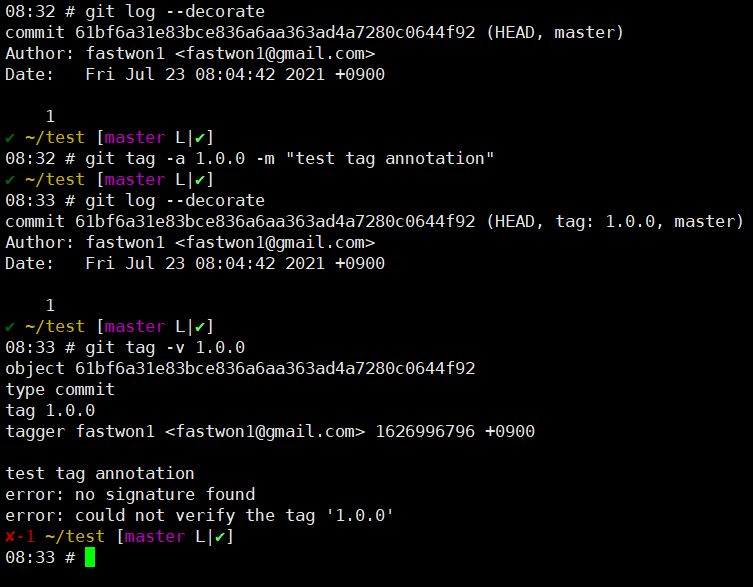
  • git tag의 annotation을 지정하여 tag에 설명을 추가할 수 있다.
    • # git tag -a {tagName} -m "msg"
    • # git tag -v {tagName}


  • git push --tags
    • --tags 옵션을 추가함으로써 remote repository에 tag까지 업로드할 수 있다.

'기타 > git' 카테고리의 다른 글

git merge  (0) 2021.07.24
git stash  (0) 2021.07.16
gistory .git 디렉토리 분석  (0) 2021.07.11
git / github  (0) 2021.07.11
git 기본 명렁어  (0) 2021.07.11

git stash

  • 현재 수정중이던 내용을 숨겨주는 기능
    • modified이면서 Tracked 상태인 파일과 Staging Area에 있는 파일을 stack에 저장

  • master branch에서 test.txt라는 파일을 add/commit을 실행
  • exp라는 branch를 만들고 test.txt라는 파일을 수정
    • 해당 수정사항이 master / exp branch에도 같이 반영이 됨
      • exp branch에서 작업하던 내용을 반영되지 않게 하고 싶을때 stash가 유용

  • test.txt 파일을 수정
    • master / exp branch에 해당 내용이 같이 반영되어 있을을 확인
  • # git stash (save) 실행
    • 파일에 추가된 내용이 확인되지 않음을 알 수 있음
  • # git stash apply 실행
    • stash되었던 파일의 내용을 다시 확인 할 수 있음

  • # git stash list
    • stash list를 확인
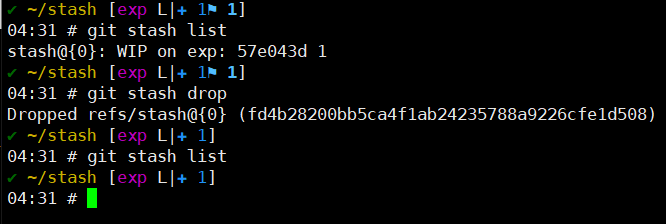
  • # git stash drop
    • stack 저장된 가장 상단의 stash되었던 파일 1개를 삭제
  • # git stash apply; git stash drop;
    • -> # git stash pop

'기타 > git' 카테고리의 다른 글

git merge  (0) 2021.07.24
git tag  (0) 2021.07.23
gistory .git 디렉토리 분석  (0) 2021.07.11
git / github  (0) 2021.07.11
git 기본 명렁어  (0) 2021.07.11

gistory를 설치하여 .git 디렉토리 내용 분석

# pip3 install gistory


https://pypi.org/project/gistory/


gistory

Tracking your .git changed history

pypi.org


git 로컬디렉토리의 .git폴더 내에서 gistory 명령어 실행


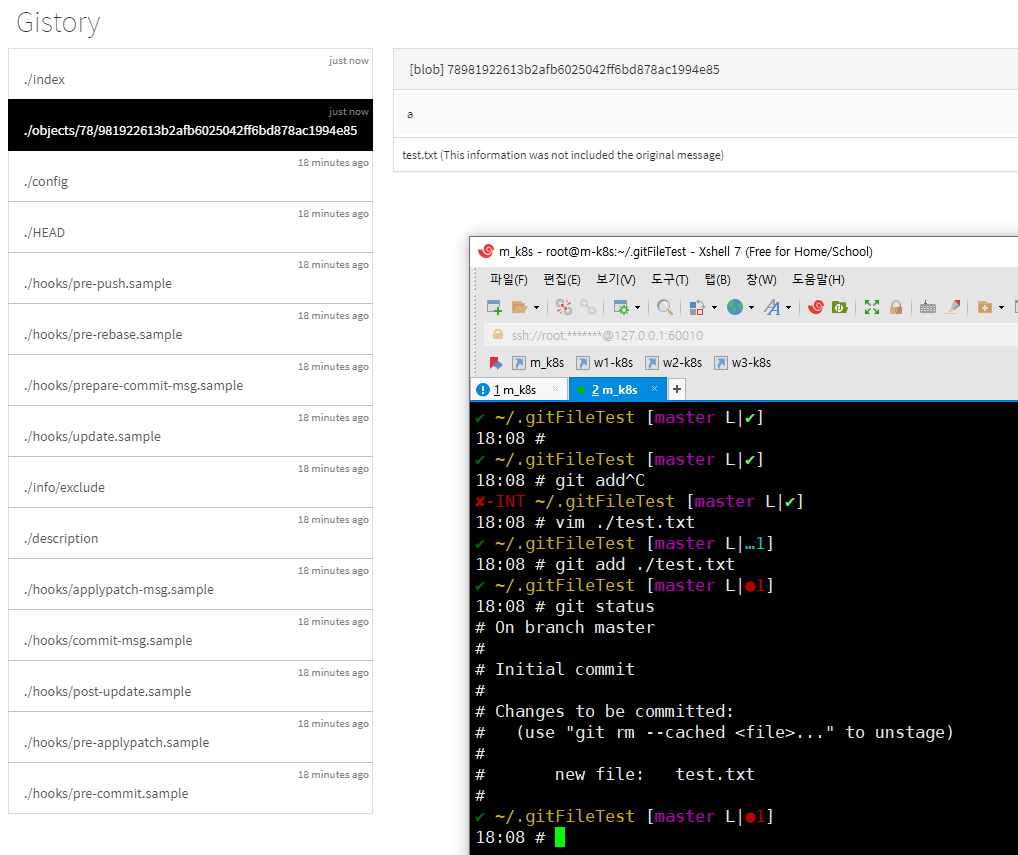
  • git add 명령어를 통해 test.txt파일을 staging area로 옮겨줌.
    • index = 파일의 이름이 담겨있음 
      • ./index라는 파일에  hash값과 test.txt파일의 매핑관계가 저장되어 있다. 
    • Object = 파일의 내용이 담겨있음
      • ./Object/78/{hash} 파일이 생성


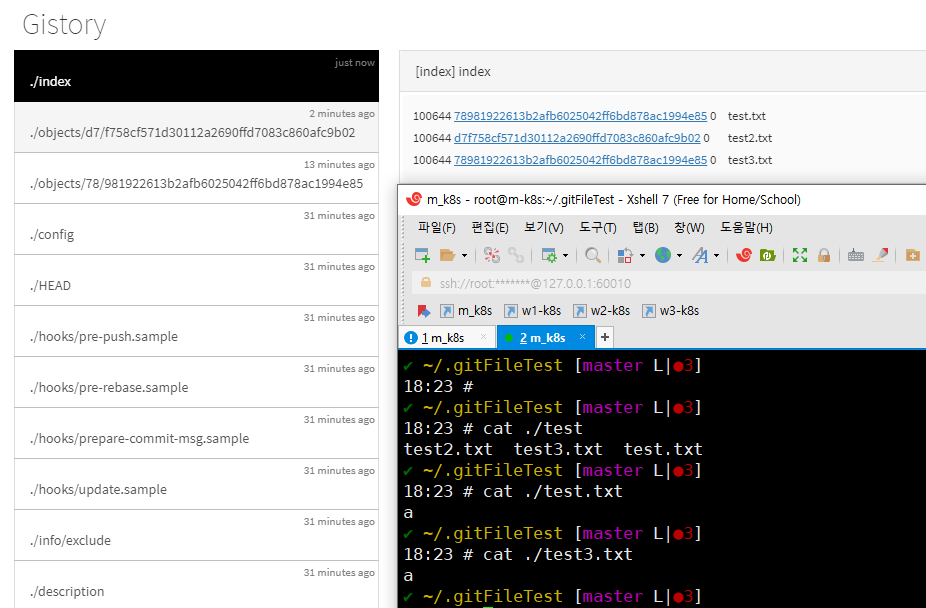
  • 다른 파일이름에 같은 내용을 staging area에 옮김
    • test1.txt 파일과 test3.txt파일이 가리키는 Object가 78981922613b2afb6025042ff6bd878ac1994e85 로 동일한 hash값인걸 확인 할 수 있다.
      • git은 파일의 이름이 달라도 파일의 내용이 같으면 같은 Object파일을 가리킴


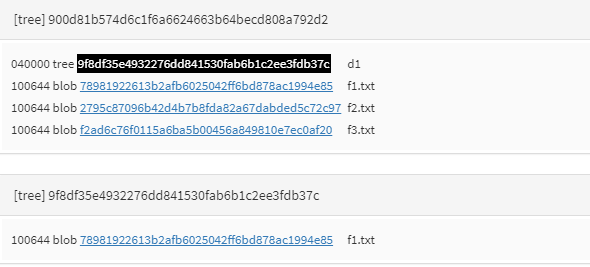
Tree 개체

  • 파일이름이 저장되는 개체


blob

  • 파일내용이 저장되는 개체


Working Directory / index,staging area, cache / repository 

'기타 > git' 카테고리의 다른 글

git tag  (0) 2021.07.23
git stash  (0) 2021.07.16
git / github  (0) 2021.07.11
git 기본 명렁어  (0) 2021.07.11
git/github 설치 및 초기화  (0) 2021.01.21

로컬과 원격저장소

  • # git remote(-v)
    • remote repository에 조회하기
  • # git init --bare remote
    • 로컬에 원격 저장소 생성
  • 로컬 remote 저장소
    • git remote add origin ssh://[remote저장소 username]@[remote저장소 IP]/저장소 path 
      • # git remote add origin ssh://git@{192.168.1.10}/home/git/remote/
  • # git remote add origin https://github.com/fastwon1/jaon.git
    • 원격저장소 URL을 origin이라는 이름으로 추가
  • # git push origin master
    • origin에 master 브랜치의 내용을 push
    • remote repository에 밀어넣기
  • # git pull origin master
    • origin을 내 repository의 master 브랜치로  download  / merge
    • 현재 내가 작업하고 있는 내용은 사라짐
  • # git fetch origin master
    • 동기화시키지 말고 origin을 내 repository의 master 브랜치로 가지고옴(원격저장소로부터 파일만 다운로드 받음)
      • 장점
        • 지역저장소와 원격저장소간의 diff를 확인할 수 있음
        • # git diff HEAD origin/master
      • fetch 내용을 특정 브랜치에서 확인할 수 있다
        • # git checkout origin/master
        • # git checkout FETCH_HEAD
  • # git clone
    • remote repository의 내용을 현재 디렉토리에 복사
    • origin이라는 remote repository가 자동으로 등록된다


협업

  • local repository의 변경사항이 있는데 remote repository는 변경이 없는경우
    • git push로 해결
  • local repository는 변경사항이 없는데 remote repository가 변경사항이 경우
    • git pull로 동기화 후 push
  • local repository도 변하고 remote repository도 변한 경우
    • pull request
      • 협업 대상 repository fork하기
      • fork 해온 곳에서 clone 하기
      • branch를 만들고 작성하고자하는 코드 commit 작성
      • push 권한주기(Manage access(collaborator) 추가하기) 또는 pull request 요청
      • 해당 branch 삭제 
    • merge
      • fast-forward merge
      • 3-way merge
        • merge의 결과인 새로운 merge commit이 생성
    • rebase
      • 현재 작업하고 있는 branch의 base를 옮김
        • base =  현재 작업하고 있는 branch와 합치려는 branch의 공통조상
        • 병합하고자 하는 master branch의 최신 commit으로 base를 옮김


Troubleshooting)

  • github에 처음 push하려고 할때 아래와 같음 error 발생시
    • remote: Permission to ~~~~~
  • git push https://[아이디]:[비밀번호]@github.com/[아이디]/[레포지토리].git
아이디: not-working
비번: 123456
repository: test
  
 -> git push https://not-working:123456@github.com/not-working/test.git


Set up Git - GitHub Docs

To use Git on the command line, you'll need to download, install, and configure Git on your computer. You can also install GitHub CLI to use GitHub from the command line. For more information on GitHub CLI, see the GitHub CLI documentation. If you want to

docs.github.com


[141] 오픈소스를 쓰려는 자, 리베이스의 무게를 견뎌라

오픈소스를 쓰려는 자, 리베이스의 무게를 견뎌라

www.slideshare.net


'기타 > git' 카테고리의 다른 글

git tag  (0) 2021.07.23
git stash  (0) 2021.07.16
gistory .git 디렉토리 분석  (0) 2021.07.11
git 기본 명렁어  (0) 2021.07.11
git/github 설치 및 초기화  (0) 2021.01.21

git add/commit

  • # git add <파일명>
    • # git add .
      • 디렉토리에 있는 파일 전부를 Staging Area로 올림 
      • Working Directory에 있는 파일들을 Staging Area로 올림
  • # git status
    • Staging 상태확인
  • # git commit -m "해당commit에 대한 설명"
    • 버전 생성
  • # git log
    • 버전 확인
  • # git commit -am "해당 commit에 대한 설명"
    • add와 commit을 동시에 진행
      • 단, 한번이라도 commit을 한 대상에 대해서만 가능


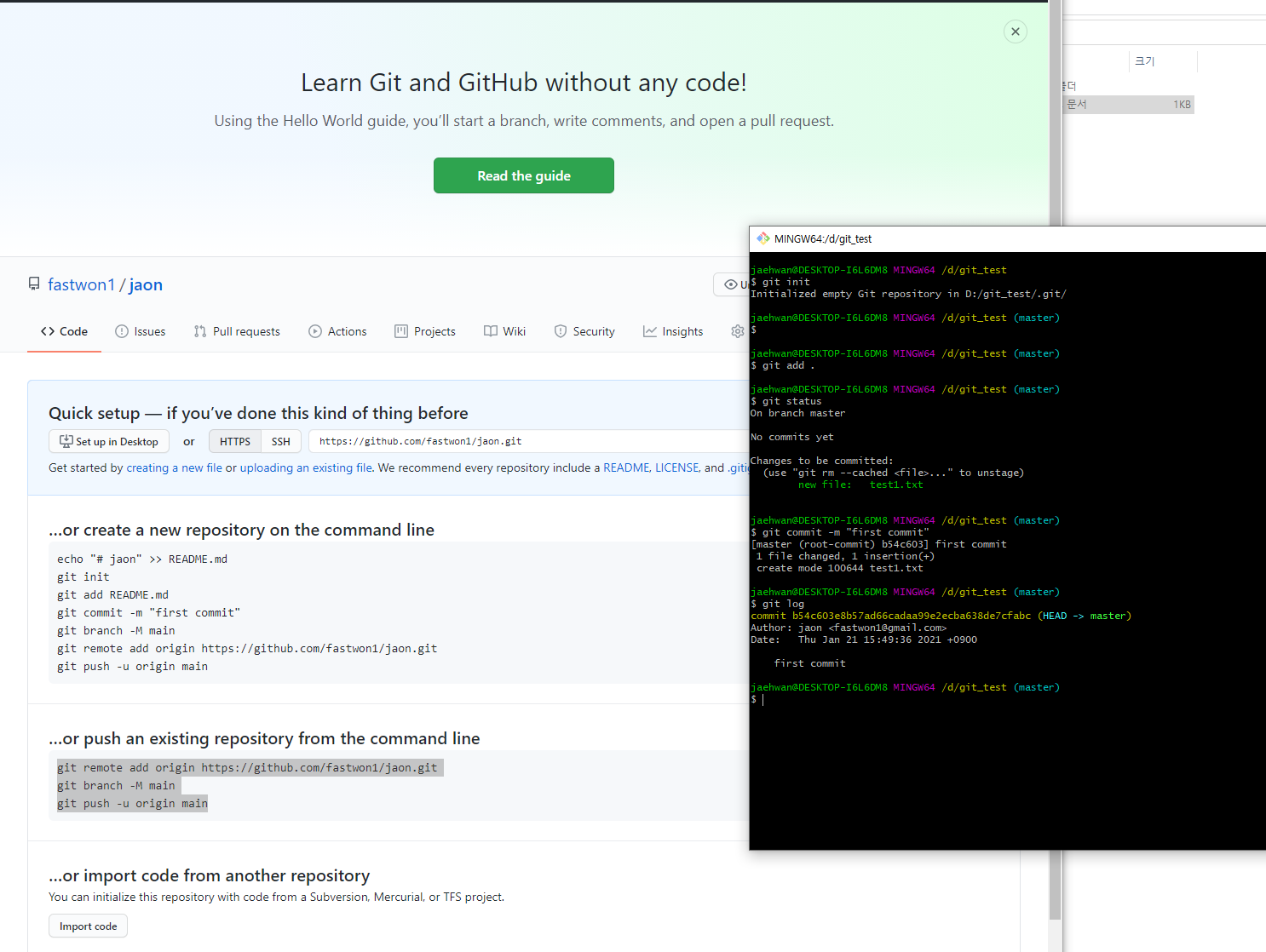
local repository를 github에 push

  • # git remote add origin https://github.com/fastwon1/jaon.git
    • 원격저장소를 origin이라는 이름으로 추가
  • # git branch -M main
    • master branch 이름을 main branch로 변경
      • 2020년 10월 이후 master라는 용어폐기
  • # git push -u origin main
    • 내 repository의 main 브랜치를 origin의 main 브랜치로 push
  • # git remote rm prac1
    • 원격저장소 prac1을 삭제


git reset

  • 되돌린 버전 이후의 버전은 모두 사라짐
    • # git reset --hard HEAD^
      • 현재 수정중이던 Working directory의 내용도 HEAD이전 내용으로 되돌아 간다
        • Staging Area와 작업중인 Working directory의 내용이 삭제
    • # git reset --mixed HEAD^
      • default 옵션
      • Staging Area에 올라와있던 내용은 사라지며 작업중이던 Working Directory의 내용은 유지
    • # git --soft HEAD^
      • Repository의 HEAD 이전 버전으로 commit한것만 되돌린다
        • Staging Area와 Working directory의 내용은 유지
    • # git reset --hard ORIG_HEAD
      • reset한 내용을 취소

  • # git reflog
    • 작업했던 commit들이 기록조회


Branch

  • master branch
    • 다른 branch들이 뻗어나가는 시초 branch

  • # git branch
    • branch 리스트확인
    • * master
      • 현재 master branch를 사용중임을 표시


  • # git branch test_branch
    • test branch라는 브랜치 생성


  • # git checkout test_branch
    • branch 변경


  • # git checkout -b test_branch
    • branch 생성 후 branch switch


  • # git diff
    • 변경 내역들간의 비교
      • 두 commit간 비교
        • # git diff <비교대상commit> <기준commit>
      • 원격 repository와 local repository간의 비교
        • # git diff <비교 대상 branch이름> origin/<branch 이름>


  • # git log
    • 버전확인
    • # git log --all --decorate --graph --oneline
  •  
  • reset vs revert
    • reset : 시간을 과거의 특정 사건으로 되돌림
    • revert : 현재를 기준으로 과거의 사건들을 없던일로 되돌림
      • 되돌린 버전 이후의 버전들은 모두 유지


git reset option

Working directory
Working tree
Working copy
index
staging area
cache
repository
history
tree
    git reset --soft
  git reset --mixed
git reset --hard


용어

  • HEAD : 현재 작업 중인 branch/commit 중 가장 최근 커밋한 버전
  • ^ : 가장 최근 커밋으로부터 하나 버전 이전으로 되돌림
  • ^^ : 가장 최근 커밋으로부터 두개 버전 이전으로 되돌림

'기타 > git' 카테고리의 다른 글

git tag  (0) 2021.07.23
git stash  (0) 2021.07.16
gistory .git 디렉토리 분석  (0) 2021.07.11
git / github  (0) 2021.07.11
git/github 설치 및 초기화  (0) 2021.01.21

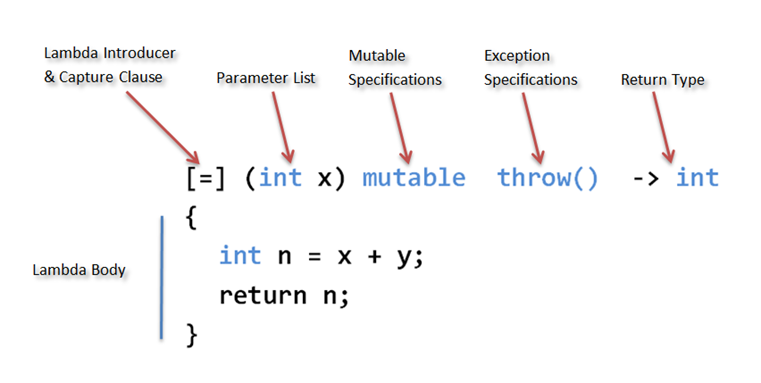
C++ lambda function


lambda 문법


기본구조

[captures](parameters) -> return type { body }

/*
* captures: comma(,)로 구분된 캡처
* parameters: 함수의 파라미터
* return type: 함수의 반환형
* body: 함수의 몸통
*/

ref: https://www.variadic.xyz/2011/10/12/c11-lambda-having-fun-with-brackets/

[captures]

[] 외부변수를 캡처하지 않음.
[=] 모든 외부변수 복사로 캡처
[=,...] 모든 외부변수 복사 및 가변인자 템플릿
[&] 모든 외부변수 참조로 캡처
[&,...] 모든 외부변수 참조 및 가변인자 템플릿
[this] 현재 객체를 참조로 캡처

[specifier]

mutable 복사로 캡처된 변수를 함수안에서 수정할 수 있게 하는 지정자
constexpr 함수호출 연산자가 상수식(default값)


lambda를 사용한 sort함수 예제

#include <iostream>
#include <ctime>
#include <vector>
#include <algorithm>
using namespace std;
#define MAX_ELEM 10
#define RAND_MAX 100
class Test {
public:
	int a;
};
void printElements(vector<Test>& tt) {
	for (const auto& v : tt)
	{
		cout << v.a << ' ';
	}
	cout << endl;
}
void insertElements(std::vector<Test>& v) {
	srand((unsigned int)time(NULL));
	Test a[MAX_ELEM];
	for (int i = 0; i < MAX_ELEM; i++) {
		a[i].a = rand() % RAND_MAX + 1;
		v.push_back(a[i]);
	}
}
int n = 10;
int main() {
	vector<Test> testVector;
	insertElements(testVector);
	int referenceTest = 15;
	cout << "정렬 전: ";
	printElements(testVector);
	// Sort in a ascending order
	{
		sort(testVector.begin(), testVector.end(),
			[=](Test first, Test second) -> bool
			{
				//n = 0; // =로 정의된 캡쳐블록은 read only.
				int a = n;
				return first.a < second.a;
			});
		cout << "정렬 후(오름차순): ";
		printElements(testVector);
		// Sort in a descending order
		sort(testVector.begin(), testVector.end(),
			[&](Test& first, Test& second) -> bool
			{
				n = 10;
				referenceTest = 10; // &로 정의된 캡쳐블록은 write 가능
				return first.a > second.a;
			});
		cout << "정렬 후(내림차순): ";
		printElements(testVector);
	}
	return 0;
}


Class

package com.example.myapplication.kotlin

fun main(array: Array<String>) {
    val smallCar: Car = Car("V8 engine", "small")
    val bigCar = Car("V8 engine", "big")
    val superCar: SuperCar = SuperCar("good engine", "big", "black")
}

class Car(var engine: String, var body: String) {  //constructor 축약버전

}

class SuperCar {
    var engine: String = ""
    var body: String = ""
    var door: String = ""

    constructor(engine: String, body: String, door: String) {
        this.engine = engine
        this.body = body
        this.door = door
    }
}

class Car1 constructor(engine: String, body: String) {
    var door: String = ""

    //생성자
    constructor(engine: String, body: String, door: String) : this(engine, body) {
        this.door = door
    }
}

class Car2 {
    var engine: String = ""
    var body: String = ""
    var door: String = ""

    constructor(engine: String, body: String) {
        this.engine = engine
        this.body = body
    }

    constructor(engine: String, body: String, door: String) {
        this.engine = engine
        this.body = body
        this.door = door
    }
}

class RunnableCar constructor(engine:String,body:String) {
    fun ride() {
        println("탑승")
    }
    fun drive() {
        println("Go")
    }
    fun navi(destination:String) {
        println("$destination 으로 목적지 설정")
    }
}

class RunnableCar2 {
    var engine: String = ""  // default는 public 멤버변수
    var body: String = ""

    constructor(engine: String, body: String) {
        println("RunnableCar2의 생성자가 호출되었습니다.")
        this.engine = engine
        this.body = body
    }
    init { //해당 클래스가 생성되기전(생성자가 호출되기전)에 호출되는 함수 
        println("RunnableCar2의 init함수가 호출되었습니다.")
    }

    fun ride() {
        println("탑승")
    }

    fun drive() {
        println("Go")
    }

    fun navi(destination: String) {
        println("$destination 으로 목적지 설정")
    }
}

class OverloadingTestClass() {
    val a: Int = 10

    fun overloadingTest(a: Int) { //오버로딩
        println("Up")
    }

    fun overloadingTest(a: Int, b: Int) { //오버로딩
        println("Down")
    }
}

class Tv(val channels: List<String>) {

    var onOff: Boolean = false
    var currentChannelNumber = 0
        set(value) { //currentChannelNumber 의 값이 할당될때 호출된다.
            field = value
            //currentChannelNumber = value  -> 해당 부분에서 set함수가 다시 호출되기에 무한루프가 발생한다.
            if (field > channels.size-1) {
                field = 0
            }
            if (field <0) {
               field = channels.size -1
            }
        }
        get() { //currentChannelNumber의 값이 호출될때 실행
            println("호출되었습니다.")
            return field
        }
    fun switch() {
        onOff = !onOff
    }

    fun chennalUp() {
        currentChannelNumber += 1
    }

    fun channelDown() {
        currentChannelNumber -= 1
    }

    fun checkCurrentChannel(): String {
        return channels[this.currentChannelNumber]
    }
}


'언어 > Kotlin' 카테고리의 다른 글

Kotlin 반복문  (0) 2021.03.04

for문

package com.example.myapplication.kotlin

fun main(args: Array<String>) {

    val a = mutableListOf<Int>(1, 2, 3, 4, 5, 6, 7, 8, 9)
	
    //반복방법(1)
    for (item in a) { //List의 각 요소를 순회
    	println(item) //value 출력
    }
    
    // 반복방법(2) 
    for ((index, item) in a.withIndex()) { //List의 각 요소를 순회
        println("Index: $index value: $item") index와 value를 같이 출력
    }
    
    //반복방법(3) Lambda방식
     a.forEach {
        println(it)
    }
    
    //반복방법(4) Lambda방식
    a.forEach {item->   //List의 각 요소를 it라는 이름대신 item을 사용
        println(item)
    }
    
    //반복방법(5) Lambda 방식 
    a.forEachIndexed { index, item ->
        println("Index: $index value: $item") 
    }
    
    //반복방법(6) 
    for (i in 0 until a.size) {
        //until은 마지막을 포함하지 않는다.
        println(a[i])
    }
	
    //반복방법(7)
    for (i in 0 until a.size step (2)) { //step(2)는 index를 2씩 건너뛴다.
        println(a[i])
    }
    
    //반복방법(8)
    for (i in a.size -1 downTo(0)) {
        //index 8부터 index 0까지 출력
        println(a[i])
    }
    
    //반복방법(9)
    for (i in a.size -1 downTo(0) step(2)) {
        //index 8부터 index 0까지 index 2씩 건너뛰면서 출력
        println(a[i])
    }
    
    //반복방법(10)
    for (i in 0..10) {
        // ..은 마지막을 포함한다.
        println(i)
    }
    
}


While문

package com.example.myapplication.kotlin

fun main(args: Array<String>) {
	var tmp1: Int = 0
    var tmp2: Int = 4

    while(tmp1<tmp2) { //C언어와 동일
        tmp1++
        println("b")
    }
    
    do {   //C언어와 동일
        println("hello")
        tmp1 ++
    } while(tmp1<tmp2)
}

'언어 > Kotlin' 카테고리의 다른 글

Kotlin class  (0) 2021.03.05

HTTP(Hypertext Transfer Protocol)

  • 인터넷상에서 데이터를 주고 받고 받기 위한 서버/클라이언트 모델을 따르는 프로토콜
  • 일반적으로 80 port를 사용

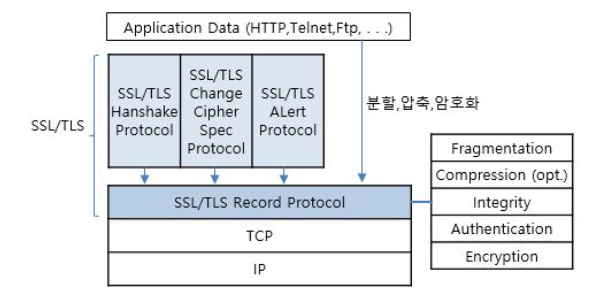
HTTPS(HyperText Transfer Protocol over Secure Socket Layer)

  • HTTP 및 SSL/TLS(보안 채널)를 조합시킨, 웹 서버 및 웹 브라우저 간의 보안용 프로토콜

  • HTTP(응용계층)와 TCP(전송계층) 사이에서 일종의 보안 계층을 구현

    • 보안 계층 : HTTP 메세지를 TCP로 보내기 전에 먼저 그것을 암호화하는 계층 (SSL/TLS) 

    • 암호화(Encryption)와 인증(Authentication) 변경감지등을 수행
    • SSL이나 TLS를 프로토콜을 통해 세션(session) 데이터를 암호화
    • 공개키 암호화방식 사용
  • 일반적으로 443 port를 사용


HTTP & HTTPS는 OSI 7 layer의 7계층에 해당하는 통신 프로토콜

HTTP vs HTTPS 프로토콜 스택 비교

HTTPS는 TCP상위에 TLS 또는 SSL 프로토콜을 조합한 형태


HTTP 프로토콜 메시지 구성

HTTP req/res 메시지 구조

요청메시지

  • Request line(요청행)

Request line 구조

  • 요청 Header

Request 요청 Header

  • blank line(빈줄)

    • 헤더의 끝을 의미

  • BODY

    • 요청방법의 메소드가 POST형식이 아니면 빈채로 전달

HTTP요청메시지 헤더 예시

     GET / HTTP/1.1          // 요청 행 (메소드,웹페이지 디렉토리,버젼)
Host: www.ktword.co.kr

Accept: text/html,application/xhtml+xml,application/xml;q=0.9,image/webp,*/*;q=0.8
Accept-Encoding: gzip, deflate, sdch
Accept-Language: ko-KR,ko;q=0.8,en-US;q=0.6,en;q=0.4
User-Agent: Mozilla/5.0 (...) // 웹브라우저


응답메시지

Status line

Status line

Status code

Response Header

  • 복수의 Header항목을 갖을 수 있음

    • '이름:값' 형식

HTTP 응답 메시지 헤더 예시

HTTP/1.1 200 OK        // 응답 행 (버젼,응답 코드) 
Connection: Keep-Alive 
Content-Length: 6330 
Content-Type: text/html 
Date: Fri, 03 Apr 2015 07:27:57 GMT 
Keep-Alive: timeout=5, max=100 
Server: Apache/2.2.16 (Win32) PHP/5.3.13 
X-Powered-By: PHP/5.3.13


HTTPS


HTTPS 동작방식

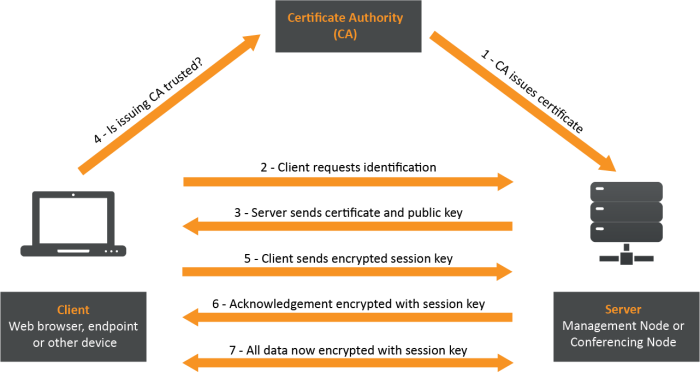
ref: https://docs.pexip.com/admin/certificate_management.htm

  1. CA는 서명 된 인증서를 발급하여 서버에 업로드합니다.
  2. 클라이언트가 서버와 통신을 위해서 서버에 식별 제공요청을 보냅니다.
  3. 서버는 클라이언트에게 TLS인증서와 서버의 public key를 보냅니다.
  4. 클라이언트는 CA를 통해서 해당 인증서가 신뢰할 수 있는지 확인합니다.
  5. 해당 인증서가 신뢰할 수 있는 인증서라면 클라이언트는 session key를 생성하고 해당 session key를 서버의 public key로 암호화하여 서버에 전송합니다.
  6. 서버는 해당 암호를 서버의 private key로 복호화하여 session key를 획득합니다.
  7. 이 후 모든 data는 해당 session key로 암호화하여 송수신합니다.


인증서 발급 절차

'네트워크' 카테고리의 다른 글

Network 기본  (0) 2020.06.23

1. 4개의 자동화 tool 비교

  Puppet Chef Salt Ansible
개발사 Puppet Labs Opscode SaltStack AnsibleWorks
등장 2005년 8월 2009년 1월 2011 3월 2012년 3월
개발언어 Ruby Ruby(클라이언트)
Erlang(서버)
Python Python
도입고객 Google, ebay, Disney ... Facebook, Ancestry.com ... Linkedin, HP Cloud ... Evernotes,Rackspace ...
정보량
사용률
코드베이스
Puppet Forge

Chef Supermarket

Salt-Formula(GIT 베이스)

Ansible Galaxy
Web UI
Puppet Enterprise

Chef Manage

SaltStack Enterprise

Ansible Tower
정의파일 독자 DSL
내장 Ruby
독자 DSL
(Ruby베이스)
YAML
독자 DSL(Python 베이스)
YAML
agent 설치 필요 필요 필요 or 불필요(선택) 불필요
간편도
(학습, 저 운용코스트)


2. Ansible core 설치

  • 설치 OS: ubuntu-18.04.2

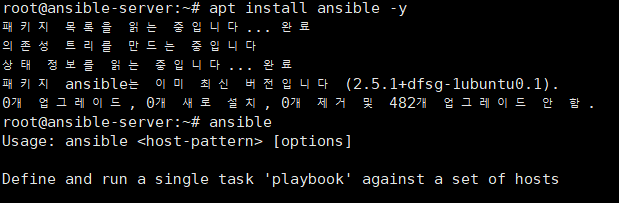
  • # apt install ansible -y
  • # ansible

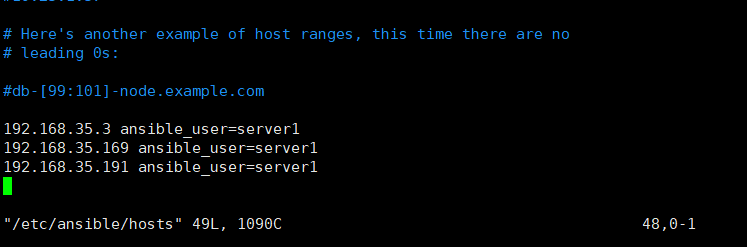
  • /etc/ansible/hosts 파일에 접근하고자하는 host의 ip를 등록
    • ansible_user를 각 node의 username을 입력

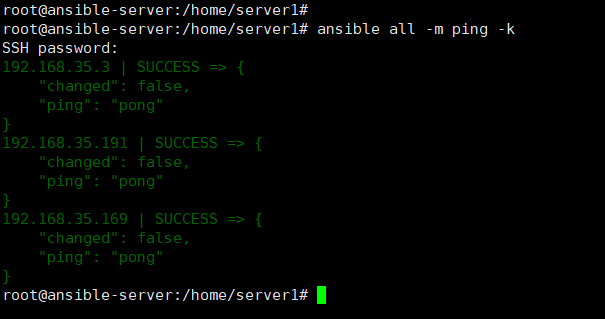
  • * 각 node에 ansible이 python모듈을 사용하기 때문에 각 node에 python이 설치되어 있어야 ping 체크가 정상적으로 이루어진다

  • # ansible all -m ping --list-hosts
    • 영향받는 host의 리스트 출력


3. ansible 테스트 (No PlayBook)

1. uptime 확인

  • # ansible all -m shell -a "uptime" -

2. 디스크 용량 확인

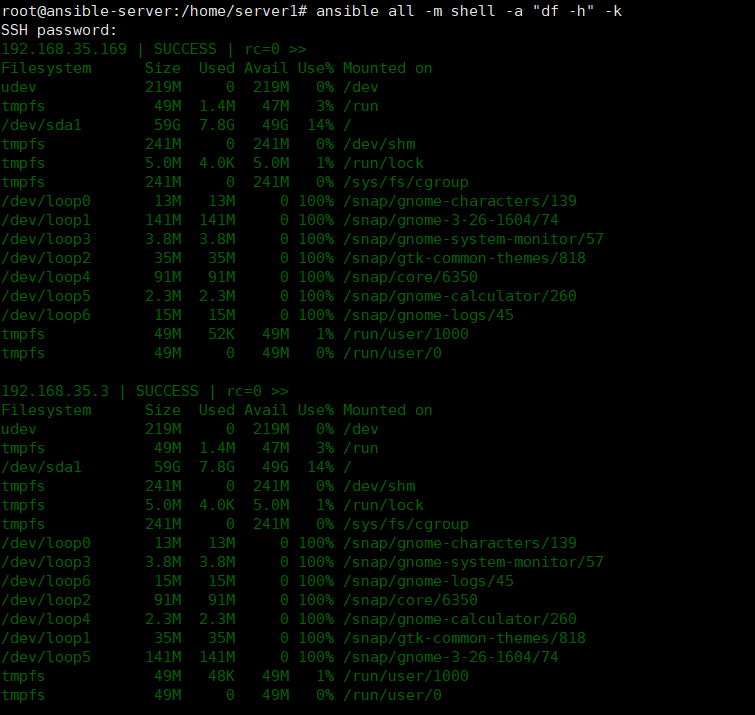
  • # ansible all -m shell -a "df -h" -k

3. 메모리 상태 확인

  • # ansible all -m shell -a "free -h" -k

4. 새로운 유저 생성

  • # ansible all -m user -a "name=test1 password=1234"

5. 파일 전송하기

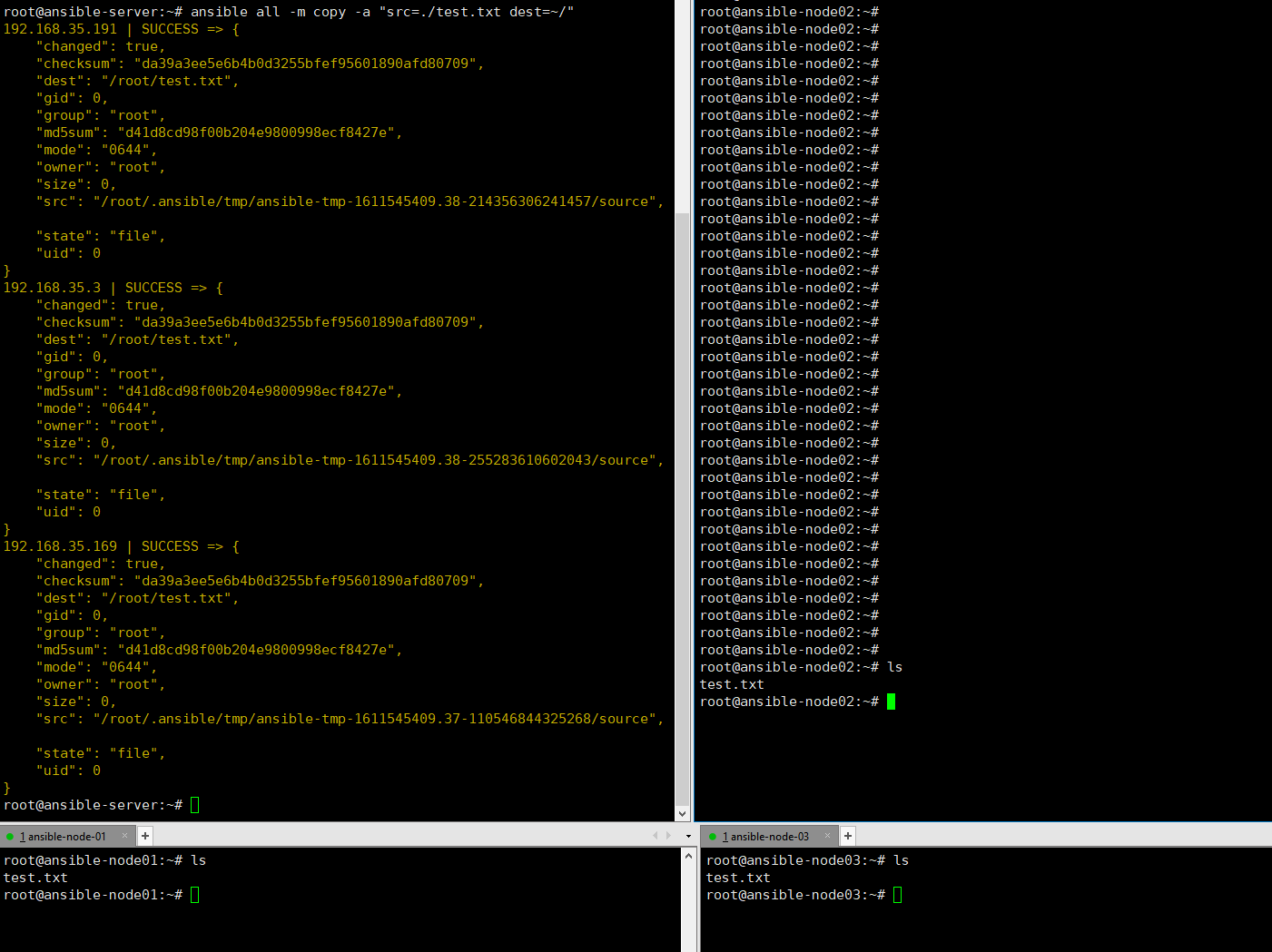
  • # ansible all -m copy -a "src=.test.txt dest=~/"

6. apache2 서비스 설치

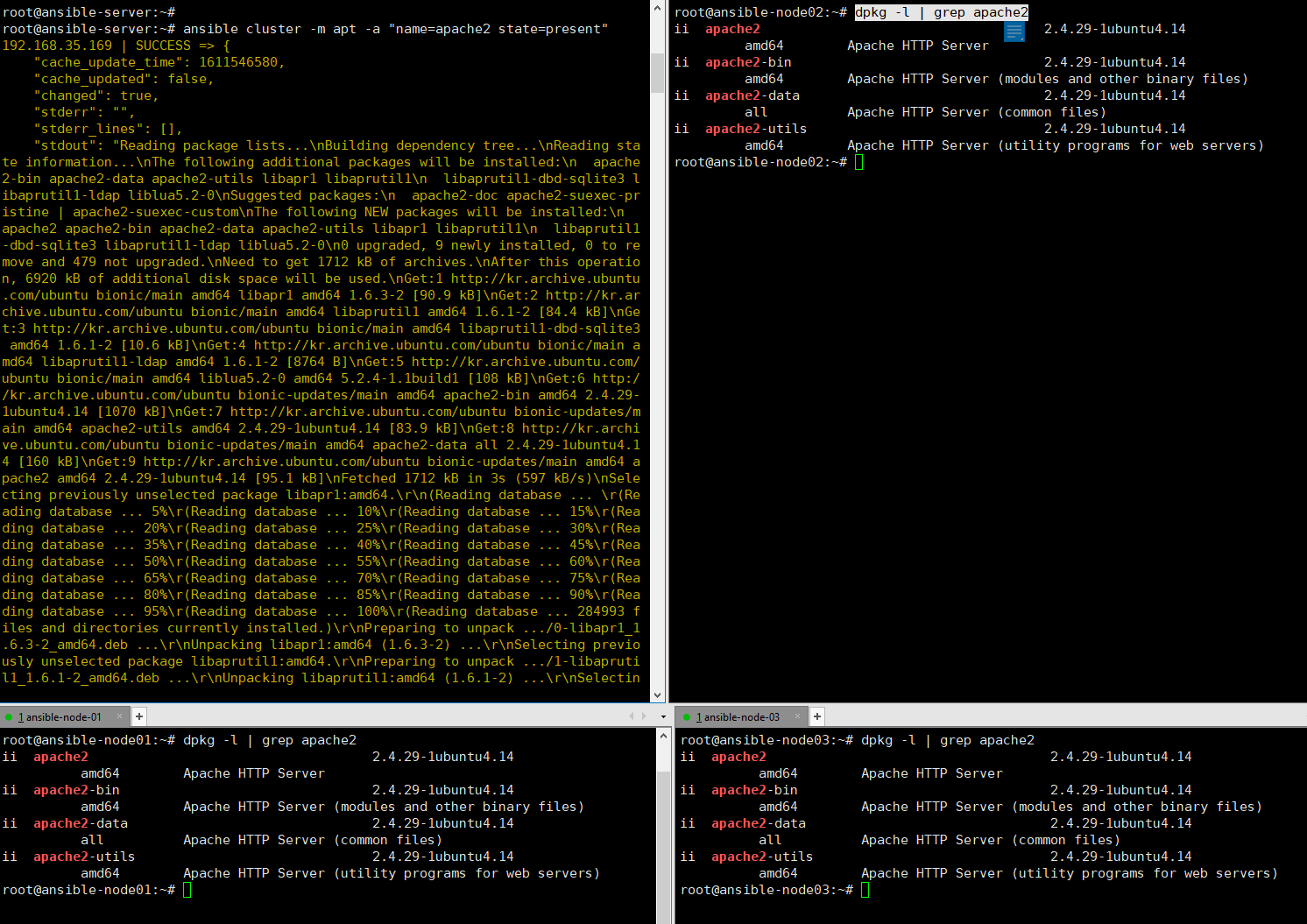
  • # ansible cluster -m apt -a "name=apache2 state=present"


4. ansible 테스트 (PlayBook)

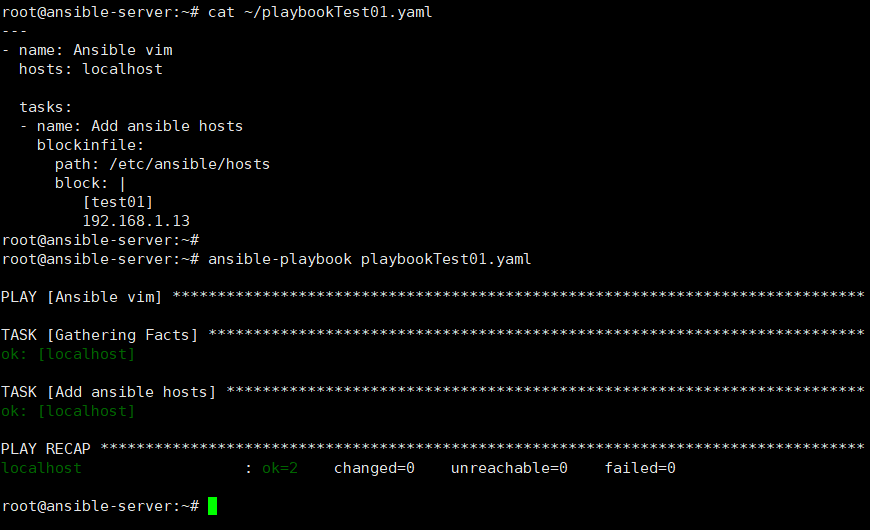
  • PlayBook
    • 각본,계획 -> 설치, 파일전송, 서비스시작등을 yaml파일을 통해서 일괄적으로 실행
    • 멱등성(여러번 연산을 적용하더라도 결과는 같음)

  • 동일한 ansible-playbook 명령을 반복하여 실행하여도 결과가 누적되지 않는것을 확인할 수 있다


  • nginx 설치 및 실행
    • # curl -o index.html https://www.nginx.com
      • nginx 메인페이지를 다운로드받아서 해당 페이지를 설치한 nginx의 index 페이지로 활용
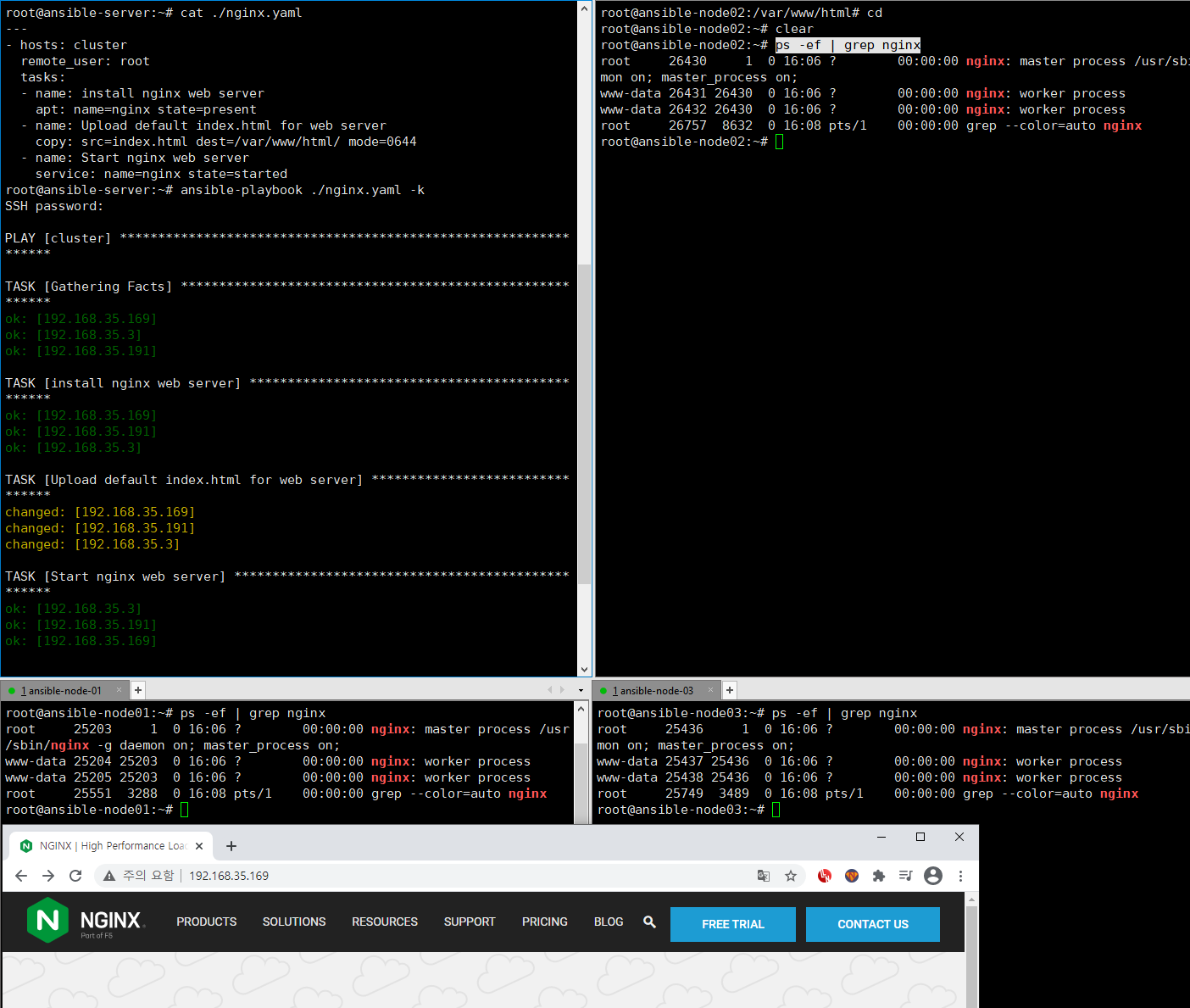
    • # ansible-playbook ./nginx.yaml -k


---

Tip

1. ubuntu에서 root 권한으로 node들을 관리하고자 하는 경우

  •   설치환경: ubuntu

  • /etc/ansible/hosts파일에 ansible_user 파라미터 없이 저장

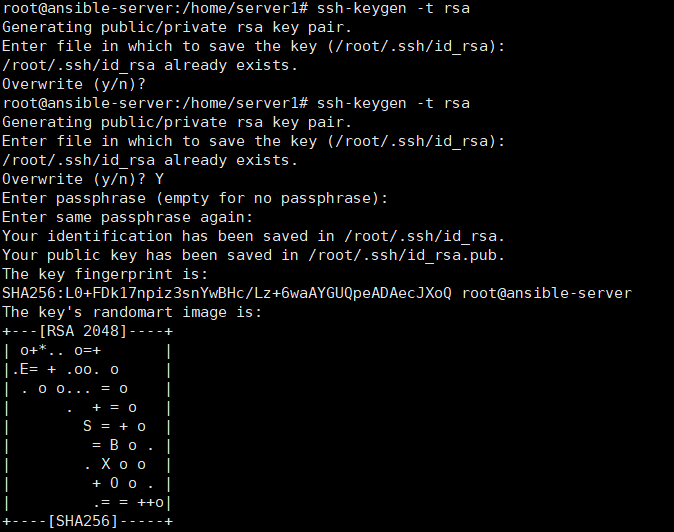
  • ansible control 노드에서 ssh-keygen 생성(선택사항)

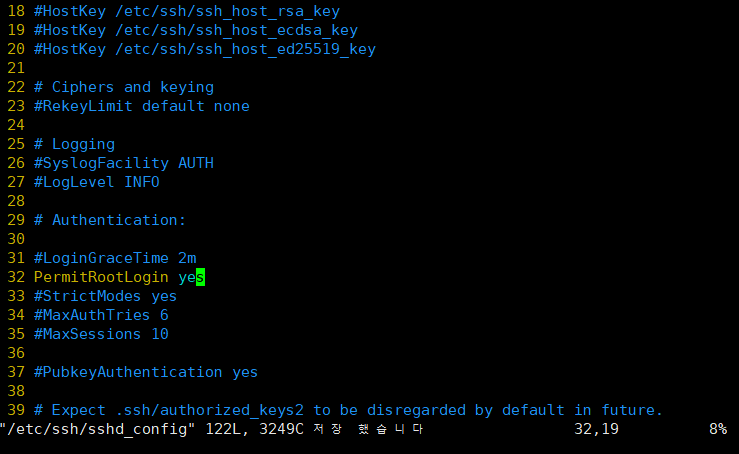
  • 각 node의 /etc/ssh/sshd_config파일을 수정하여 root로그인 permission을 변경(필수사항)

서비스 restart

  • # service ssh restart

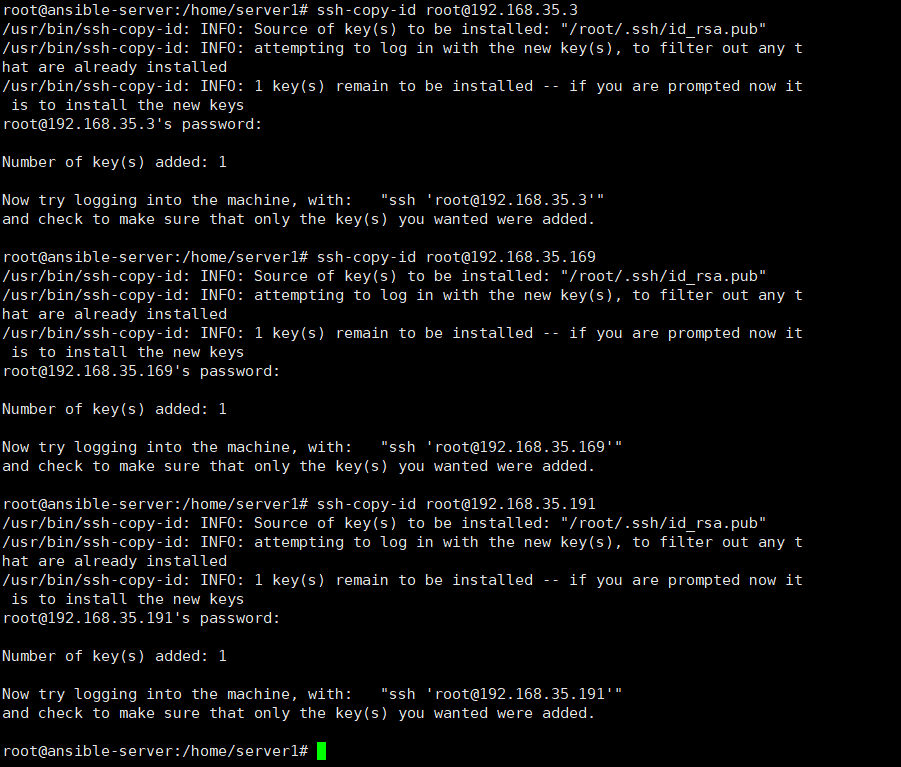
각 node에 ssh key 수동복사(선택)

  • # ssh-copy-id root@192.168.35.3

2. Vim-plug 설치 및 ansible-vim 설치

https://github.com/pearofducks/ansible-vim


pearofducks/ansible-vim

A vim plugin for syntax highlighting Ansible's common filetypes - pearofducks/ansible-vim

github.com

vimrc 파일에 위 사항 추가
git & vim 설치

  • # apt install git -y
  • # apt install vim -y

  • # vim
  • # PlugInstall


3. YAML 에러가독성 향상

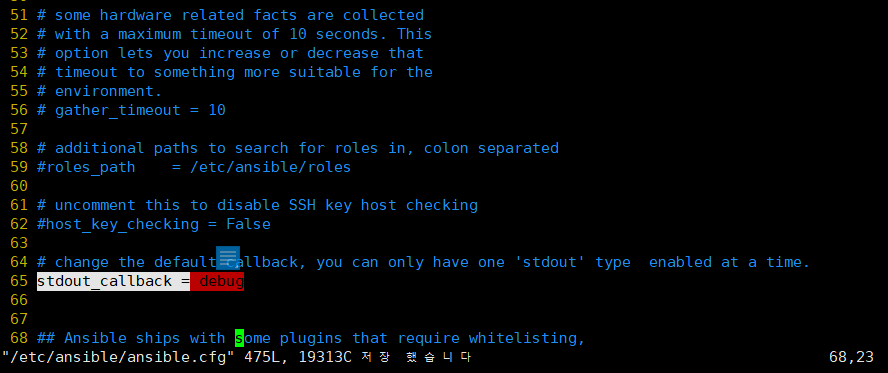
  • /etc/ansible/ansible.cfg 파일의 stdout_callback = debug 로 변경

git / github 설치 및 초기화


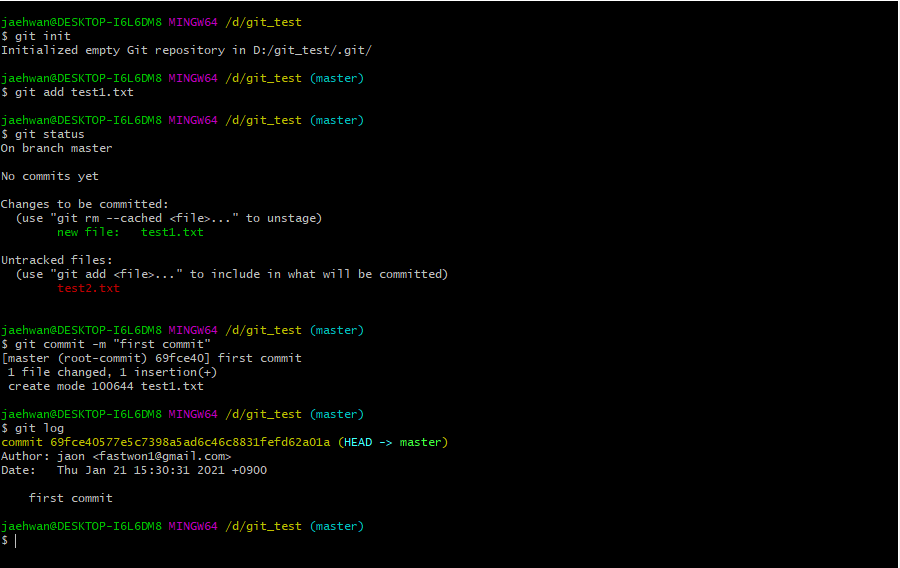
1. 로컬에 git 설치

출처: http://git-scm.com/book/en/v2/Getting-Started-What-is-Git%3F


2. 초기화


  1. git bash 실행(window)

2. git을 설치한 후 local저장소로 사용할 디렉토리를 만들어서 Git Bash Here를 클릭

  • # git init
    • 로컬저장소의 초기화 명령
    • 현재 디렉토리를 버전관리하기 위함
  •  

'기타 > git' 카테고리의 다른 글

git tag  (0) 2021.07.23
git stash  (0) 2021.07.16
gistory .git 디렉토리 분석  (0) 2021.07.11
git / github  (0) 2021.07.11
git 기본 명렁어  (0) 2021.07.11

Docker host란?

  • Docker daemon이 동작하는 시스템


Container 기술란?

  • 호스트OS상에서 리소스를 분리시키고 논리적으로 격리시켜 마치 별도서버처럼 동작할 수 있게 만드는 기술


Container 이란?

  • Docker host에서 구동하는 isolation된 프로세스


Container를 가능하게 하는 Linx kernel 기능

  1. chroot(change Loot Directory)
    • 프로세스가 기본으로 인식하는 리눅스 최상위 root directory(/)를 다른 위치로 변경하여 특정프로세스가 상위 directory에 접근하지 못하도록 격리  
  2. namespace
    • 프로세스를 격리시킬 수 있는 기능(데이터에 이름을 붙혀 충돌을 방지)
      • 1. PID
        • 프로세스에 할당된 고유한 ID를 기반
      • Net
        • 네트워크 리소스를 기반
      • UID
        • UID,GID를 기반
      • MNT
        • 파일시스템 mount point 기반
      • UTS
        • 호스트 name이나 도메인명 긴반
      • IPC
        • 프로세스간 통신 object를  namespace별로 관리
  3. cgroup
    • 프로세스들의 자원(CPU,Disk,memory,network등)의 상태를 제한하고 격리시키는 기능


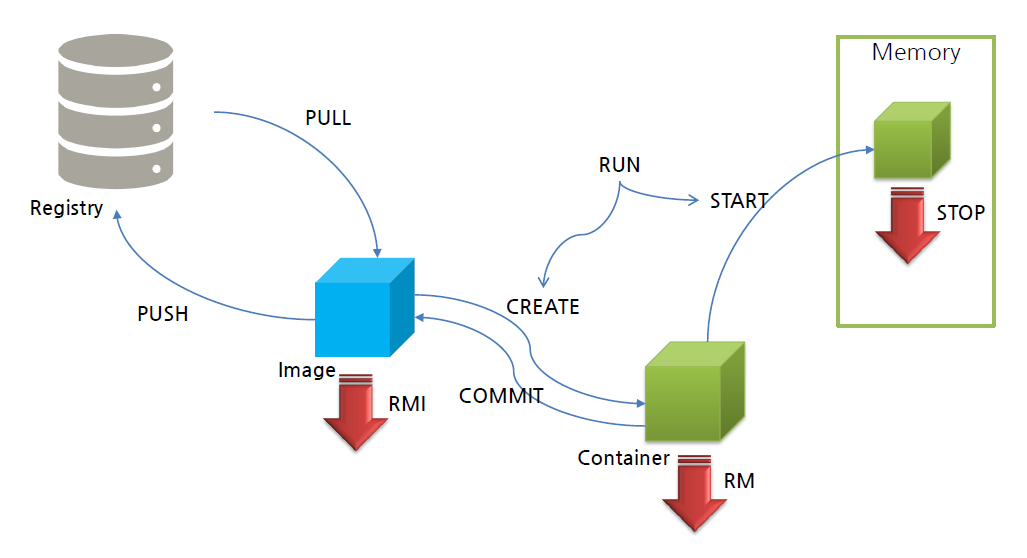
도커 라이프사이클

도커 라이프사이클

'클라우드 > Docker' 카테고리의 다른 글

Docker resource 관리  (0) 2021.08.14
Docker registry  (0) 2021.08.11
Docker image 생성 및 테스트  (0) 2021.08.11
Docker 명령어 테스트  (0) 2021.08.11
Docker 설치  (0) 2020.12.27
 

Docker Documentation


docs.docker.com


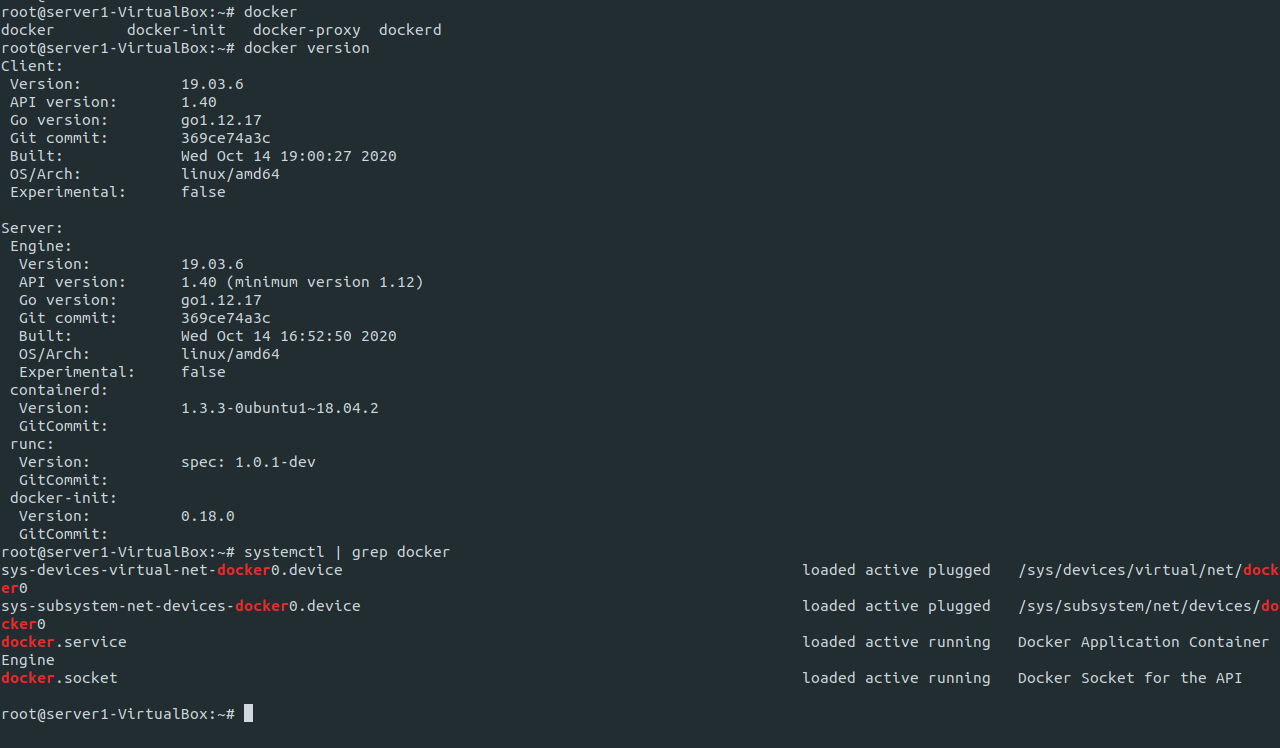
  • 설치환경: virtualbox ubuntu 18.04

  • # sudo apt-get update
  • # sudo apt install docker.io -y
  • # usermod -a -G docker [fastwon1]
    • 계정에 Docker 관리자 권한부여

'클라우드 > Docker' 카테고리의 다른 글

Docker resource 관리  (0) 2021.08.14
Docker registry  (0) 2021.08.11
Docker image 생성 및 테스트  (0) 2021.08.11
Docker 명령어 테스트  (0) 2021.08.11
Docker?  (0) 2020.12.27

Logstash 설치

  • java 설치확인
  • wget https://artifacts.elastic.co/downloads/logstash/logstash-7.10.1-amd64.deb
  • sudo dpkg -i logstash-7.10.1-amd64.deb
input { 
        stdin { } 
} 
output { 
        stdout { } 
}

logstash-simple.conf (간단한 테스트를 위한 파일작성)

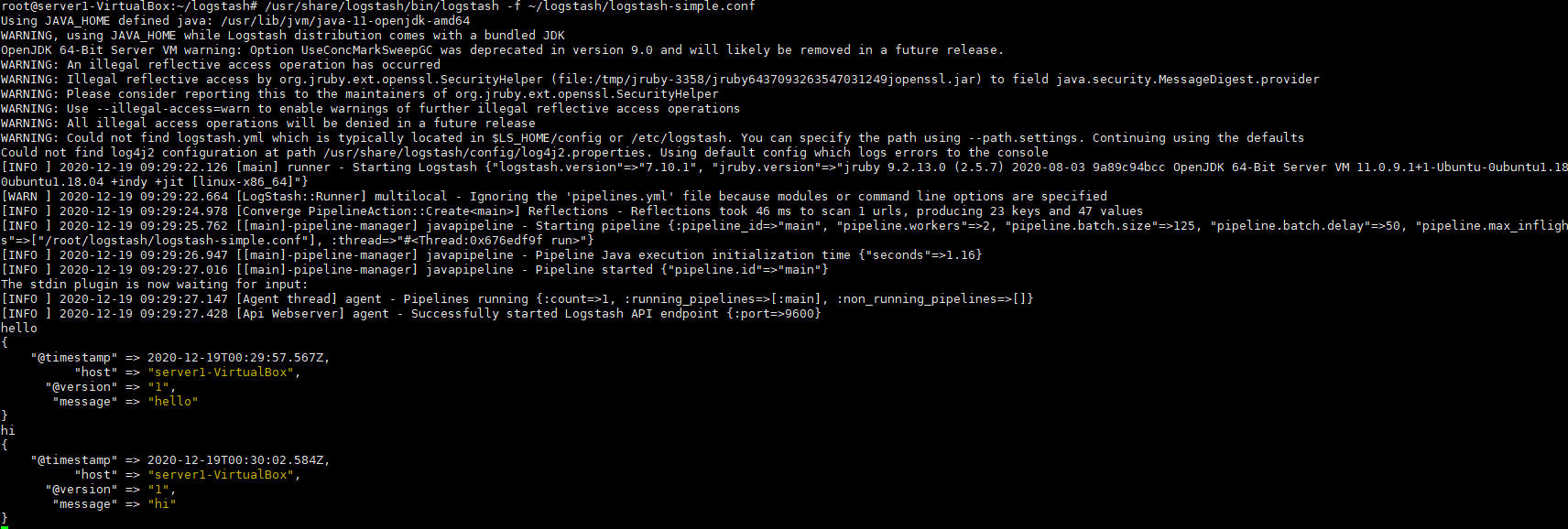
  •  실행
    • /usr/share/logstash/bin/logstash -f ~/logstash/logstash-simple.conf

logstash실행


fileBeat 설치(www.elastic.co/guide/en/beats/filebeat/current/filebeat-installation-configuration.html)

  • curl -L -O https://artifacts.elastic.co/downloads/beats/filebeat/filebeat-7.10.1-amd64.deb
  • sudo dpkg -i filebeat-7.10.1-amd64.deb
  • /usr/share/filebeat/ 위치에 설치 확인


curator 설치

  • apt install python-pip
  • pip install elasticsearch-curator

curator 설치확인


--- 
# Remember, leave a key empty if there is no value.  None will be a string, 
# not a Python "NoneType" 
client: 
  hosts: 
    - 127.0.0.1 
  port: 9200 
  url_prefix: 
  use_ssl: False 
  certificate: 
  client_cert: 
  client_key: 
  ssl_no_validate: False 
  http_auth: 
  timeout: 30 
  master_only: False 

logging: 
  loglevel: INFO 
  logfile: 
  logformat: default 
  blacklist: ['elasticsearch', 'urllib3']

curator-config.yml

--- 
actions: 
  1: 
    action: delete_indices 
    description: >- 
      Delete indices older than 30 days (based on index name), for tomcat- 
      prefixed indices. Ignore the error if the filter does not result in an 
      actionable list of indices (ignore_empty_list) and exit cleanly. 
    options: 
      ignore_empty_list: True 
      timeout_override: 
      continue_if_exception: False 
      disable_action: False 
    filters: 
    - filtertype: pattern 
      kind: prefix 
      value: tomcat- 
      exclude: 
    - filtertype: age 
      source: name 
      direction: older 
      timestring: '%Y.%m.%d' 
      unit: days 
      unit_count: 30 
      exclude: 

delete.yml

  •  명령어
    • /usr/local/bin/curator --config curator-config.yml --dry-run delete.yml
    • cron 등록 및 스케쥴링 job 생성


'기타 > ELK' 카테고리의 다른 글

Kibana  (0) 2020.12.18
ElasticSearch  (0) 2020.12.18

Kibana 설치(www.elastic.co/guide/en/kibana/7.10/deb.html#deb-repo)

  • wget https://artifacts.elastic.co/downloads/kibana/kibana-7.10.1-amd64.deb
  • dpkg -i kibana-7.10.1-amd64.deb
  • /etc/kibana/kibana.yml 파일 수정
  • elasticsearch와 kibana 연동

line 7 line 28 주석해제 및 변경

  • sudo systemctl start kibana.service
  • systemctl enable kibana.service
    • 부팅시 자동실행
  • troubleshooting
    • firewall-cmd --permanent --zone=public --add-port=5601/tcp  //filewall 설정
    • firewall-cmd --reload 
    • firewall-cmd --list-ports
    • virtualbox나 vmware를 사용할 경우 http://localhost:5601로 접속이 안될 수 있다. 
      • ifconfig로 서버 IP확인
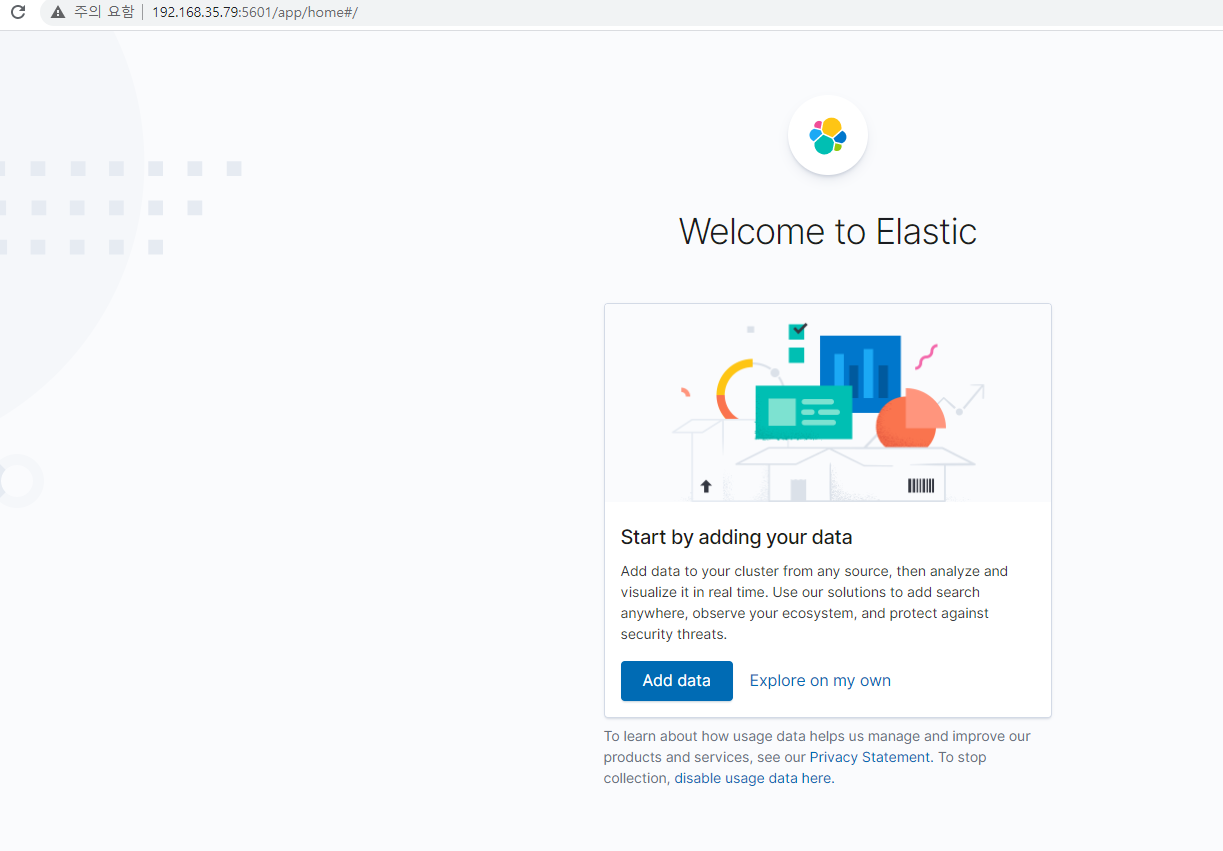
        • http://{서버IP}:5601 로 접속

'기타 > ELK' 카테고리의 다른 글

Logstash  (0) 2020.12.19
ElasticSearch  (0) 2020.12.18

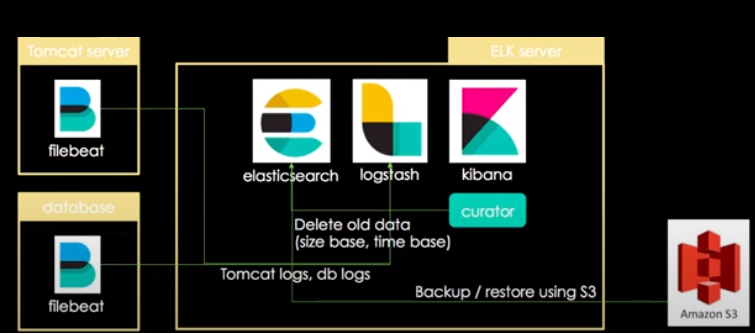
ELK stack
ELK 구성 예시

ElasticSearch 설치

    • ELK는 JVM위에서 구동
    • 설치환경에 JDK가 설치되어 있어야 한다.
      • apt-get install openjdk-11-jre
      • apt-get install openjdk-11-jdk

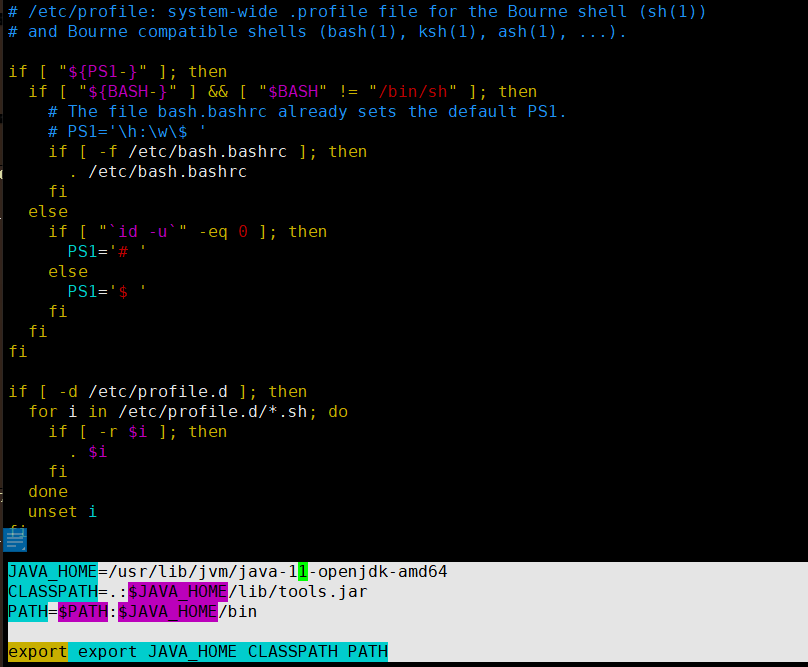
Java 환경번수 설정(블록된 내용을 /etc/profile 파일에 추가한다.

  • wget https://artifacts.elastic.co/downloads/elasticsearch/elasticsearch-7.10.1-amd64.deb
  • dpkg -i elasticsearch-7.10.1-amd64.deb
  • Elasticsearch 실행
  • # systemctl enable elasticsearch.service (서비스활성화- 부팅시 자동 구동)
  • # service elasticsearch start

systemctl enable name.service

service --status-all grep elasticsearch
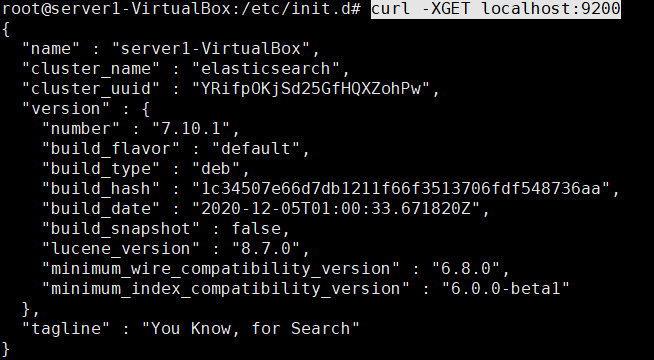
curl -XGET localhost:9200
elasticsearch와 RDB와의 저장방식 비교
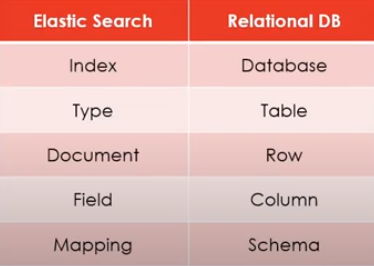
elasticsearch와 RDB 용어비교
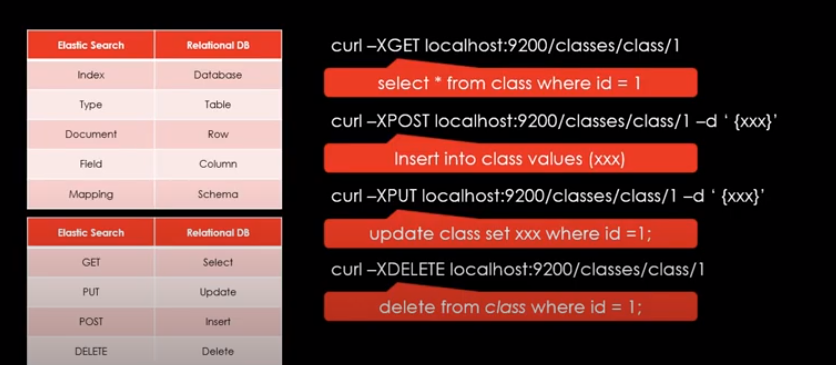
elasticsearch(REST API)와 RDB 명령어

PUT vs POST(idempotent)

idempotent = 실행을 여러번 반복해도 같은 결과를 보장받을 수 있는 특성을 말함.

  • PUT(idempotent O)
    • 리소스의 생성과 수정
    • 요청시마다 같은 리소스를 반환
    • PUT /<index>/<type>/<id>
  • POST(idempotent X)
    • 리소스 생성 역할
    • 요청시마다 새로운 리소스 생성
    • POST /<index>/<type>


elasticsearch(REST API)와 RDB 명령어 비교
elasticsearch 검색

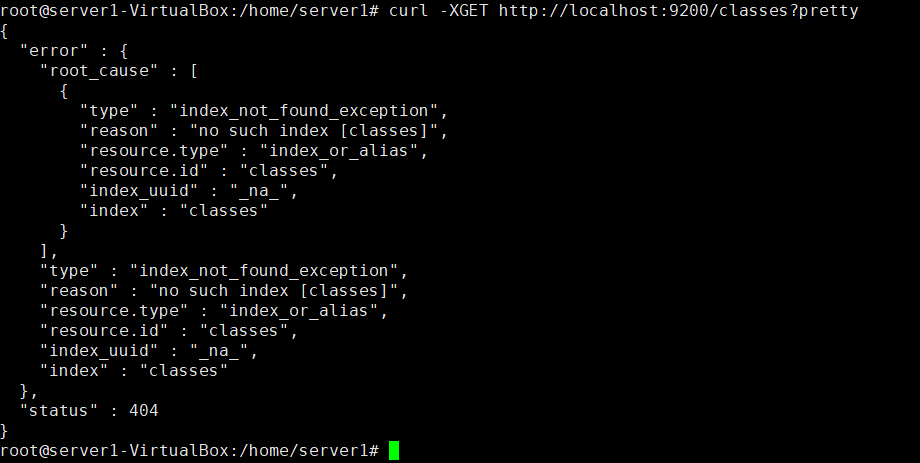
  • curl -XGET http://localhost:9200/classes?pretty

index(Database) 생성

  • curl -XPUT http://localhost:9200/classes

index(Database) 삭제

  • curl -XDELETE http://localhost:9200/classes

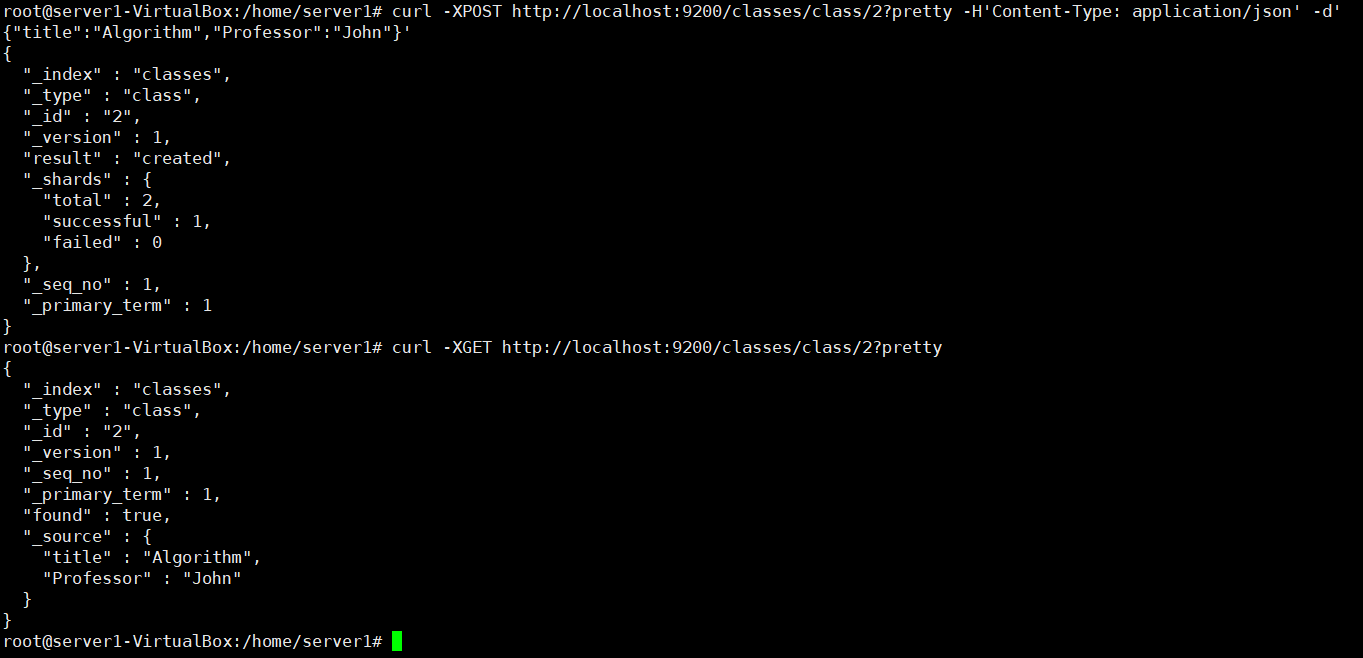
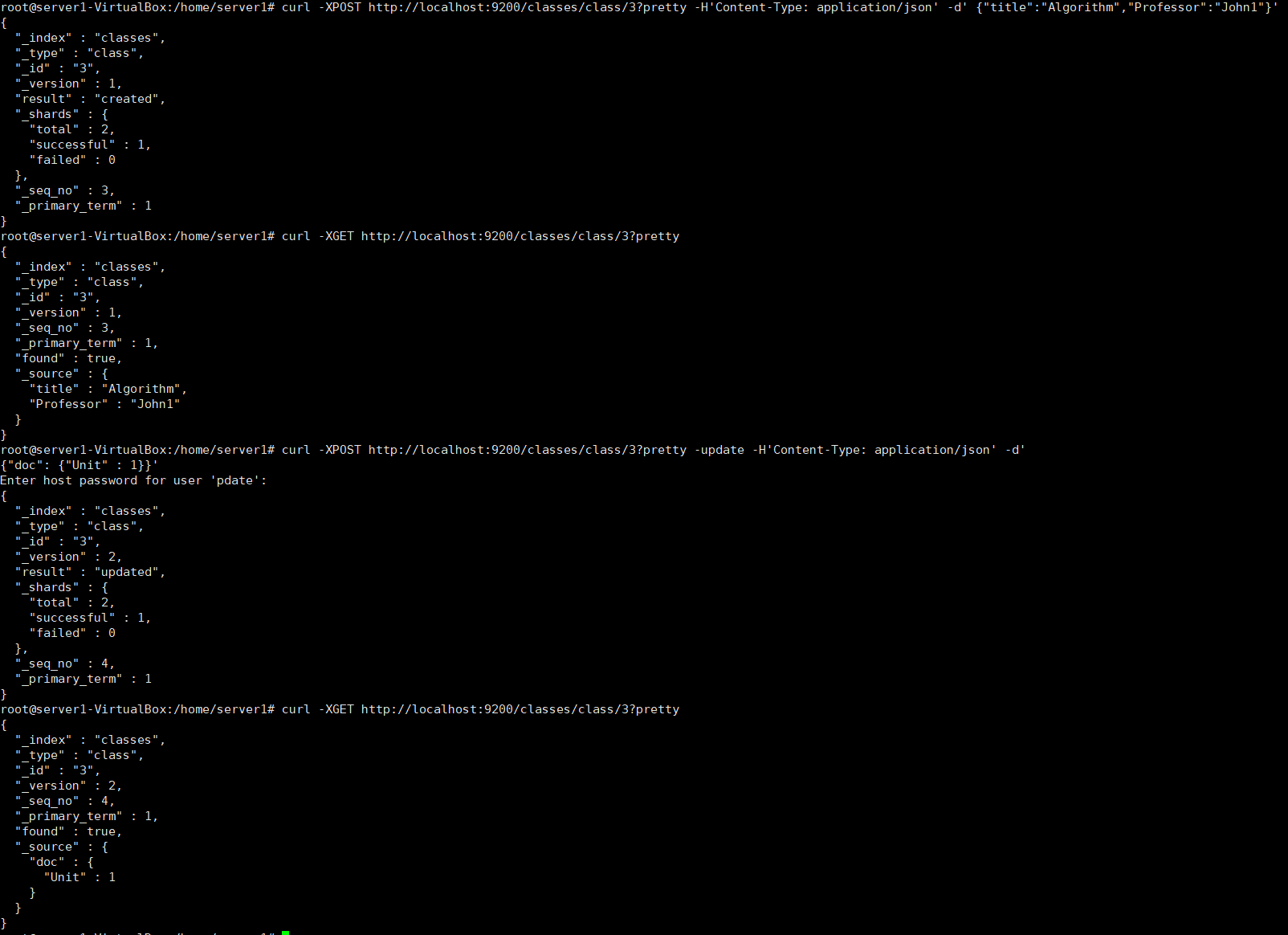
Data 삽입

  • curl -XPOST http://localhost:9200/classes/class/2?pretty -H'Content-Type: application/json' -d' {"title":"Algorithm","Professor":"John"}'

Json파일 삽입

  • curl -XPOST http://localhost:9200/classes/class/4?pretty -H'Content-Type: application/json' -d @./test.json

column 추가

  • curl -XPOST http://localhost:9200/classes/class/3?pretty -update -H'Content-Type: application/json' -d' {"doc": {"Unit" : 1}}'

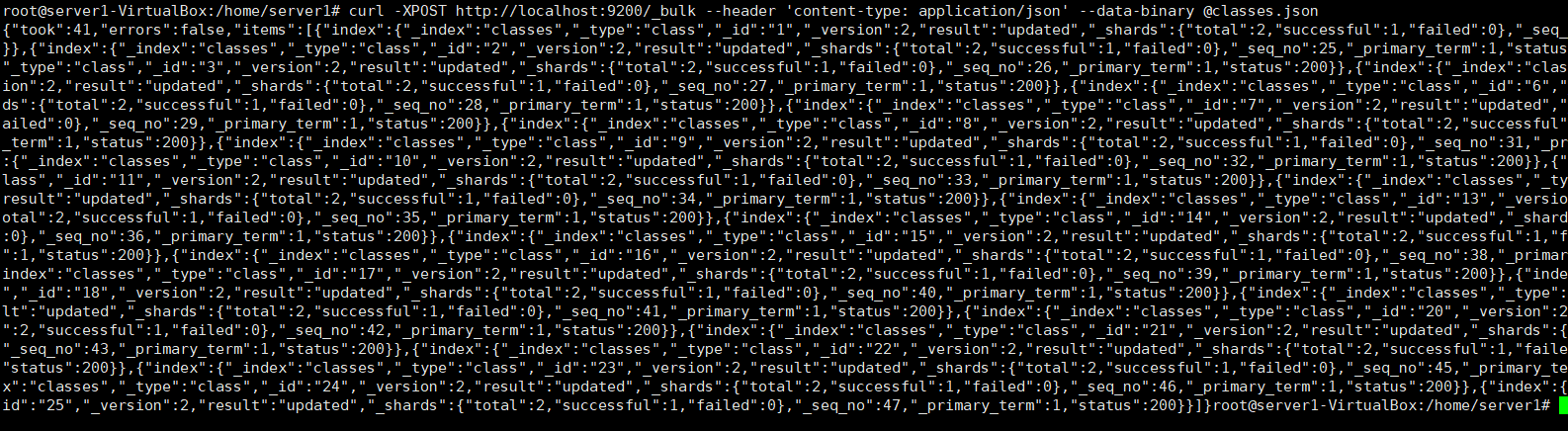
Bulk post

  • curl -XPOST http://localhost:9200/_bulk --header 'content-type: application/json' --data-binary @classes.json


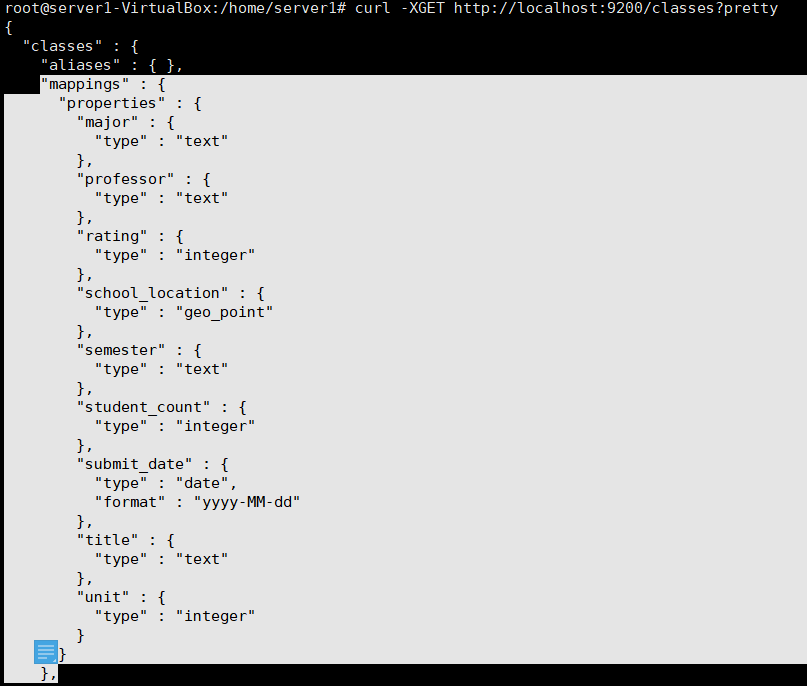
매핑테스트

매핑 테스트(빈 mappings)
매핑에 사용될 json파일
매핑추가

  • curl -XPUT localhost:9200/classes/class/_mapping?include_type_name=true -d @classesRating_mapping.json  -H 'Content-Type: application/json'

검색

  • curl -XGET localhost:9200/basketball/record/_search?pretty

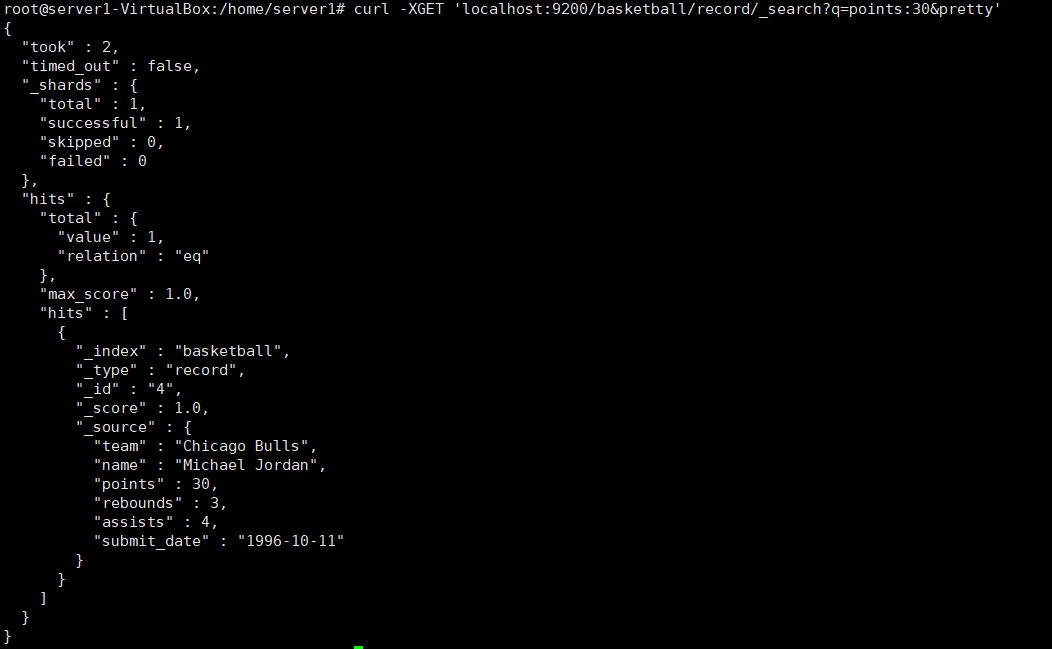
조건부 검색(points가 30인 Document만 출력)

  • curl -XGET 'localhost:9200/basketball/record/_search?q=points:30&pretty'
  • curl -XGET localhost:9200/basketball/record/_search?pretty --header 'content-type:application/json' -d ' 

"query":{
"term":{"points":30}
}
}'

메트릭 어그리게이션

  • curl -XGET localhost:9200/_search?pretty --data-binary @avg_points_aggs.json  --header 'content-type:application/json'
    • "points" : 20과  "points" : 30의 평균값 출력
  • curl -XGET localhost:9200/_search?pretty --data-binary @max_points_aggs.json  --header 'content-type:application/json'
    • max값 출력가능
  • curl -XGET localhost:9200/_search?pretty --data-binary @min_points_aggs.json  --header 'content-type:application/json'
    • min값 출력
  • curl -XGET localhost:9200/_search?pretty --data-binary @sum_points_aggs.json  --header 'content-type:application/json'

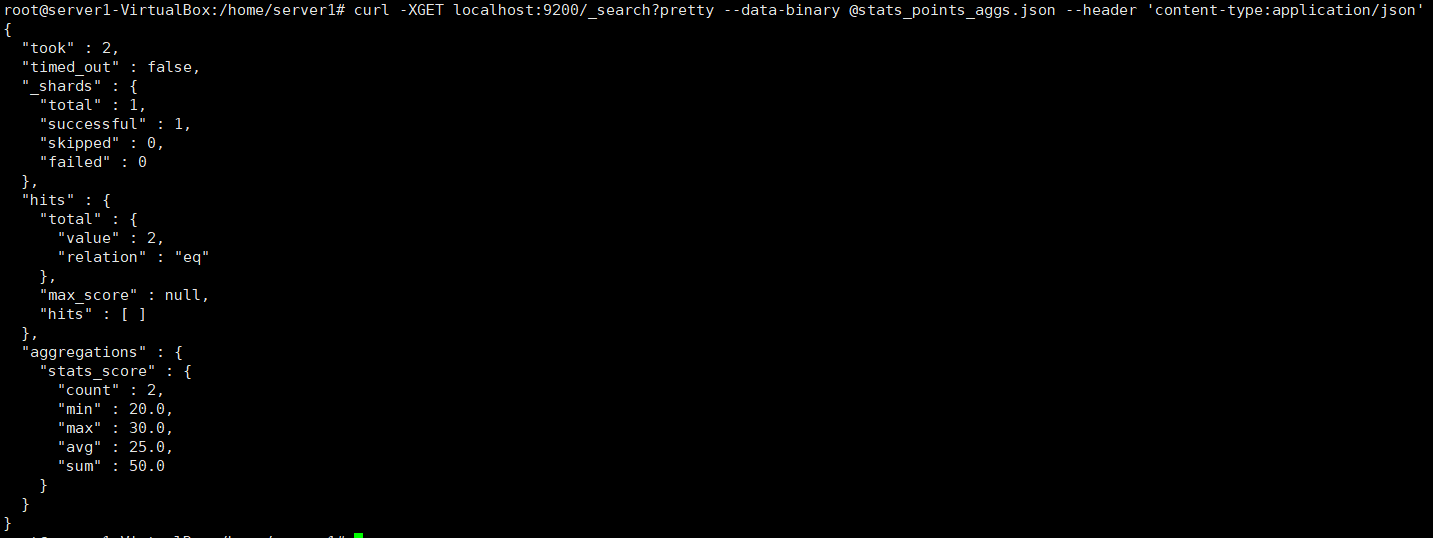
stats

  • curl -XGET localhost:9200/_search?pretty --data-binary @stats_points_aggs.json  --header 'content-type:application/json'

버켓 어그리게이션

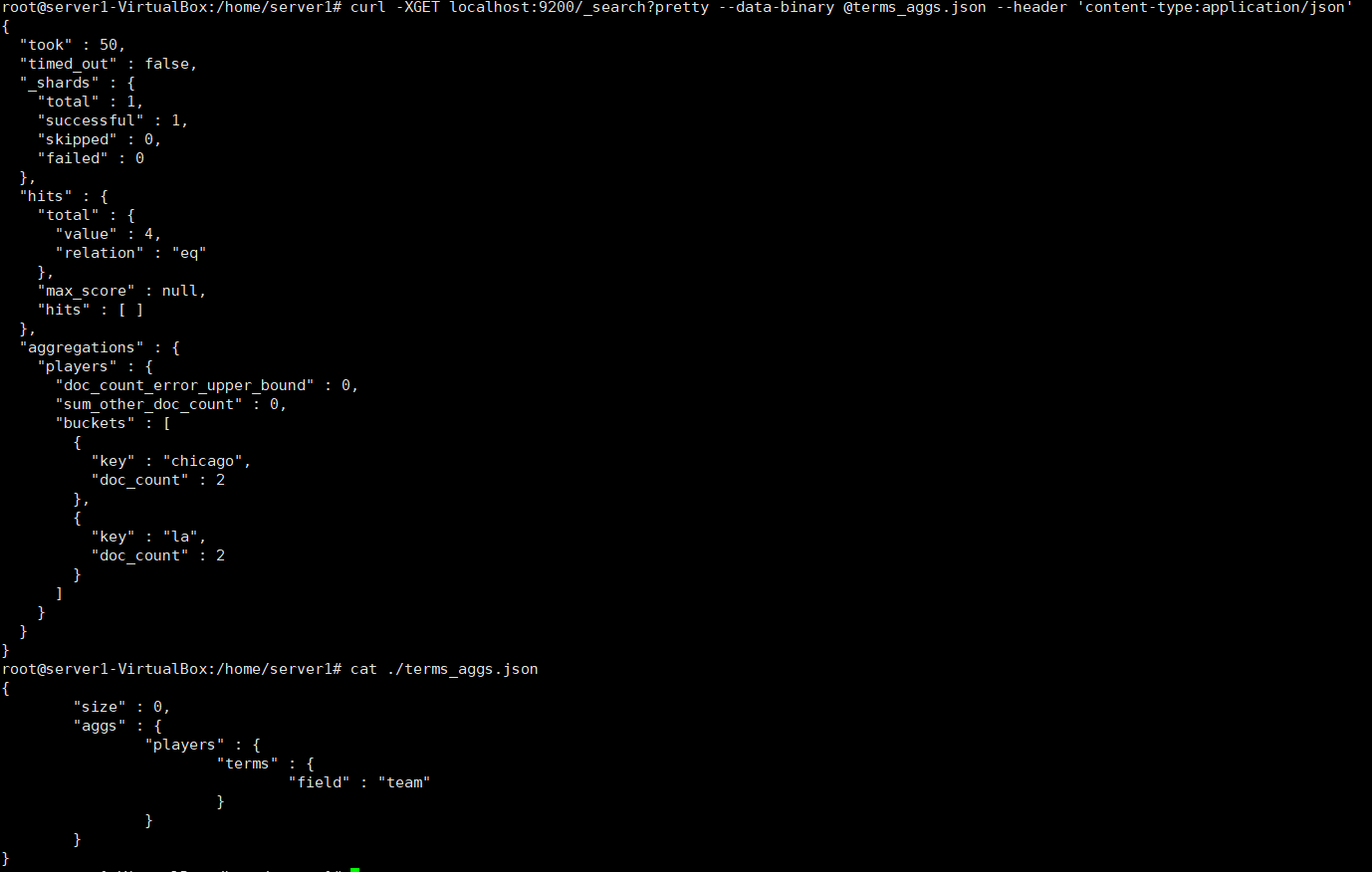
  • curl -XGET localhost:9200/_search?pretty --data-binary @terms_aggs.json --header 'content-type:application/json'
    • LA와 cicago를 group하여 출력

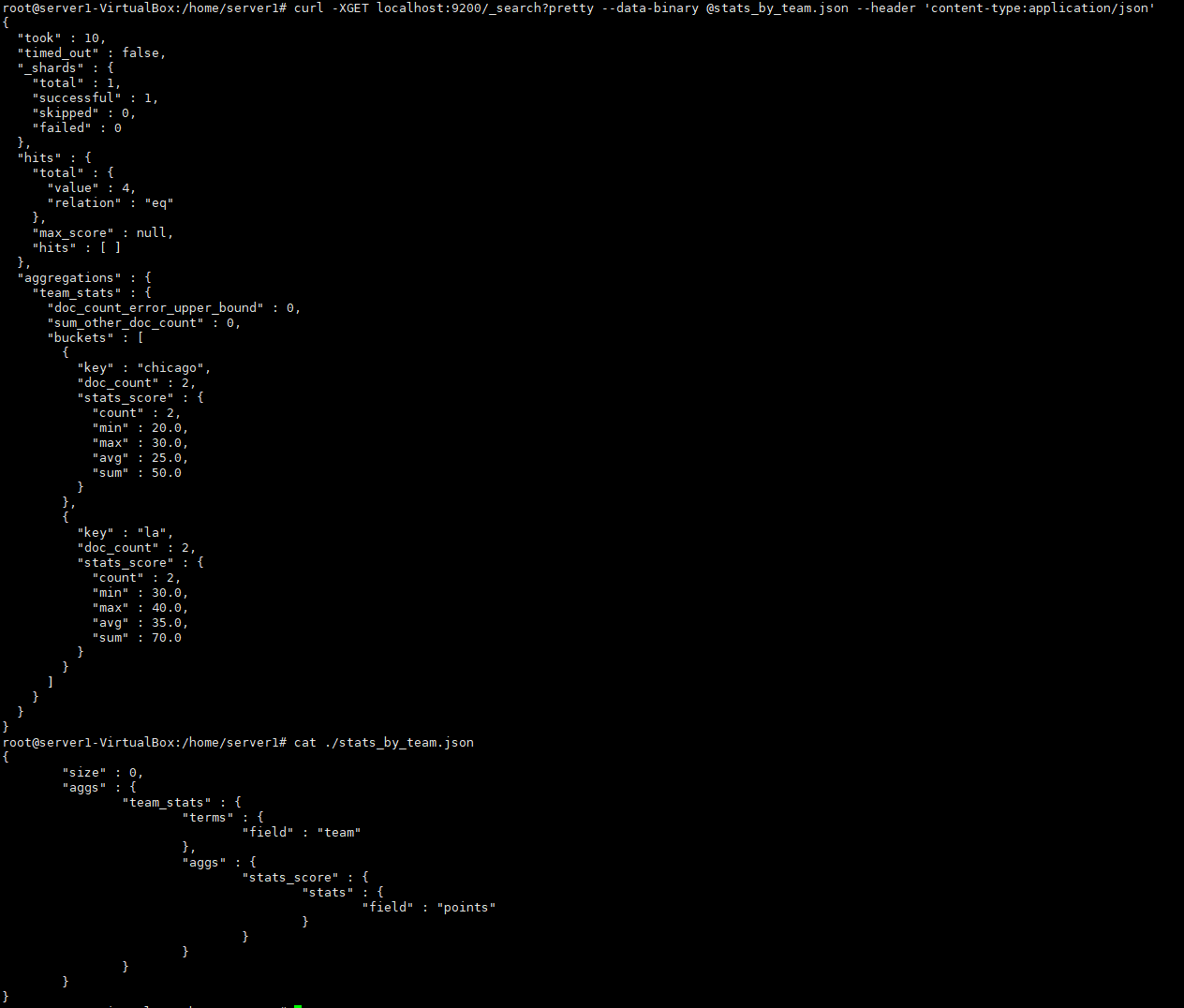
팀별로 document를 어그리게이션 후 팀별 stats 정보 출력

  • curl -XGET localhost:9200/_search?pretty --data-binary @stats_by_team.json --header 'content-type:application/json'

'기타 > ELK' 카테고리의 다른 글

Logstash  (0) 2020.12.19
Kibana  (0) 2020.12.18

Pure zmq4 based on golang 오픈소스를 활용하여 PUB/SUB을 테스트

  • Publish golang 소스코드 작성
  • Subscription golang 소스코드 작성
  • 테스트

ZeroMq 오픈소스 URL


go-zeromq/zmq4

[WIP] Pure-Go implementation of ZeroMQ-4. Contribute to go-zeromq/zmq4 development by creating an account on GitHub.

github.com

download go command

  • go get github.com/go-zeromq/zmq4
package main
import (
        "context"
        "log"
        "time"
        "github.com/go-zeromq/zmq4"
)

func main() {
        log.SetPrefix("psenvpub: ")
        // prepare the publisher
        pub := zmq4.NewPub(context.Background())
        defer pub.Close()

        err := pub.Listen("tcp://*:5563")
        if err != nil {
                log.Fatalf("could not listen: %v", err)
        }

        msgA := zmq4.NewMsgFrom(
                []byte("test1"), //This message has named "test1" key
                []byte("My key is test1"),
        )
        msgB := zmq4.NewMsgFrom(
                []byte("test2"), //This message has named "test2" key
                []byte("my key is test2"),
        )
        for {
                err = pub.Send(msgA)
                if err != nil {
                        log.Fatal(err)
                }
                err = pub.Send(msgB)
                if err != nil {
                        log.Fatal(err)
                }
                time.Sleep(time.Second)
        }
}

publish 테스트코드

package main
import (
        "context"
        "log"
        "github.com/go-zeromq/zmq4"
)

func main() {
        log.SetPrefix("psenvsub: ")
        //  Prepare our subscriber
        sub := zmq4.NewSub(context.Background())
        defer sub.Close()
        err := sub.Dial("tcp://localhost:5563")
        if err != nil {
                log.Fatalf("could not dial: %v", err)
        }
        err = sub.SetOption(zmq4.OptionSubscribe, "test1") //Received only named "test1" key.
        if err != nil {
                log.Fatalf("could not subscribe: %v", err)
        }
        for {
                // Read envelope
                msg, err := sub.Recv()
                if err != nil {
                        log.Fatalf("could not receive message: %v", err)
                }
                log.Printf("[%s] %s\n", msg.Frames[0], msg.Frames[1])
        }
}

Subscription 테스트코드


테스트코드의 메시지 송수신 확인

'언어 > Golang' 카테고리의 다른 글

Go 오픈소스를 이용하여 C코드에서 활용 할 수 있는 Library 테스트  (0) 2020.11.23
Golang  (0) 2017.05.22

ZeroMQ Go 오픈소스를 활용하여 C코드에서 사용 할 수 있는 Library 테스트


(ZeroMQ callback function)

  • Make a library for using at C code.
  • Make a C code.
  • Build by linking a library to C code.

ZeroMq Opensource URL


go-zeromq/zmq4

[WIP] Pure-Go implementation of ZeroMQ-4. Contribute to go-zeromq/zmq4 development by creating an account on GitHub.

github.com

download go command

  • go get github.com/go-zeromq/zmq4
package main
/*
#include <stdio.h>
typedef int (*FuncPtr)(int, int);

static inline int Shoot(FuncPtr func,int a,int b)
{
        func(a,b);
}
*/
import "C"
import (
        "context"
        "github.com/go-zeromq/zmq4"
        "log"
)

//export Rcv
func Rcv(t C.FuncPtr) {   
        log.SetPrefix("psenvsub: ")
        sub := zmq4.NewSub(context.Background())
        defer sub.Close()
        err := sub.Dial("tcp://localhost:5563")
        if err != nil {
                log.Fatalf("could not dial: %v", err)
        }
        err = sub.SetOption(zmq4.OptionSubscribe, "test1") //Received only named "test1" key.
        if err != nil {
                log.Fatalf("could not subscribe: %v", err)
        }
        var a int =0
        var b int =0
        for {
                msg, err := sub.Recv()
                if err != nil {
                        log.Fatalf("could not receive message: %v", err)
                }
                log.Printf("[%s] %s\n", msg.Frames[0], msg.Frames[1])
                C.Shoot(t,C.int(a),C.int(b))

                a+=1
                b+=1
        }
}

func main() {} // 반드시 main function 작성.

library.go(수신용 라이브러리 Go파일)

go tool 명령어를 실행하여 라이브러리 빌드

  • command 실행-> go build -o library.so -buildmode=c-shared library.go
#include <stdio.h>
#include "library.h"

int plus (int first, int second)
{
    printf("first:%d second:%d!!!!!!!!!!!!!!!!!!!!!!!!!!!\n",first,second);
        return first + second;
}

int main()
{
        Rcv(plus);
        return 0;
}

rev.c(라이브러리 callback함수)

gcc를 이용하여 빌드

  • gcc -o rcv ./rcv.c ./library.so


'언어 > Golang' 카테고리의 다른 글

Pure zmq4 based on golang 오픈소스를 활용하여 PUB/SUB 테스트  (0) 2020.11.23
Golang  (0) 2017.05.22

json-c라이브러리를 설치 및 활용


json-c/json-c

https://github.com/json-c/json-c is the official code repository for json-c. See the wiki for release tarballs for download. API docs at http://json-c.github.io/json-c/ - json-c/json-c

github.com


json-c/json-c

https://github.com/json-c/json-c is the official code repository for json-c. See the wiki for release tarballs for download. API docs at http://json-c.github.io/json-c/ - json-c/json-c

github.com

  • 2. $ cd json-c
  • 3. $ sh autogen.sh
  • 4. $ ./configure
  • 5. $ make
  • 6. $ make install
  • 7. $ make check


json-c: json.h File Reference


json-c.github.io


1 CC  = gcc   
2 INC  = -I.   
3 LIBS = -ljson-c   
4 CFLAGS = -O2 -g -Wall ${INC}   
5   
6 json : json.o   
7     $(CC) $(CFLAGS) -o $@ $< $(LIBS)   
8   
9 clean :  
10     rm -f ./json  
11  
12 .SUFFIXES: .o  
13  
14 .c.o :  
15     $(CC) $(CFLAGS) -c $<

Makefile


#include<stdio.h>
#include<json.h>

int main(int argc,char **argv) {
json_object *myobj, *dataobj;
         // 메모리 할당
      myobj = json_object_new_object();
      dataobj = json_object_new_object();
      json_object_object_add(dataobj, "test1", json_object_new_int(1));
      json_object_object_add(dataobj, "test2", json_object_new_string("TEST2"));
      json_object_object_add(myobj, "testData", dataobj);
      printf("myobj.to_string()=%s\n", json_object_to_json_string(myobj));
      // 메모리 해제
      json_object_put(dataobj);
      json_object_put(myobj); 
return 0;
}

테스트코드

'기타 > etc' 카테고리의 다른 글

jansson 라이브러리  (0) 2020.06.19
mysql root password 설정방법  (0) 2020.06.12
윈도우10에서 환경변수 등록방법  (0) 2020.05.29

+ Recent posts